For a long time, Paperform, Papersign and Stepper each had their own home. Forms lived in spaces on paperform.co, documents lived in Papersign, and workflows lived on app.stepper.io. If you used all three for one client, that client's work was spread across three dashboards, and you were the one keeping them in step.
That's what we set out to fix. Starting today, forms, documents and workflows sit side by side in one dashboard, in the same workspaces and the same folders. It also has a completely new look.
Here's what's changed, and how to find your way around.
Spaces are now workspaces
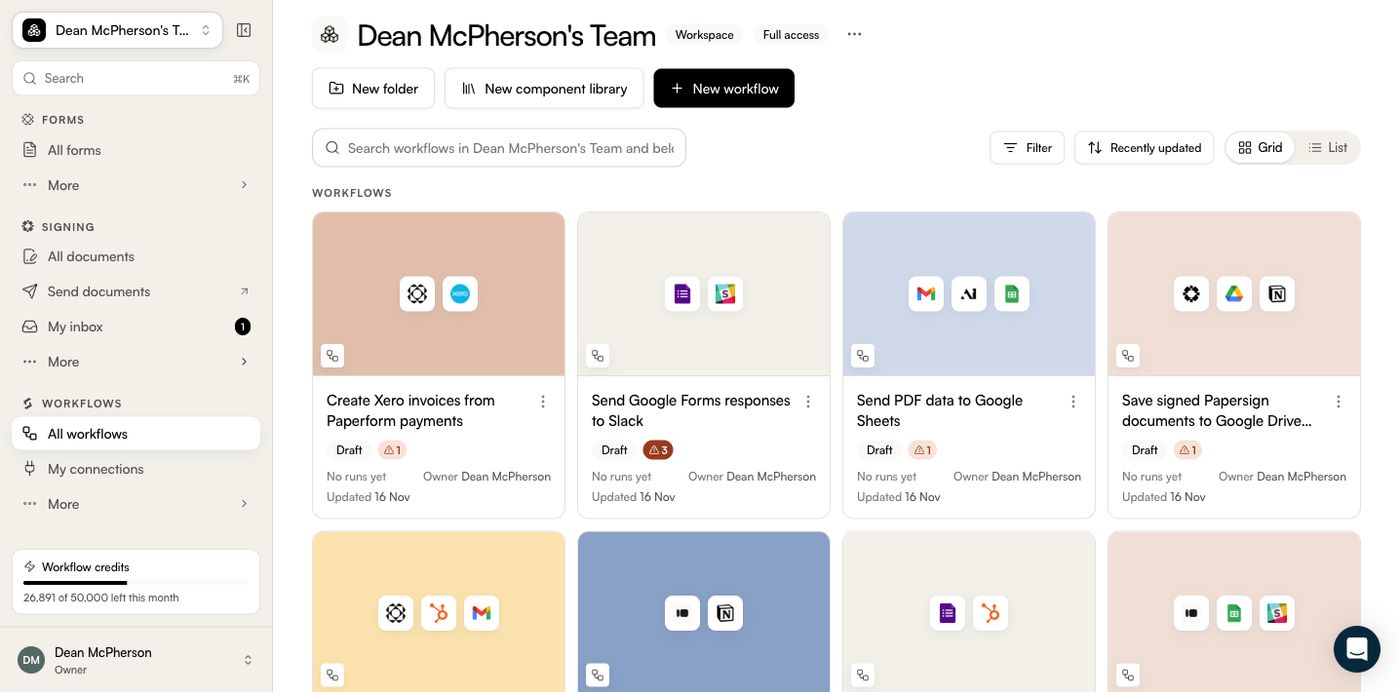
A workspace holds everything: forms, documents (templates included) and workflows. Each workspace has one folder tree shared by all three products, so a "Clients / Acme" folder can hold Acme's intake form, their contract and the workflow that connects the two.
The sidebar switches between the three kinds of work: Forms, Documents and Workflows. Switching keeps you in the same folder, so going from Acme's forms to Acme's documents is one click. The dashboard also remembers your last workspace, kind of work and folder, and opens there next time.
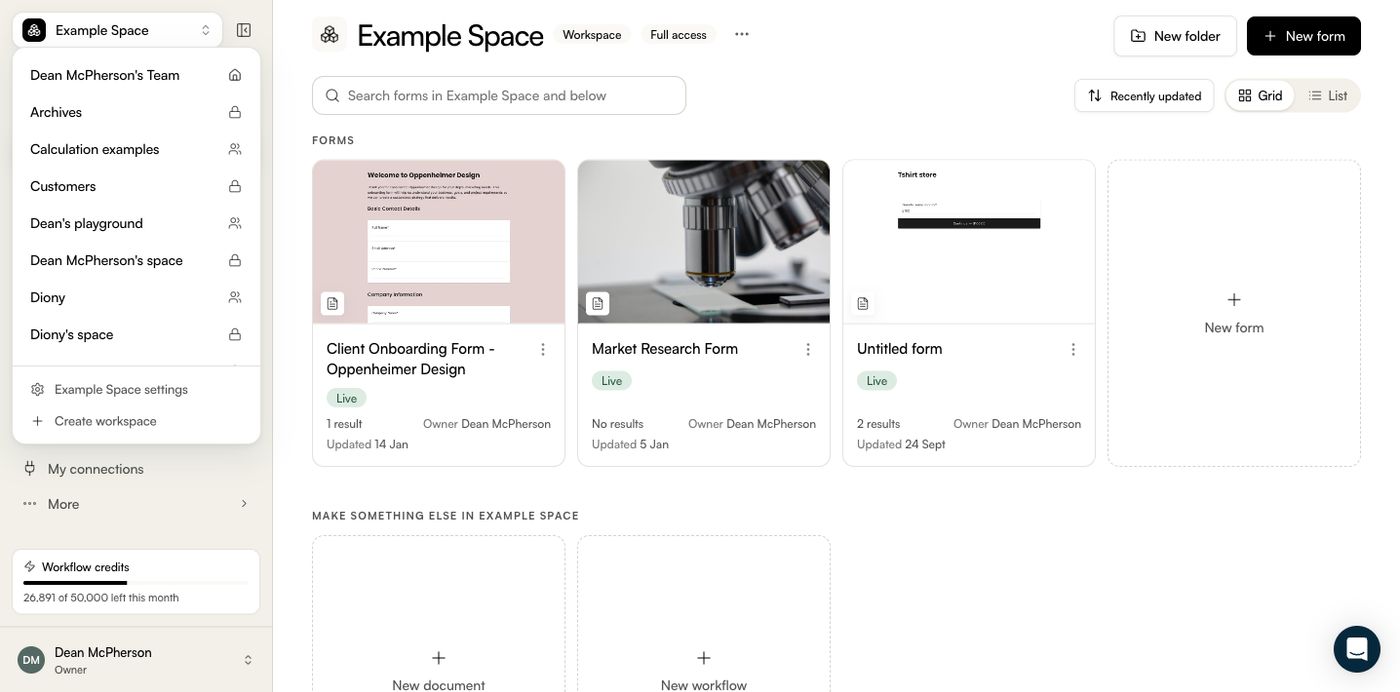
To change workspace, use the workspace switcher at the top of the sidebar. Pin the ones you use most and they stay at the top, while the rest fold away behind "Show N more". If you're in more than one team, the switcher shows the team too.
Folders do the organising
Folders are now the main way to organise work inside a workspace. They can hold forms, documents and workflows together, and folders inside folders.
- New folder sits above every list. You name it in place.
- To rename, move or delete a folder, use the ⋯ menu on its card, right-click it, or use the menu next to an open folder's title.
- To move work into a folder, use Move to… in an item's ⋯ menu, or tick several items and use Move in the selection bar.
Our rule of thumb: use a separate workspace when different people need different access, and folders for everything else. A workspace is the unit you share. Folders are how you organise inside it.
Business includes 10 workspaces (Enterprise has unlimited), and each one has its own access. In a workspace's settings, Access decides whether everyone on the team can see it or only the people you invite, and People is where you invite members with full or read-only access. Admins and the team owner can always see every workspace. On Free and Pro there's one workspace, and everyone on the team can see everything in it.
Combine workspaces
Plenty of teams have built up years of spaces, including personal spaces nobody remembers making. If you'd rather have one tidy workspace with folders, Combine workspaces moves everything from several workspaces into the one you keep.
You'll find it in the sidebar account menu, under Team settings → Workspaces → Combine workspaces.
- Under "Move everything out of", tick the workspaces to empty. Then pick the workspace you're keeping.
- Click Check what would move. Nothing moves yet. Paperform does a dry run and shows you what will move, who gains or loses access, and anything that needs sorting first, like a workflow that uses a teammate's private connection.
- Choose where things land: each workspace into a new folder named after it (the default), or everything at the top level.
- Click Move. If you like, tick the option to delete each workspace once it's empty.
Workspaces move one at a time, and the move keeps going if you leave the page. If one fails, the others still go ahead, and the failed one can carry on from where it stopped. Every form, document, workflow, folder and trashed item moves, and your folder structure comes with it.
There's no one-click undo, which is why the check comes first. Until you delete an emptied workspace, you can still move folders back by hand.
To move a single workspace into another, open its settings and use Move everything to another workspace.
A new look for every list
Every list now has grid and list views and sorting, and remembers your choice for each kind of work. In grid view, forms and documents show a picture of their first page, and workflows show the apps they use. It sounds minor, but for me it's the change I notice most: I find things by what they look like faster than by reading titles.
Search inside a folder now finds work anywhere below it, and adds a Folder column so you can see where each result lives. You can also filter by owner, documents by templates, workflows by Draft, Live or Paused, and forms by tag.
Bulk actions, with undo
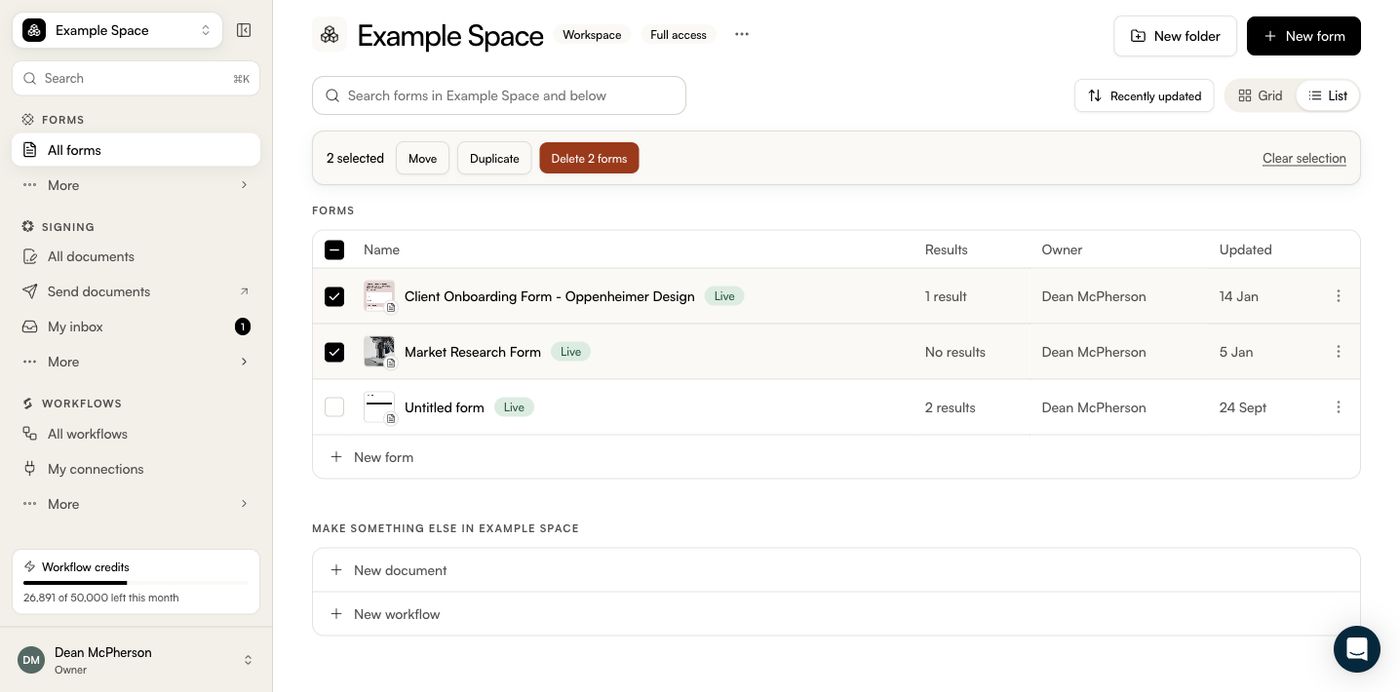
Tick items to Move, Duplicate or Delete them together. Shift-click selects a range, and Cmd/Ctrl+A selects the whole page. "Select all" reaches beyond the current page, up to 5,000 items, and you can tick folders to move them along with everything else. Each bulk action shows its progress and has Undo.
The bulk Move picker can also send items to another workspace. Before anything moves, it shows who gains and loses access and anything that can't move.
Search everything with ⌘K
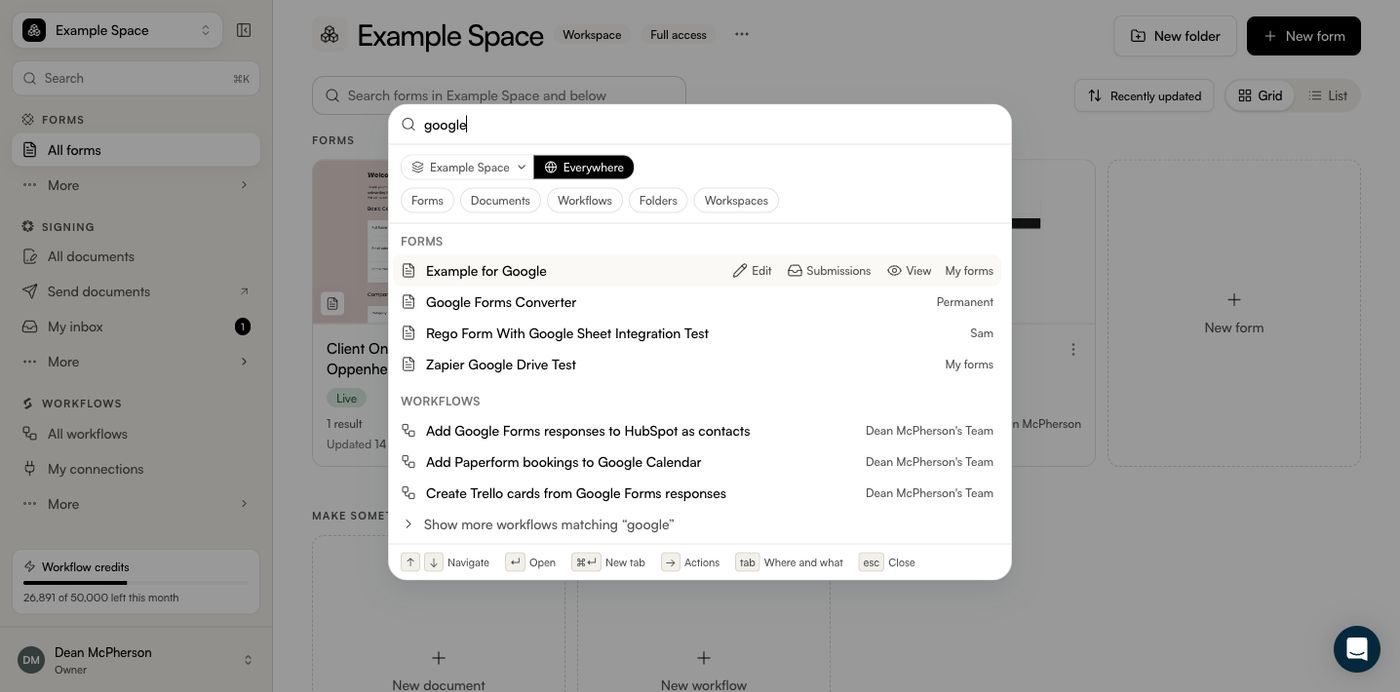
Press ⌘K (Ctrl+K on Windows) or click Search in the sidebar. It opens on your recently updated work and searches forms, documents and workflows together, grouped by kind. You can search the workspace you're in or everywhere. Enter opens the top result, and ⌘↵ opens it in a new tab.
Stepper and Papersign, at home in the dashboard
Stepper now lives on paperform.co, so you sign in once and sign out once across all three products. Every old app.stepper.io link, bookmark and email link still lands on the right page. My connections, My webhooks, My skill sets and Private apps are dashboard pages now, and so are each workflow's recent runs, run details, version history and issues.
For Papersign, My inbox, Activity, Document webhooks and Send documents (including bulk send from a CSV) are all dashboard pages too.
Everything else
- A new workspace opens on each product's create screen instead of an empty box: the AI prompt for forms, "Let's get building" for workflows, and Create in Papersign or Upload a PDF for documents.
- More → Deleted forms lets you restore a deleted form for 25 days. More → Archived documents lists archived documents, with restore.
- Account, team and form settings all open inside the dashboard. Team settings now includes Members, Single sign-on and the AI access policy.
- Usage readouts in the sidebar show how much of your plan's limits you've used, once you're a quarter of the way there.
- Announcements and account notices show up in one place, and you only have to dismiss them once.
- Old dashboard links and bookmarks forward to the matching page, and Back from the form and workflow editors returns you to the folder the item is in.
What's next
We built Paperform, Papersign and Stepper to work together, and for a while the dashboards didn't show it. This is the first version where they feel like one place to me.
We're rolling it out gradually, so if you don't see it yet, you will soon. If something's in the wrong place, or an old link doesn't land where you expect, tell us through chat in the dashboard.