Your clients, projects or applications already live in an Airtable base, but the people sending you that information don't. Copying their answers in by hand takes time, and one mistyped option throws off every view you filter by.
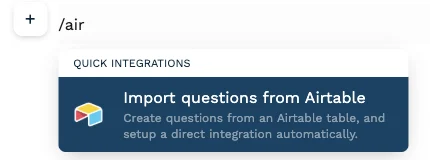
Paperform starts from the table. Type /air in a blank form and pick the base and table. It turns each field into a question of a matching type, then switches on an integration that creates a record for every submission. You decide which fields to ask about and where each answer goes.
Client intake form
NameMaya Chen
ServiceWebsite
Budget$8,500.00
Start date1 Dec 2026
NewsletterYes
Submit
Paperform demo: Client intake
Maya Chen
ServiceWebsite
Budget$8,500.00
Start date1 Dec 2026
Newsletter✓
New record in Airtable
Each submission can become a new row or record in Airtable, and uploaded files can be saved where your team finds them.
Set up an Airtable form in six steps
These screenshots come from a real setup: a new base called Paperform demo: Client intake, a Clients table with twelve fields, and a blank Paperform form.
1
Give the table its fields
Paperform builds the form from the fields that already exist, so add them in Airtable first. Pick the type you want in the record: single select for a fixed list, currency for money, checkbox for a yes-or-no answer. Attachment fields can stay, but the integration won't fill them.
2
Type /air in a blank form
In the form editor, type /air on an empty line and choose Import questions from Airtable from the Quick integrations list.
3
Connect Airtable and choose the bases
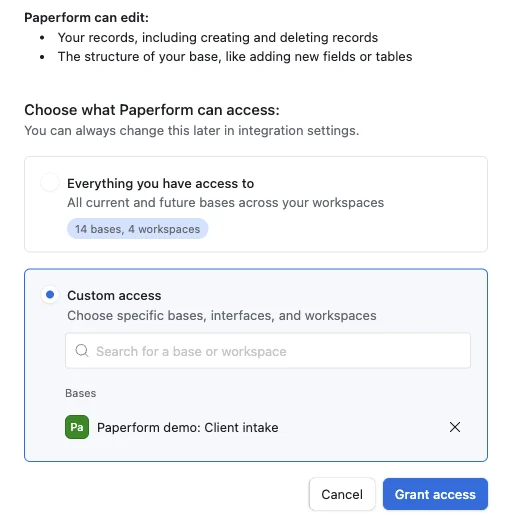
Choose Add Account +, and Airtable opens a window listing what Paperform can do: see and edit your records and the structure of your base. Under Choose what Paperform can access, pick Custom access, add only the bases this form needs and choose Grant access. Everything you have access to is the other option, and it includes bases you create later.
4
Pick the base, table and fields
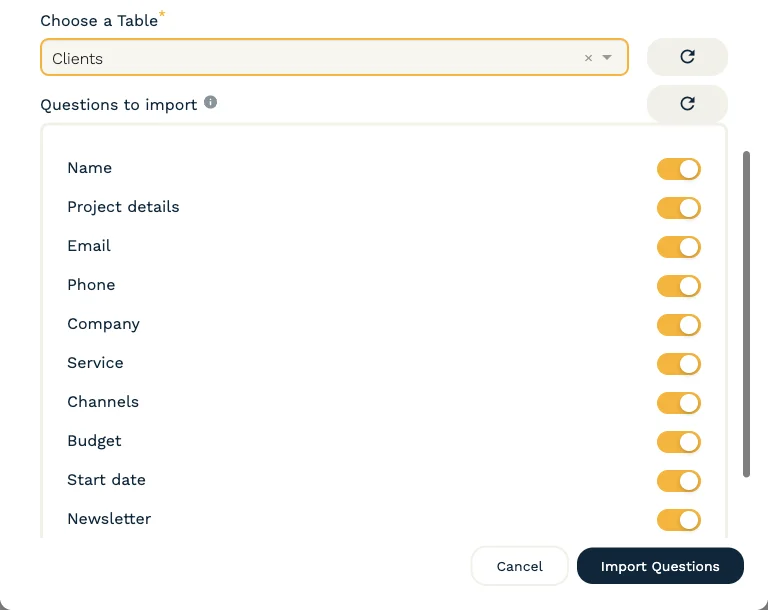
Choose the base and the table. Paperform lists every field it can fill, each switched on; turn off the ones you don't want to ask about, then choose Import Questions.
5
Check the questions it made
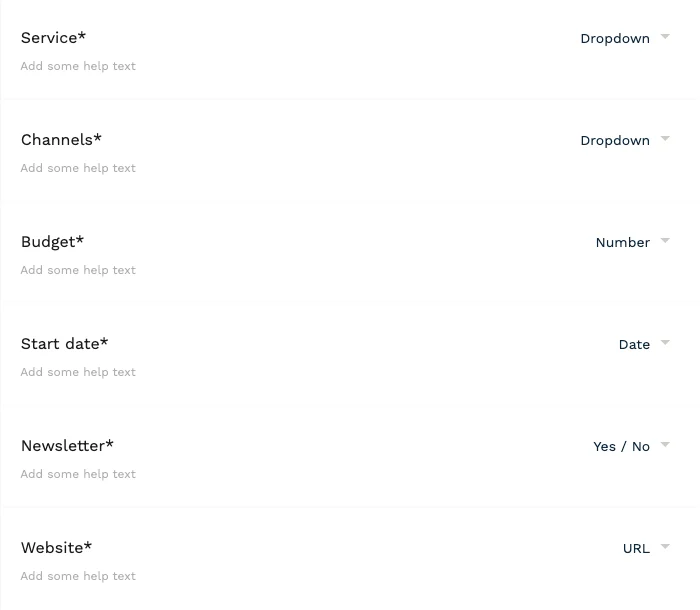
Each field arrives as a required question with a type to match. A single select becomes a Dropdown with the same options, a multiple select becomes a Dropdown that takes more than one answer, a currency field becomes Number and a checkbox becomes Yes / No. Rename, reorder or change any of them; the integration keeps working.
6
Publish, check the mapping and test
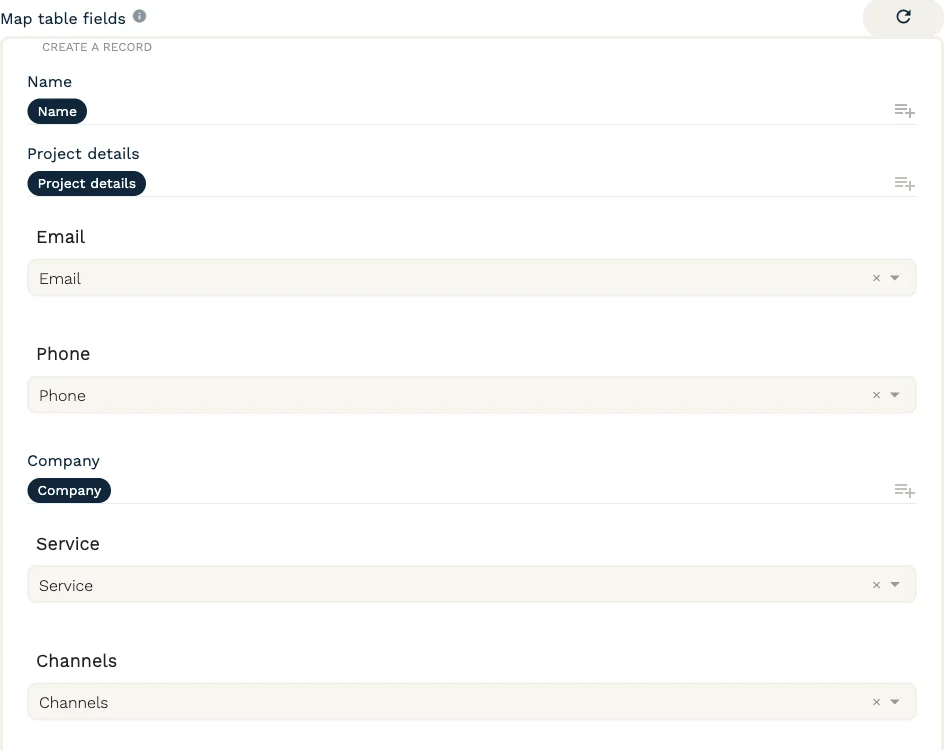
The import also adds an action called Add rows to base table under After Submission → Integrations & Webhooks, already switched on. Open it to see which question fills each field. Text fields hold the answer as a chip, with a button to insert more answers, while other field types take one question from a list. Publish the form and send a test submission.
What lands in Airtable
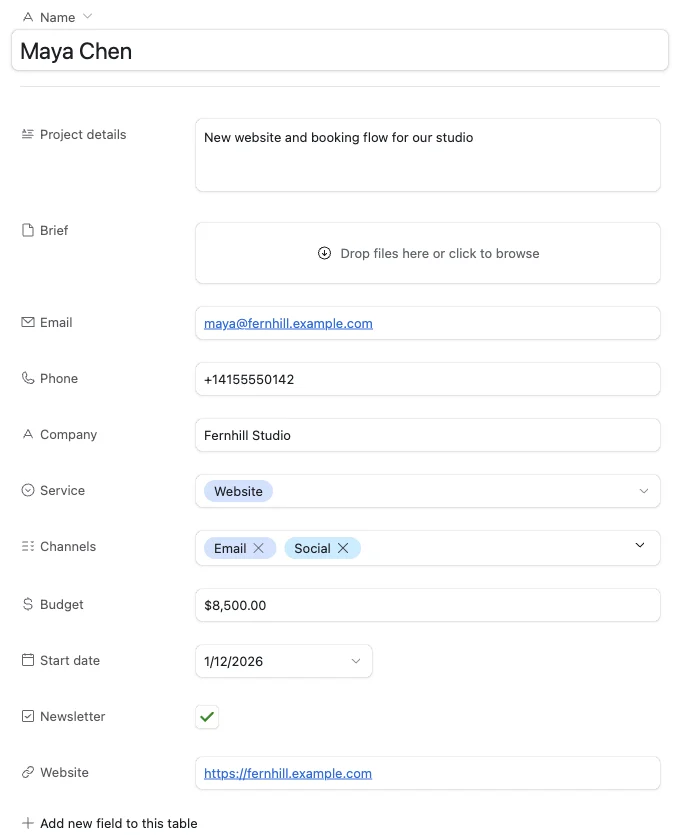
Each submission creates one record. Maya's test entry filled every mapped field, from the select option and two channel tags to the currency amount and a ticked Newsletter box. Brief stayed empty, since attachment fields aren't part of the mapping.
How Airtable fields map to form questions
The quick integration picks a question type for each field. Here's what it chose in our test, and what our two test submissions wrote back.
Airtable field
Question it creates
What arrives in Airtable
Single line text
Text
The answer as typed
Long text
Text
The answer as typed
Email
Email
The email address, as a link
Phone number
Phone Number
The number with its +, for example +14155550142
Single select
Dropdown, with the field's options
The chosen option
Multiple select
Dropdown that allows more than one answer
One tag per answer
Currency
Number
The amount in the field's format, for example $8,500.00
Date
Date
The date, shown in the field's date format
Checkbox
Yes / No
Ticked for Yes, empty for No
URL
URL
A link
Attachment
Not imported
Nothing: file fields aren't supported
A field Paperform can't fill doesn't show up in the import or in the action's mapping, so you can leave it in the table and fill it in Airtable.
Ways teams use Airtable forms
Client intake that's ready to work
New enquiries arrive as records with the service as a select option and the budget as currency. Group them by service and sort by budget in the views you already use. To keep small enquiries out, switch on conditional logic in the action.
Applications for a review pipeline
Each application becomes a record your reviewers work through in the base they already use.
Event and course registrations
Session choices from a multiple-answer question land as tags on a multiple select field, so you can filter attendees by session straight away. Keep option names free of commas, as the notes below explain.
Requests from people outside your base
Clients, applicants and suppliers fill in a Paperform form, so they never need an Airtable seat or a link to your base. Our two test entries came from the form's public link, and each one landed in the Clients table.
Good to know
An old connection can stop working
A connection we made years ago showed Unable to refresh authorization token when we picked it. Connecting again with Add Account + fixed it. You can remove or rename the old account in your Paperform account's integration settings, but forms that still use it will be affected.
Custom access covers only the bases you pick
A base you create later won't show up in Paperform until it's added, and Airtable's access window says you can change that later in its integration settings.
Keep commas out of select options
Paperform sends selected options to Airtable as a comma-separated list. An option such as $5,000 or Doe, John can split into pieces, so rename it before you connect the form.
Added a field after setup?
The mapping only lists fields that exist when it loads. Add the field in Airtable first. Then use the refresh button next to Map table fields and map it to a question.
Testing needs a recent submission
Send Test uses your latest submission, so submit the form once first if that submission doesn't answer the mapped questions.
Records stopped arriving
Open the action's History under After Submission → Integrations & Webhooks to see recent errors. If an error looks like a permissions problem, reconnect the account from your account's integration settings.
When creating a record isn't enough
The built-in integration has one action: create a record. Every Paperform plan, including the free plan, includes Stepper for workflow automation, and Stepper does more with Airtable. It can find a record, return up to 100 records at once, update a record or delete one. It can also start a workflow when a record is created or updated in Airtable, which means a returning client's second form can update their existing record instead of adding a duplicate.
How Airtable connects to Paperform
Direct methods run inside your Paperform account. Zapier and Make are there too if your team already uses them.
Built-in integration
Direct
Send each submission straight to Airtable, set up in the form editor with no other tool in between.
In the form editor, go to After Submission → Integrations & Webhooks.
Choose Airtable, connect your account and pick an action.
Map your form’s questions to the fields, test it, then click Finish Setup.
What Paperform can do in Airtable
Create a record
Quick integration
Direct
Start a form from an existing Airtable table: Paperform creates a question for each of its fields and sets up the integration for you.
In the form editor, type / and go to “Quick Integrations”.
Choose the Airtable option and pick your table.
Stepper workflows
Direct
Run a Stepper workflow when someone submits your form: 6 Airtable actions and 2 triggers, included in your Paperform account.
Open Stepper from your Paperform account and create a workflow.
Start it with the Paperform “New Submission” trigger and choose your form.
Add a Airtable step, connect your account and map the submission’s answers to its fields.
Airtable actions in Stepper
Create Record
Delete Record
Find Record
Find Many Records (Advanced)
Update Record
Make HTTP Request
Airtable events that can start a workflow
New Record
New or Updated Record
Zapier
Third party
Connect your form to Airtable with a Zap. Zapier needs its own account and plan.
In the form editor, go to After Submission → Integrations & Webhooks and choose Zapier.
Create a Zap with Paperform’s “New Submission” trigger and a Airtable action.
Add the fields you need to your Airtable table, then type /air in a blank Paperform form and choose Import questions from Airtable. Connect your account, pick the base and table, and Paperform creates a question for each field plus an action that adds every submission as a new record.
2. Can I connect an existing Paperform form to Airtable?
Yes. Go to After Submission → Integrations & Webhooks, choose Airtable under Direct Integrations and pick Create a record. Choose the base and table, then map a question to each field.
3. Do people need an Airtable account to fill in the form?
No: they fill in your Paperform form from its link, and the integration writes the record through your connected account.
4. Does Paperform get access to all my Airtable bases?
Only if you choose that. When you connect, Airtable offers Custom access, where you add specific bases. The other option covers everything you can reach, including bases you create later.
5. Can a form upload files to an Airtable attachment field?
Not with the built-in integration. Attachment and file fields aren't supported, so they don't appear in the import or the mapping.
6. How do multiple-choice answers arrive in Airtable?
Each chosen answer becomes its own tag on a multiple select field, but options that contain commas can split apart, because Paperform sends the choices as a comma-separated list.
7. Can a form update an existing Airtable record?
The built-in integration only creates records. A Stepper workflow can find a record and update it, and every Paperform plan, including the free plan, includes Stepper for workflow automation.
8. Does Paperform integrate with Airtable?
Yes. Paperform connects to Airtable through a built-in integration, a quick integration that builds the form from your data, Stepper workflows, Zapier and Make.
9. Do I need Zapier to connect Airtable?
No. A built-in integration, a quick integration that builds the form from your data and Stepper workflows run inside your Paperform account. Zapier and Make are there too if your team already uses them.
10. What can a Stepper workflow do in Airtable?
Create Record, Delete Record, Find Record, Find Many Records (Advanced), Update Record and Make HTTP Request. Stepper is included in your Paperform account.
11. What else can happen after someone submits the form?
The same submission can take a payment, get a document signed with Papersign and run more steps in a Stepper workflow, all from your Paperform account.
Bring us the workflow that keeps breaking
Start with the one form whose data never quite lands where it should. Connect the rest when you're ready.