You keep clients, applicants or requests in a Notion database, and copying answers in from emails or spreadsheets is the part that slips. Paperform builds a form from that database and adds every submission to it as a new page, with each property filled in.
Start from the database you already have. Type /notion in the form editor, choose the database, and Paperform creates a question for each property and switches on the integration that sends answers back. Then put the form where your team already works: it embeds inline on a Notion page.
Client intake form
NameMaya Chen
ServiceWebsite
Budget$8,500
Start date1 Dec 2026
NewsletterYes
Submit
Client intake
Maya Chen
ServiceWebsite
Budget$8,500
Start date1 Dec 2026
Newsletter✓
New page in Notion
Each submission can become a task, card or item in Notion, so requests don't sit in an inbox.
Set up a Notion form in five steps
These screenshots are from a real setup: a private Notion database called Client intake and a blank Paperform form.
1
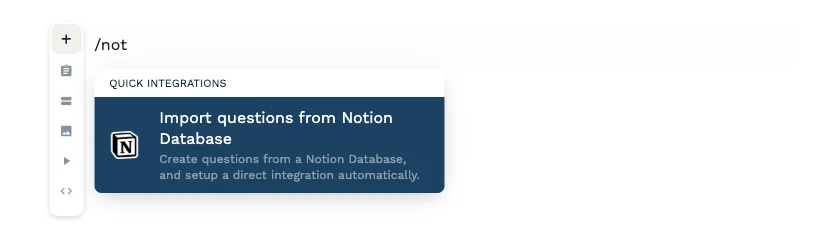
Type /notion in a blank form
In the form editor, type /notion on an empty line and choose Import questions from Notion Database. It sits under Quick integrations in the slash menu.
2
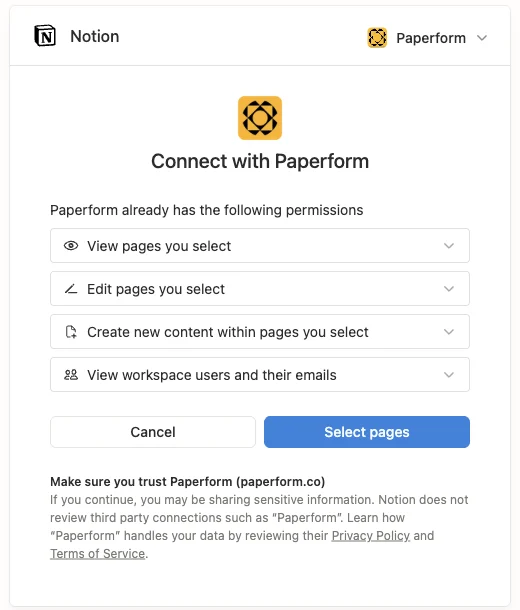
Sign in with Notion and pick the pages Paperform can use
Choose Add Account, then Sign in with Notion. Notion shows what Paperform can do, then asks which pages to share. Pick the database you want the form to fill (or a page above it). Paperform only sees the pages you select, and you can change them later in Notion.
3
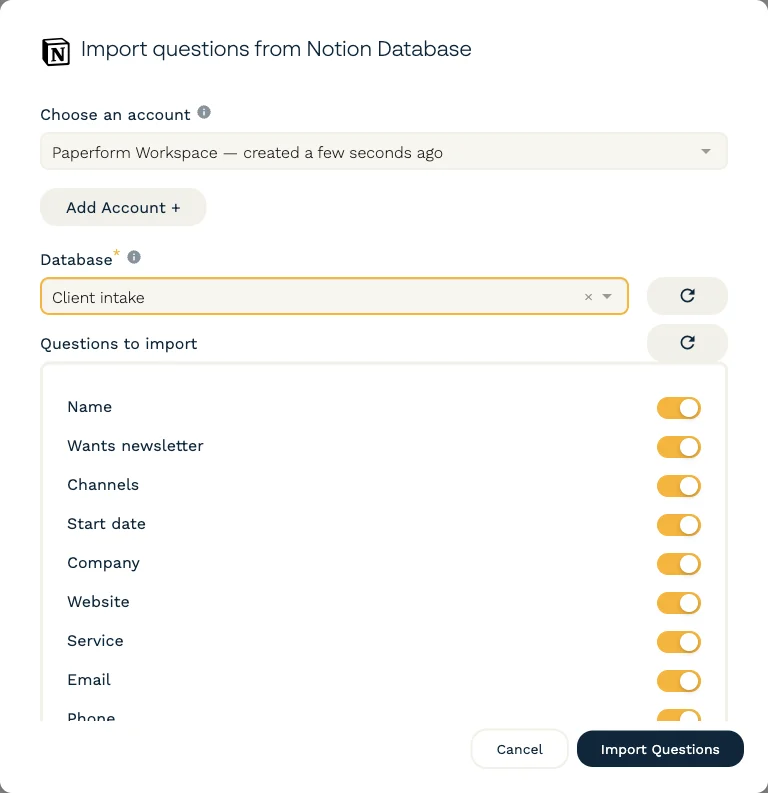
Choose the database and the columns to turn into questions
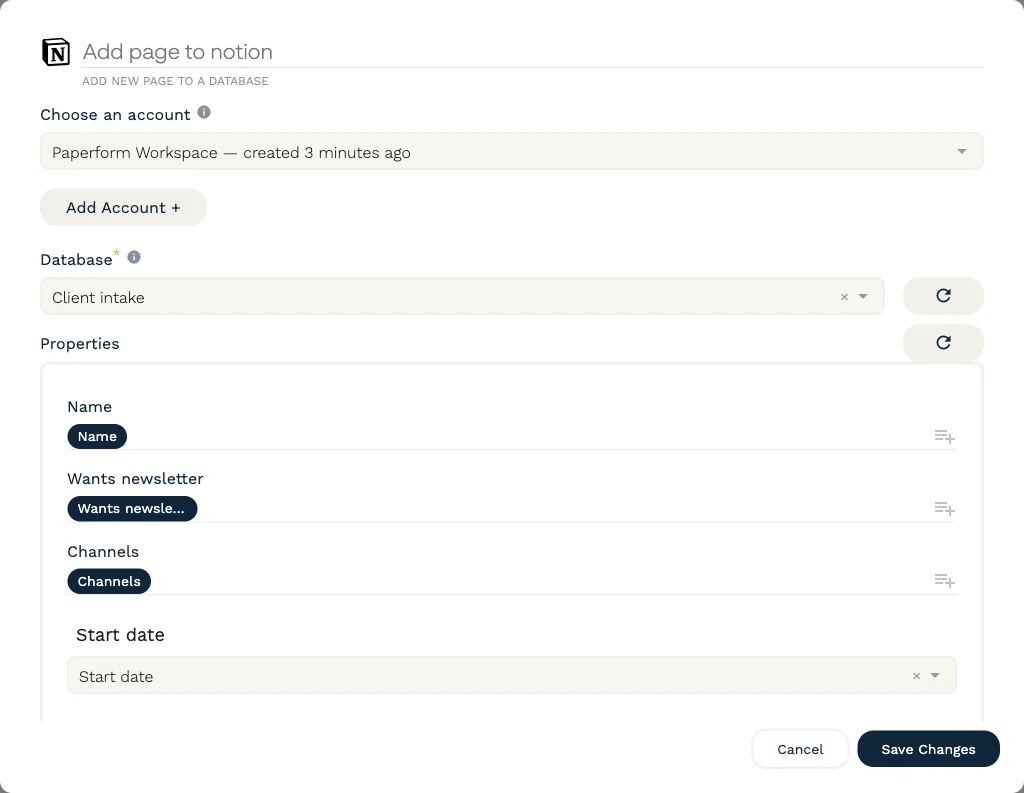
Paperform lists every supported property in the database. Leave on the ones you want as questions and switch off the rest, then choose Import Questions.
4
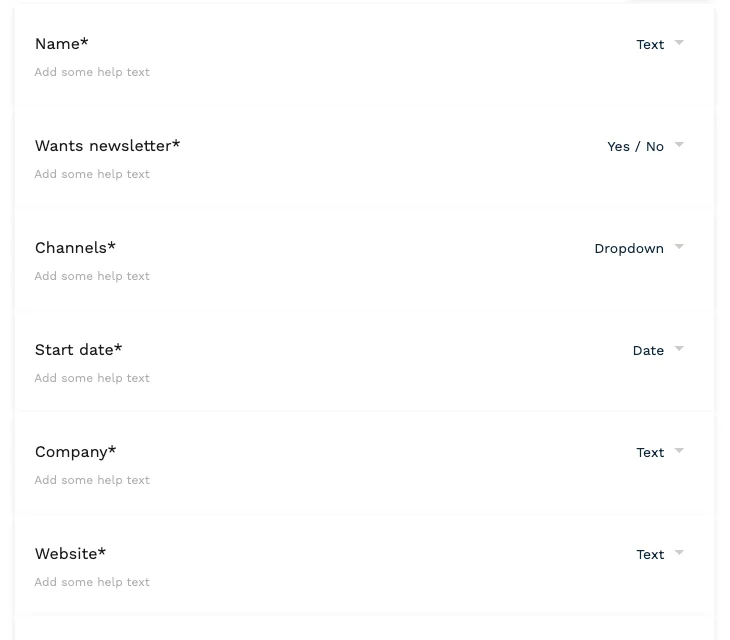
Edit the questions like any others
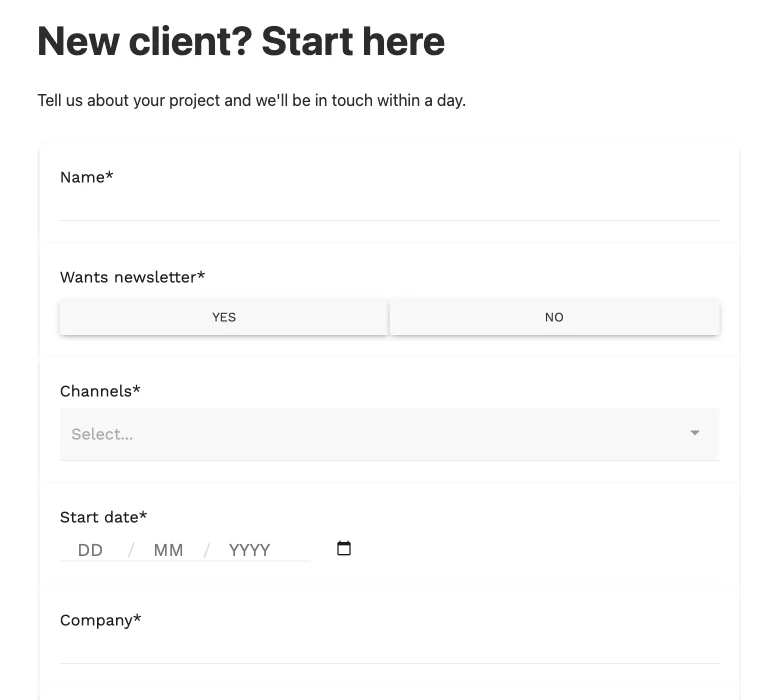
Each property becomes a question of the matching type, and select options come across from Notion. The imported questions start as required, so change any that should be optional, reword the titles, and add questions Notion doesn't need to see.
5
Check the mapping, publish and test
The quick integration also creates an Add page to Notion action under After Submission → Integrations & Webhooks, already switched on. Open it to see which question fills each property. Publish the form, send a test submission, and the new page appears in the database.
What lands in Notion
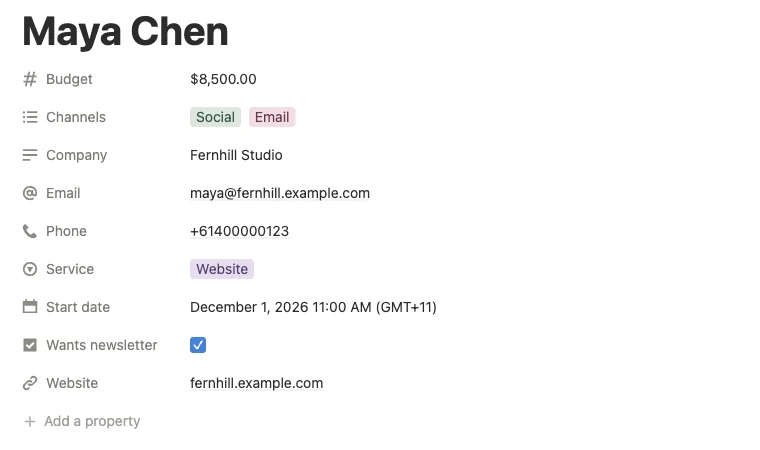
One submission, one new page: the test entry below arrived with every property set, including the budget as a number, the start date as a date, both channels as tags and the newsletter box ticked.
How Notion properties map to form questions
The quick integration picks a question type for each property. You can change a question's type afterwards, as long as its answer still suits the property.
Notion property
Question it creates
What arrives in Notion
Title
Text
The page title
Text
Text
The answer as text
Number
Text
A number, shown in the property's format (for example $8,500.00)
Select
Dropdown, with Notion's options
The chosen option
Multi-select
Dropdown that allows several answers
One tag per answer
Date
Date
A date
Checkbox
Yes / No
Ticked for Yes
URL
Text
A link
Email
Email
An email address
Phone
Phone number
A phone number
These are the property types the integration supports. People, files, relations, formulas and other types aren't filled in, so leave them out of the import or fill them in Notion.
Put the form inside a Notion page
A Paperform form works inline on a Notion page, so people can fill it in without leaving your wiki, handbook or project page. Submissions run the same integrations as the form's own page, including the one that adds them to your database.
1
Copy the form's link
Publish the form and copy its link from Share.
2
Add an embed block in Notion
On the Notion page, type /embed, choose Embed and paste the link. The live form appears in the page, and you can resize the block to fit it.
3
Keep the results next to it
Add a linked view of the database below the form, so the page holds both the request form and the requests it creates.
How it looks in Notion
The demo form embedded on a private Notion page. Answers sent from here add a page to the Client intake database like any other submission.
Ways teams use Notion forms
Client intake into a client database
New enquiries become pages with service, budget and start date already set, so you can sort and filter them in Notion straight away. Add conditional logic to the form to ask follow-up questions only for the services that need them.
Job applications into a hiring board
Each applicant becomes a page with their role as a select and their portfolio as a link. Group the database by role or stage and the board builds itself as applications arrive. Ask for a CV as a link: file properties aren't filled in.
Content requests into an editorial calendar
Teams submit requests with a due date and format, and they appear on the calendar view of your content database. Use the Page contents field to write the brief into the body of each page.
Team requests inside your wiki
Put an IT, leave or design request form on the relevant page of your team's Notion wiki. People ask where they already read the process, and each request lands in the database that tracks it.
Good to know
Write into the page body, not only properties
The action's Page contents field (marked experimental) adds content to each new page. It accepts Markdown, including headings, lists, to-dos, toggles and links, and you can drop answers into it.
Three Notion actions
Besides adding a page to a database, the integration can embed a new page inside an existing page, or add content to an existing page.
Only send some submissions
Switch on conditional logic in the action to add a page only when answers match your rules, for example only enquiries over a certain budget.
Testing needs a recent submission
Send Test uses your latest submission. If it doesn't include answers for the mapped questions, submit the form once first.
Can't see your database?
Notion treats Paperform like a person you share pages with. Open the database in Notion, choose ••• → Connections, and add Paperform, then refresh the list in Paperform. Sharing a page above the database works too, because access includes its child pages.
Notion says Paperform is already connected
A workspace can only be connected once through Sign in with Notion. If someone else connected it, use a private integration token instead (you'll need to be a workspace admin).
When you need more than a new page
The built-in integration adds pages. For anything beyond that, use a Stepper workflow: every Paperform plan, including the free plan, includes Stepper for workflow automation. Stepper can find or create a database item, update an existing item, add a comment, and run when a Notion item is created or changed, so a client's second form can update their existing page instead of creating a duplicate.
How Notion connects to Paperform
Direct methods run inside your Paperform account. Zapier and Make are there too if your team already uses them.
Built-in integration
Direct
Send each submission straight to Notion, set up in the form editor with no other tool in between.
In the form editor, go to After Submission → Integrations & Webhooks.
Choose Notion, connect your account and pick an action.
Map your form’s questions to the fields, test it, then click Finish Setup.
What Paperform can do in Notion
Add content to page
Embed new page in a page
Add new page to a database
Quick integration
Direct
Start a form from an existing Notion database: Paperform creates a question for each of its properties and sets up the integration for you.
In the form editor, type / and go to “Quick Integrations”.
Choose the Notion option and pick your database.
Stepper workflows
Direct
Run a Stepper workflow when someone submits your form: 22 Notion actions and 4 triggers, included in your Paperform account.
Open Stepper from your Paperform account and create a workflow.
Start it with the Paperform “New Submission” trigger and choose your form.
Add a Notion step, connect your account and map the submission’s answers to its fields.
Notion actions in Stepper
Create Page
Create Database
Search Pages
Search Databases
Add Comment
Add Content to Page
Update Database Item
Get Page Comments
Get Page or Database Item by ID
Get Page Property
+12 more
Notion events that can start a workflow
New Database Item
Updated Database Item
Updated Page
New Comment
Zapier
Third party
Connect your form to Notion with a Zap. Zapier needs its own account and plan.
In the form editor, go to After Submission → Integrations & Webhooks and choose Zapier.
Create a Zap with Paperform’s “New Submission” trigger and a Notion action.
In the Paperform editor, type /notion and choose Import questions from Notion Database. Sign in with Notion, pick the database, choose which properties to import, and Paperform creates the questions and the integration that adds each submission to the database as a new page.
2. Can I connect an existing Paperform form to Notion?
Yes. Go to After Submission → Integrations & Webhooks, choose Notion under Direct Integrations and pick Add new page to a database. Then choose which question fills each property.
3. Can I embed a Paperform form in a Notion page?
Yes. Type /embed on the Notion page, choose Embed and paste the form's link, and the form works inline on the page. Submissions sent from the embedded form run the same integrations as any other submission, including adding a page to your Notion database.
4. Which Notion property types can a form fill in?
Title, text, number, select, multi-select, date, checkbox, URL, email and phone number; other types, such as people, files and relations, aren't filled in.
5. Can my Notion form use conditional logic?
Yes: the form can show or skip questions based on earlier answers, and the Notion action has its own conditional logic for choosing which submissions are added.
6. Why doesn't my database appear in Paperform?
Paperform can only see pages that have been shared with it. In Notion, open the database, choose ••• → Connections and add Paperform. Then refresh the database list in Paperform.
7. Can a form update an existing Notion page instead of creating a new one?
The built-in integration creates pages and adds content to existing pages. To find and update an existing database item, use a Stepper workflow, which includes Notion actions to find, create or update items.
8. Does Paperform integrate with Notion?
Yes. Paperform connects to Notion through a built-in integration, a quick integration that builds the form from your data, Stepper workflows and Zapier.
9. Do I need Zapier to connect Notion?
No. A built-in integration, a quick integration that builds the form from your data and Stepper workflows run inside your Paperform account. Zapier is there too if your team already uses it.
10. What can a Stepper workflow do in Notion?
Create Page, Create Database, Search Pages, Search Databases, Add Comment and Add Content to Page, and 16 more actions. Stepper is included in your Paperform account.
11. What else can happen after someone submits the form?
The same submission can take a payment, get a document signed with Papersign and run more steps in a Stepper workflow, all from your Paperform account.
Bring us the workflow that keeps breaking
Start with the one form whose data never quite lands where it should. Connect the rest when you're ready.