Your clients, orders or sign-ups already live in a Google Sheet, and the slow part is getting answers into it. Copying from emails takes time, and one pasted value in the wrong column throws off every row below it.
Paperform starts from the sheet itself. Type /google in a blank form, pick the spreadsheet, and it turns each column heading into a question and switches on an integration that adds every submission as a new row. You choose the columns, the question types and which answers go where.
Each submission can become a new row or record in Google Sheets, and uploaded files can be saved where your team finds them.
Set up a Google Sheets form in six steps
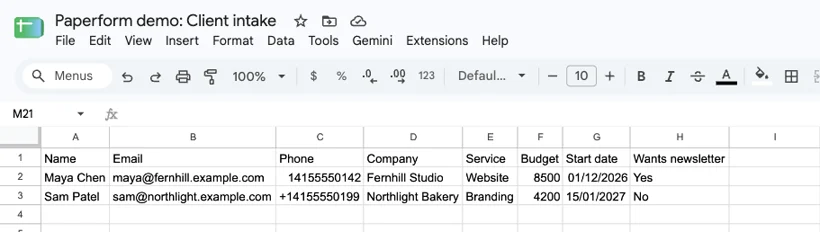
These screenshots come from a real setup: a new spreadsheet called Paperform demo: Client intake and a blank Paperform form.
1
Give the sheet a header row
Paperform reads column names from row 1, starting at cell A1. Put one heading in each column with no gaps between them, and keep this worksheet for raw data: formulas, checkboxes, dropdowns, frozen rows and formatting can push answers into the wrong columns.
2
Type /google in a blank form
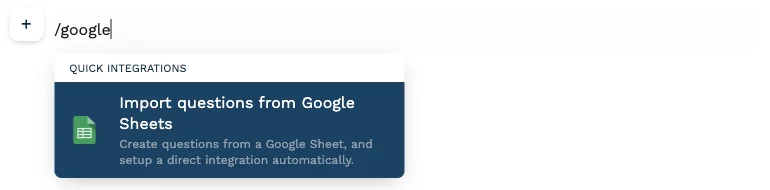
In the form editor, type /google on an empty line and choose Import questions from Google Sheets. It sits under Quick integrations in the slash menu.
3
Sign in with Google and choose the file
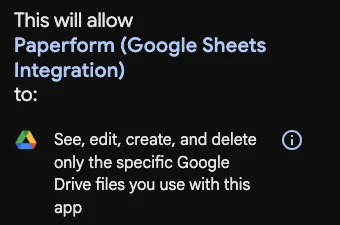
Choose an existing Google account or Add Account, then Choose a file. Google asks you to let Paperform see only the Drive files you use with it, then opens a file picker. Pick the spreadsheet: that access covers the files you choose and nothing else in your Drive.
4
Pick the worksheet and the columns
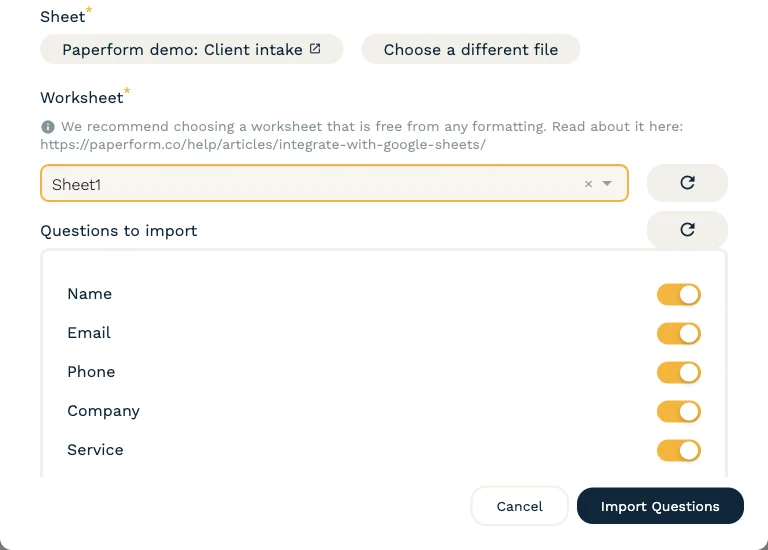
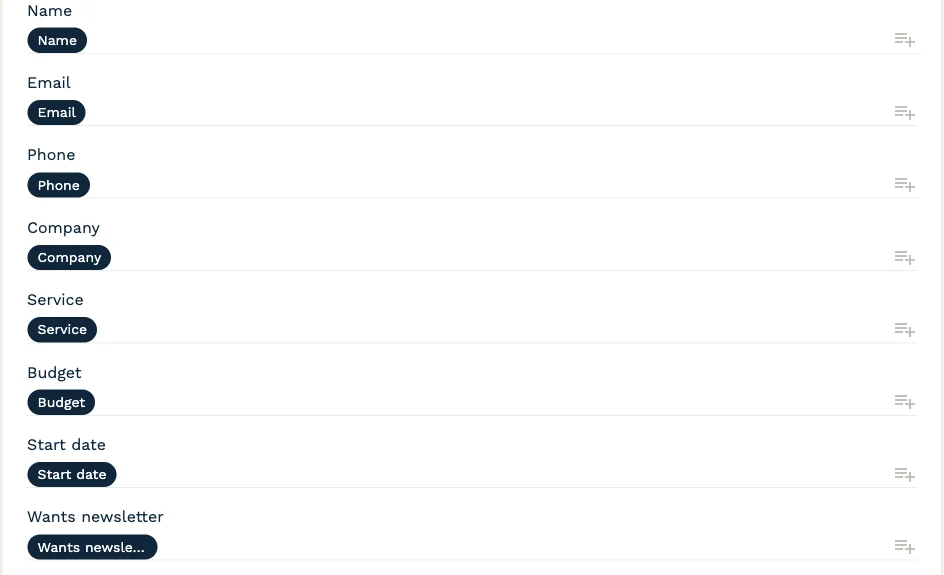
Choose the worksheet, and Paperform lists every heading in row 1. Leave on the columns you want as questions and switch off the rest, then choose Import Questions (if a new column is missing, use the refresh button next to the list).
5
Set each question's type
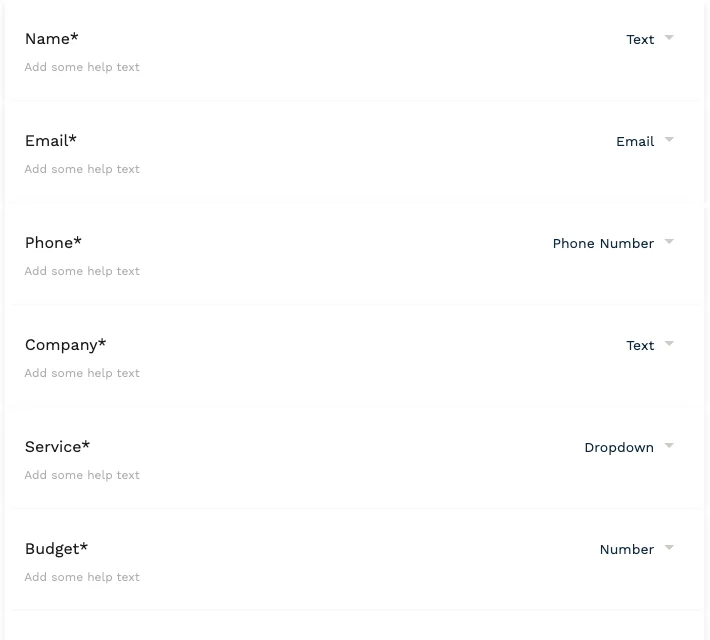
A header row doesn't say what kind of answer a column holds, so every column arrives as a required Text question. Change the ones that need it: Email for addresses, Phone Number, Dropdown with your options, Number, Date or Yes / No. The integration keeps working after you change a type.
6
Check the mapping, publish and test
The quick integration also creates an Add rows to sheet action under After Submission → Integrations & Webhooks, already switched on. Open it to see which question fills each column, and type around an answer if a column needs extra text. Publish the form, send a test submission, and a new row appears under your headings.
What lands in the sheet
One submission, one row. The first test entry shows a catch worth knowing: Sheets dropped the + from Maya's phone number, so we added a single quote before the Phone answer in the mapping and Sam's number kept it. Budget arrived as a number you can total.
How each answer arrives in Google Sheets
Each mapped answer fills one cell. The rows below show what our test submissions wrote for each question type, except the last, which comes from Paperform's help docs.
Question type
What lands in the cell
Text
The answer as typed
Email
The email address
Phone Number
The number in international format. Sheets drops the leading + unless the mapping starts with a single quote ('), as in the notes below
Dropdown
The chosen option, for example Website
Number
A number Sheets can add up, for example 8500
Date
The date in the question's Order of date setting, for example 01/12/2026 for Day Month Year. Sheets then reads it using the spreadsheet's locale
Yes / No
Yes or No
Questions with several answers
All the answers in one cell, separated by commas
Need a multiple-answer question split into one column per answer? Select the cells in Sheets and use Data → Split text to columns.
Ways teams use Google Sheets forms
Client intake into a shared tracker
New enquiries arrive as rows with the service, budget and start date in their own columns. Sort and filter them the moment they land. If only some enquiries belong in the tracker, switch on conditional logic in the action and send only those.
Orders and quote requests
Each order becomes a row your team works through, with the product as a dropdown answer and the quantity as a number Sheets can total. The form handles the asking; the sheet stays the list everyone already checks.
Event sign-ups and waitlists
Registrations fill a sheet you can share with whoever runs the door, and session choices from a question with several answers land together in one cell, ready to split into columns.
A reporting sheet that stays clean
Keep the connected worksheet as raw data. Build the charts and summaries in another tab or file that pulls the rows in with IMPORTRANGE. New answers keep arriving underneath, and nothing you build gets in their way.
Good to know
Phone numbers and answers that look like formulas
Sheets tries to read any answer that looks like a formula, such as a phone number starting with +. That can drop the + or show #ERROR! in the cell. In the action's mapping, type a single quote before the answer (for example '{{ phone }}) and Sheets keeps it as plain text.
Dates and your sheet's locale
A Date answer is written in the question's Order of date setting, and Sheets reads it using the sheet's locale. In our test the question was set to Day Month Year and the sheet's locale to United States, so 15/01/2027 stayed as text instead of becoming a date. Match the two: change Order of date on the question, or the locale under File → Settings in Sheets.
Change the sheet before you finish setup
Add, remove or rearrange columns first, then use the refresh button next to Columns so the action sees the new headings. Changing a connected sheet later can shift answers into the wrong columns.
Testing needs a recent submission
Send Test reuses your latest submission, so submit the form once first if that submission doesn't answer the mapped questions.
Copying a form with a Sheets action
A copied form keeps the original mapping. If the copy should write to a different worksheet, create a new action on it so the columns line up.
Rows stopped arriving
Open the action's History under After Submission → Integrations & Webhooks to see any errors. If your sheets no longer load in the action, the Google connection has probably expired. That happens after six months, a password change or a change in your Google Workspace permissions; reconnect the account from your account's integration settings.
When adding a row isn't enough
The built-in integration has one action: add a row. Every Paperform plan, including the free plan, includes Stepper for workflow automation, and Stepper goes further with Google Sheets. It can look up a row by a column's value, update rows, add a row at the top, format a row and create worksheets, and it can start a workflow when a row is added or updated. That means a returning client's second form can update their existing row instead of adding a duplicate.
How Google Sheets connects to Paperform
Direct methods run inside your Paperform account. Zapier and Make are there too if your team already uses them.
Built-in integration
Direct
Send each submission straight to Google Sheets, set up in the form editor with no other tool in between.
In the form editor, go to After Submission → Integrations & Webhooks.
Choose Google Sheets, connect your account and pick an action.
Map your form’s questions to the fields, test it, then click Finish Setup.
What Paperform can do in Google Sheets
Add Row to Sheet
Quick integration
Direct
Start a form from an existing Google Sheets spreadsheet: Paperform creates a question for each of its columns and sets up the integration for you.
In the form editor, type / and go to “Quick Integrations”.
Choose the Google Sheets option and pick your spreadsheet.
Stepper workflows
Direct
Run a Stepper workflow when someone submits your form: 14 Google Sheets actions and 2 triggers, included in your Paperform account.
Open Stepper from your Paperform account and create a workflow.
Start it with the Paperform “New Submission” trigger and choose your form.
Add a Google Sheets step, connect your account and map the submission’s answers to its fields.
Google Sheets actions in Stepper
Create Spreadsheet Column
Create Spreadsheet Row
Create Spreadsheet Row at Top
Clear Spreadsheet Row(s)
Copy Worksheet
Create Sheet
Create Worksheet
Delete Spreadsheet Row(s)
Lookup Spreadsheet Rows
Find Worksheet
+4 more
Google Sheets events that can start a workflow
New Spreadsheet Row
New or Updated Spreadsheet Row
Zapier
Third party
Connect your form to Google Sheets with a Zap. Zapier needs its own account and plan.
In the form editor, go to After Submission → Integrations & Webhooks and choose Zapier.
Create a Zap with Paperform’s “New Submission” trigger and a Google Sheets action.
Give your sheet a header row, then type /google in a blank Paperform form and choose Import questions from Google Sheets. Sign in with Google, pick the file and worksheet, and Paperform creates a question for each column plus an action that adds every submission as a new row.
2. Can I connect an existing Paperform form to Google Sheets?
Yes. Go to After Submission → Integrations & Webhooks, choose Google Sheets under Direct Integrations and pick Add Row to Sheet. Choose the sheet and worksheet, then map an answer to each column.
3. Does Paperform get access to all my Google Drive files?
No. When you connect, Google asks you to let Paperform see only the specific Drive files you use with it, which means the spreadsheets you choose in the file picker.
4. Why did my phone number lose its + or show #ERROR! in Google Sheets?
Sheets reads answers that look like formulas, such as a number starting with +, and changes them. In the Google Sheets action, put a single quote before the mapped answer, for example '{{ phone }}, and Sheets keeps it as text.
5. Why don't my columns show up in Paperform?
Paperform reads headings from row 1, starting at A1. Add a title to each column in row 1, then use the refresh button next to Columns. A sheet with nothing in row 1 can also show a permission error until you add headings and retry.
6. How do answers with several choices appear in Google Sheets?
All the chosen answers go into one cell, separated by commas. To give each its own column, select the cells and use Data → Split text to columns.
7. Can a form update an existing row instead of adding a new one?
The built-in integration only adds rows. A Stepper workflow can look up a row by a column's value and update it, and every Paperform plan, including the free plan, includes Stepper for workflow automation.
8. Does Paperform integrate with Google Sheets?
Yes. Paperform connects to Google Sheets through a built-in integration, a quick integration that builds the form from your data, Stepper workflows, Zapier and Make.
9. Do I need Zapier to connect Google Sheets?
No. A built-in integration, a quick integration that builds the form from your data and Stepper workflows run inside your Paperform account. Zapier and Make are there too if your team already uses them.
10. What can a Stepper workflow do in Google Sheets?
Create Spreadsheet Column, Create Spreadsheet Row, Create Spreadsheet Row at Top, Clear Spreadsheet Row(s), Copy Worksheet and Create Sheet, and 8 more actions. Stepper is included in your Paperform account.
11. What else can happen after someone submits the form?
The same submission can take a payment, get a document signed with Papersign and run more steps in a Stepper workflow, all from your Paperform account.
Bring us the workflow that keeps breaking
Start with the one form whose data never quite lands where it should. Connect the rest when you're ready.