Your contacts live in HubSpot, and new enquiries reach you through a form. When those answers sit in an inbox, someone copies them into a contact record by hand. That's where a budget gets dropped, or a returning client ends up with two records.
Paperform's HubSpot integration writes the answers for you. Each submission creates a contact, or updates the existing one when the email matches. You pick which questions fill which contact fields and properties, including custom text and number properties you've added in HubSpot.
Client intake form
NameMaya Chen
Phone+1 (415) 555-0142
CompanyFernhill Studio
Service requestedWebsite
Budget8,500
Submit
Paperform demo: Contacts
Maya Chen
Phone+1 (415) 555-0142
CompanyFernhill Studio
Service requestedWebsite
Budget8,500
New contact in HubSpot
Each submission can create or update a contact or deal in HubSpot, so nobody re-types leads.
Send form submissions to HubSpot in six steps
These screenshots come from a real setup: a new HubSpot account, a Paperform form called Client intake and three test submissions from fictional clients.
1
Add custom properties in HubSpot first
The integration fills contact properties that already exist in HubSpot. For anything beyond the standard fields, create the property before you map it, as single-line text or a number. We added Budget as a number and Service requested as single-line text. A dropdown select property we also made, called Service, never showed up in Paperform.
2
Build the questions
There's no quick integration for HubSpot, so typing /hub in the editor brings up nothing. Add the questions yourself. Ours were First name, Last name, Email, Phone, Company, a Service dropdown, Budget as a Number question and Message as a multi-line text question.
3
Publish, then add the HubSpot action
Publish the form first, so the mapping shows question names. Then go to After Submission → Integrations & Webhooks, choose Hubspot CRM under Direct Integrations and pick Create or update a contact, the only action it offers.
4
Connect the right HubSpot account
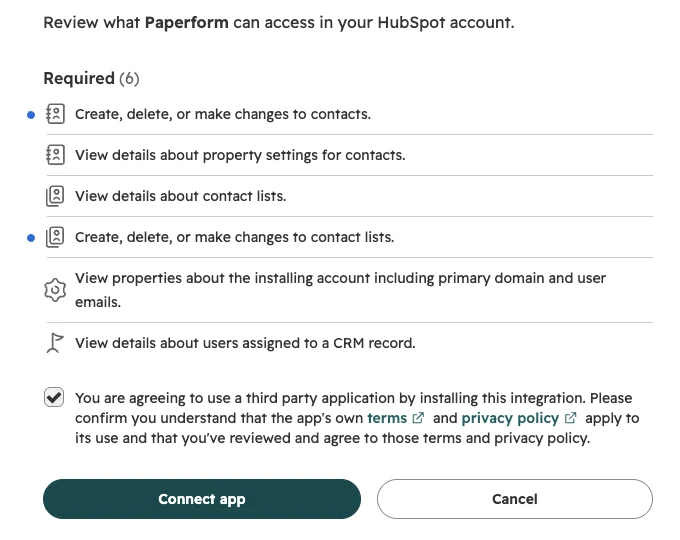
Look at Choose an account before anything else. Ours had picked a HubSpot connection made years earlier on the same Paperform account. To add yours, choose Add Account +, pick the HubSpot account and review the access Paperform asks for, which covers contacts, contact lists and contact property settings. Tick the terms box and choose Connect app.
5
Map the contact fields
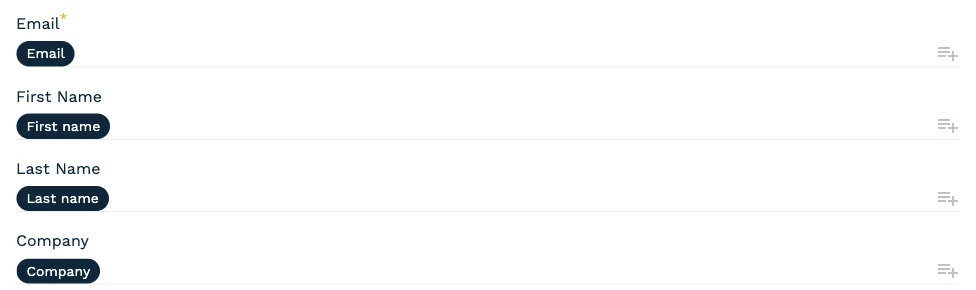
Email is required, and it's how an existing contact gets matched: a submission with an email that's already in HubSpot updates that contact. Use the insert button on each field to drop in an answer: Email, First name, Last name and Company.
6
Map properties and test
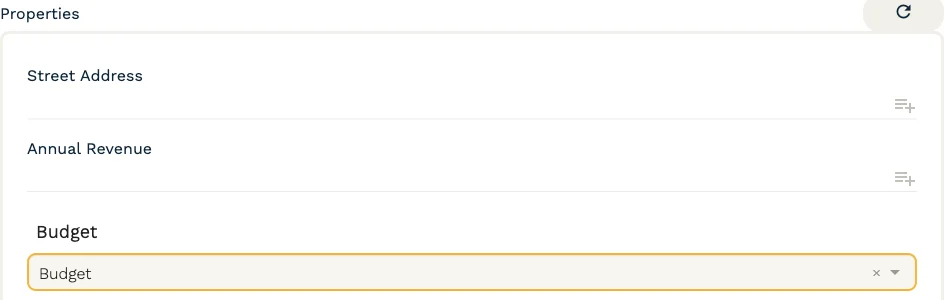
Under Properties, the action lists your text and number contact properties, custom ones included. Text properties take answers the same way as the fields above. A number property only accepts a Number question or a value you type, so Budget took our Budget question. Choose Finish Setup, then send a test submission and look for the new contact.
What lands in HubSpot
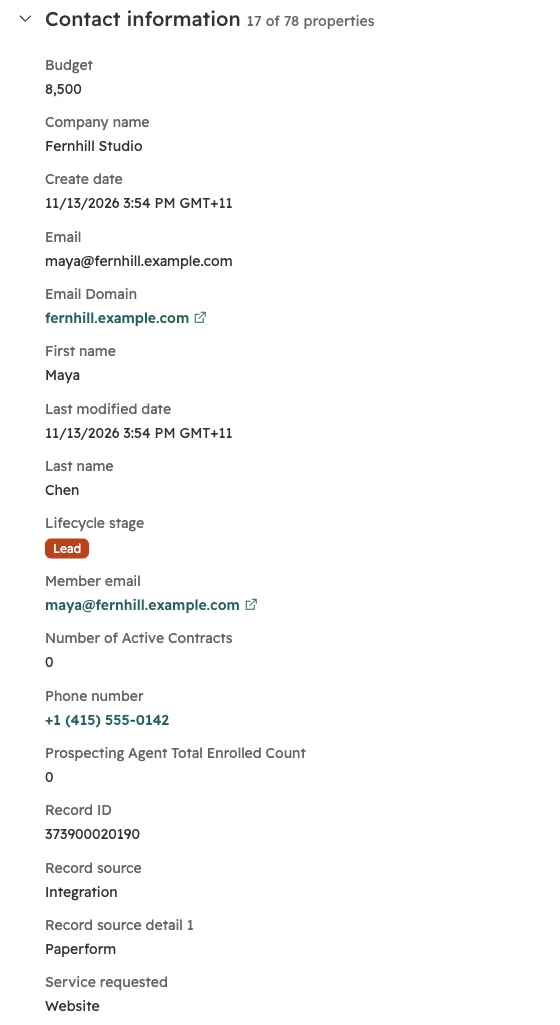
Maya's test entry became a contact with her name, email, phone, company, budget, service and message filled in. HubSpot recorded the source as Integration, with Paperform as the detail, and set the lifecycle stage to Lead on its own.
How answers map to HubSpot contact properties
Here's what the action let us map in our test, and what our submissions wrote to the contact.
HubSpot field or property
What you can map
What arrived in HubSpot
Email (required)
Any answer, usually an Email question
The email address; a repeat email updates the same contact
First Name, Last Name
Any answers or text
The names as typed
Company
Any answers or text
Company name: Fernhill Studio
Phone Number
Any answer, for example a Phone Number question
+14155550142 shown as +1 (415) 555-0142
Message
Any answer, for example a multi-line text question
The message as typed
Custom single-line text property
Any answers, including a Dropdown answer
The chosen option as text, for example Website
Custom number property
A Number question, or a value you type
The number, for example 8,500
Dropdown select property
Not listed
Nothing: use a single-line text property instead
Contact Lists
A list from your HubSpot account
Not tested: our new account had no lists
Paperform's help article says only text and number properties are supported, and only properties set to be used in forms are listed. If you add a property after setting up the action, press the refresh button next to Properties.
Ways teams send form answers to HubSpot
Enquiries with budget and service on the contact
A client intake form can ask for budget and service as well as contact details, and both land on the contact as properties your team can read before the first call. To send only some enquiries to HubSpot, switch on conditional logic in the action.
Returning clients without duplicate records
When someone fills in a form again with the same email, HubSpot updates their contact instead of adding a second one, as our repeat test did with Maya's budget and service.
Sign-ups added to a list
Choose a contact list in the action and each person who submits is added to it, according to Paperform's help article. That suits event registrations and newsletter sign-ups you want to segment later.
Forms for people outside your CRM
Clients fill in a Paperform form from its link, without a HubSpot login. Our three test entries came from the public form and reached HubSpot through the connected account.
Good to know
Check which account the action uses
If your Paperform account already has a HubSpot connection, Choose an account can preselect it, and that may not be the HubSpot account you mean. In our test it picked an older connection. Check the account, or add yours with Add Account +, before you map anything.
A repeat email overwrites what's there
Updating a contact replaces the properties you map. Maya's second message replaced her first one, and her budget changed from 8,500 to 12,000. Each submission still stays in the form's Results in Paperform, so earlier answers aren't lost.
Dropdown, checkbox and date properties don't show
The action lists text and number properties only. Our dropdown select property never appeared, so we sent the answer to a single-line text property instead.
The email has to be valid
The action fails if the Email field doesn't hold a valid address, so map it to the answer of an Email question.
Testing needs a recent submission
Send Test, under Test this setup when you edit the action, uses your latest submission, so submit the form once with every mapped question answered. Without that, the test can behave unexpectedly or fail.
Contacts stopped arriving
Open History from the action's gear menu to see each run, with its time, its submission and a Message column. Paperform's help article says a Server Error can come from extra checks in HubSpot, such as phone number verification, and our support team can help you trace it.
When a contact isn't enough
The built-in integration has one action: create or update a contact. Every Paperform plan, including the free plan, includes Stepper for workflow automation, and Stepper reaches further into HubSpot. A workflow can create or update a deal or a company from the same submission, find an existing contact first, add a contact to a static list or log an engagement. It can also start when a new contact, company or deal appears in HubSpot.
How HubSpot connects to Paperform
Direct methods run inside your Paperform account. Zapier and Make are there too if your team already uses them.
Built-in integration
Direct
Send each submission straight to HubSpot, set up in the form editor with no other tool in between.
In the form editor, go to After Submission → Integrations & Webhooks.
Choose HubSpot, connect your account and pick an action.
Map your form’s questions to the fields, test it, then click Finish Setup.
What Paperform can do in HubSpot
Create or update a contact
Stepper workflows
Direct
Run a Stepper workflow when someone submits your form: 12 HubSpot actions and 4 triggers, included in your Paperform account.
Open Stepper from your Paperform account and create a workflow.
Start it with the Paperform “New Submission” trigger and choose your form.
Add a HubSpot step, connect your account and map the submission’s answers to its fields.
HubSpot actions in Stepper
Create Contact
Update Contact
Create Company
Update Company
Create Deal
Update Deal
Find Contact
Find Company
Find Deal
Add Contact to List
+2 more
HubSpot events that can start a workflow
New Contact
New Company
New Deal
New Form Submission
Zapier
Third party
Connect your form to HubSpot with a Zap. Zapier needs its own account and plan.
In the form editor, go to After Submission → Integrations & Webhooks and choose Zapier.
Create a Zap with Paperform’s “New Submission” trigger and a HubSpot action.
Open the form, go to After Submission → Integrations & Webhooks and choose Hubspot CRM under Direct Integrations. Pick Create or update a contact, connect your HubSpot account and map your questions to the contact fields and properties. Publish the form and send a test submission.
2. Does submitting the form twice create a duplicate contact?
Not when the email matches. In our test, a second submission with the same address updated the existing contact and replaced the mapped properties with the new answers.
3. Can a form fill custom HubSpot properties?
Yes, as long as they're text or number properties. Create them in HubSpot, then press refresh next to Properties in the action and map a question to each. Dropdown select properties don't appear, so send those answers to a single-line text property.
4. Can a form add contacts to a HubSpot list?
The action has a Contact Lists option where you choose one of your HubSpot lists, and Paperform's help article says each new contact is stored under it.
5. Can a form create a deal in HubSpot?
Not with the built-in integration, which only creates or updates contacts. A Stepper workflow can create or update a deal from the same submission, and every Paperform plan, including the free plan, includes Stepper for workflow automation.
6. Do people need a HubSpot account to fill in the form?
No: they fill in your Paperform form from its link, and the contact is written through the HubSpot account you connected.
7. Why isn't my HubSpot property in the list?
The action lists text and number contact properties. If a new one is missing, press the refresh button next to Properties. Paperform's help article also says the property has to be set to be used in forms.
8. Does Paperform integrate with HubSpot?
Yes. Paperform connects to HubSpot through a built-in integration, Stepper workflows and Zapier.
9. Do I need Zapier to connect HubSpot?
No. A built-in integration and Stepper workflows run inside your Paperform account. Zapier is there too if your team already uses it.
10. What can a Stepper workflow do in HubSpot?
Create Contact, Update Contact, Create Company, Update Company, Create Deal and Update Deal, and 6 more actions. Stepper is included in your Paperform account.
11. What else can happen after someone submits the form?
The same submission can take a payment, get a document signed with Papersign and run more steps in a Stepper workflow, all from your Paperform account.
Bring us the workflow that keeps breaking
Start with the one form whose data never quite lands where it should. Connect the rest when you're ready.