Please note that this feature is exclusively available with specific pricing plans.
How do custom domains work in Paperform?
If you own a website domain for your business, Paperform allows you to use it for your forms too.
This process involves creating a CNAME record, which typically means that you will need to set aside a certain subdomain that will only be used for Paperform. A CNAME record is used to make an entire subdomain an "alias" for something else (Paperform in this case). So, you should choose a new subdomain that you are not using for any existing page(s) of your website.
Please note: Although it’s usually not possible, certain hosting providers will allow you to create a CNAME record for the root domain. We don’t recommend this unless you plan to use the entire root domain for Paperform and don’t have your own website at that web address.
Required account permissions
Custom domain requests must be initiated by users with owner or admin permissions on select plans. If you are a sub-user and your account type is user or viewer, you must ask someone with the appropriate permissions to process this request on your behalf.
Custom domain setup
If you're unsure how to complete any of these steps for your own needs, there are a couple of example scenarios later in this article.
-
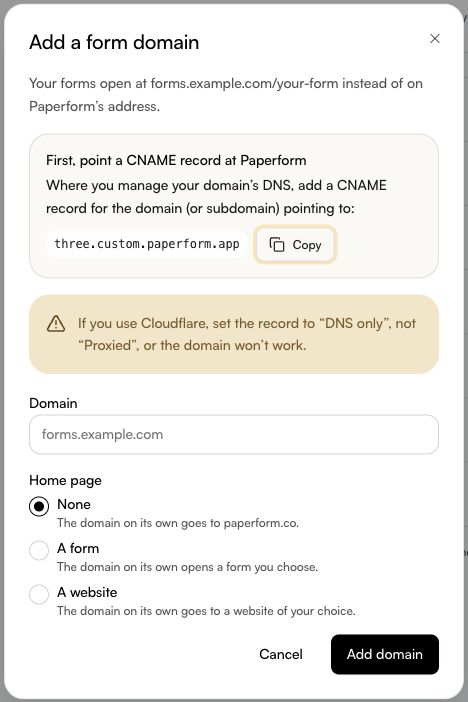
In the sidebar, go to Forms > More > Form domains and click Add domain. The "Add a form domain" window shows the address your CNAME record needs to point to. Click Copy to copy it, and keep this window open.
-
In a separate tab, log into your domain provider (e.g. GoDaddy, Namecheap, or wherever you registered your domain).
-
Within your domain's settings, look for the option to create a new CNAME record. This can typically be found within a DNS settings menu, although the process won't be identical for every domain provider. You may need to consult your domain provider's support documentation to find out how to create a CNAME record.
-
Set up the CNAME record so that your desired (sub)domain points to the address you copied in step 1. This typically includes the following fields:
- The "Name" or "Host" refers to the subdomain that you'd like to use. For example; to use
forms.example.comwith Paperform, you would want to enterformsas the name or host.

- The "Value" or "Target" (sometimes labeled "Points To") should be the address shown in the "Add a form domain" window.
- If you use Cloudflare, set the record to "DNS only", not "Proxied".
- The "Name" or "Host" refers to the subdomain that you'd like to use. For example; to use
-
Once you have finished setting up the CNAME record with your hosting provider, return to the "Add a form domain" window in Paperform.
-
Under Domain, enter your full custom domain without the HTTP protocol (i.e.
forms.example.comrather thanhttps://forms.example.com). -
Under Home page, choose what the domain should load when a form isn't specified. For more info on this choice, see the next section of this article.
-
Click Add domain.
-
A new domain starts turned off. Turn it on with its switch in the list of form domains.
You can manage a domain later from its ⋯ menu.
Which home page should I use?
No matter which home page you choose, all of your forms will be accessible using form's slug (________.paperform.co) as the subdirectory of your custom domain. For example, let's say that you are using the custom domain forms.example.com. The forms on your account will automatically be accessible at these URLs:
form-1.paperform.co→forms.example.com/form-1form-2.paperform.co→forms.example.com/form-2form-3.paperform.co→forms.example.com/form-3
The Home page setting determines what should happen when the domain is entered by itself:
forms.example.com→ ?
The options are:
- None: Your custom domain will go to paperform.co when no form is specified.
- A form: Your custom domain by itself will load a specific form.
- A website: Your custom domain will redirect to a URL of your choice (such as your own website) if no form is specified.
If you're still feeling a bit lost here, not to worry—see the following scenarios for some examples of common setups.
Scenario 1: I would like to set up a custom domain for one specific form
Let's say that you own the domain example.com, and you would like to use the subdomain contact.example.com to load the contact form that you have created in Paperform. Now, let's imagine that your form's current URL is contact-form-1.paperform.co; this means that its "slug" is contact-form-1 (you'll need this later).
In this case, you would:
- Go to Forms > More > Form domains in Paperform, click Add domain, then copy the address shown.
- Log into your domain provider and edit the DNS settings for
example.com. - Create a new CNAME record, pointing the host
contactto the address you copied in step 1. - Return to the "Add a form domain" window in Paperform.
- For Domain, enter
contact.example.com. - For Home page, choose A form and pick your contact form.
- Click Add domain, then turn the new domain on with its switch.
Now, https://contact.example.com will load your contact form.
Scenario 2: I would like to use a custom domain for all of my forms
For this example, let's say that you are looking to change the URLs for all of your forms so that they match your website and brand. You own example.com, and so you decided to set aside forms.example.com for use with Paperform. Each of your forms will be loaded from a subdirectory of this domain, like so:
https://forms.example.com/contact-form-1https://forms.example.com/service-agreement- ...etc.
In this scenario, you don't need https://forms.example.com by itself to load any specific form, and so you'll set this URL to redirect to your main website instead (https://example.com).
- Go to Forms > More > Form domains in Paperform, click Add domain, then copy the address shown.
- Log into your domain provider and edit the DNS settings for
example.com. - Create a new CNAME record, pointing the host
formsto the address you copied in step 1. - Return to the "Add a form domain" window in Paperform.
- For Domain, enter
forms.example.com. - For Home page, choose A website and enter
https://example.com. - Click Add domain, then turn the new domain on with its switch.
From here, each of your forms could be loaded from https://forms.example.com/slug (replacing slug with the custom slug that you have set in each form's settings). The page https://forms.example.com will redirect to https://example.com.
To change a form's slug, edit that form and head to Configure → Details. When you customize the URL here (________.paperform.co), this updates the form's slug, which is also used as the subdirectory of your custom domain (forms.example.com/________). Your form's slug must be unique to Paperform, even if you have a custom domain.
Gotchas
The domain is showing an “insecure” warning when trying to access a form
Typically we enable an SSL certificate for new custom domains within the first hour of setup. Should this persist past 24 hours from the initial setup, contact our customer success team. We can be reached at support@paperform.co or via the live chat icon in the bottom-right corner of any Paperform page.
Configuring your subdomain on CloudFlare
If you use CloudFlare to manage your domain, use "DNS only" instead of "Proxied" or the custom domain will not work.
What if my original form URL is already in use?
Not to worry! Even if you have a custom domain, your forms will still be accessible from their original ________.paperform.co URLs also.
What if I need multiple custom domains?
If you have more than one custom domain, then any of them will work with any of your forms. For example, let's say that you own the form contact-form-1.paperform.co. You add two custom domains to Paperform: agreements.example-1.com and inventory.example-2.com. Now, your form can be loaded from any of the following URLs:
https://contact-form-1.paperform.cohttps://agreements.example-1.com/contact-form-1https://inventory.example-2.com/contact-form-1
This makes it easy to add multiple domains to Paperform, without to much extra configuration. Simply share and use whichever URL is appropriate for each form.