We have a variety of templates available for most use cases, and you can find these on our Template Gallery. Simply copy one to your account, and the editor for your copy will open automatically!
Here's how:
Form Template Gallery
-
Navigate to our templates page and find a template that suits your needs. You can search for specific keywords, or scroll through our various available categories.
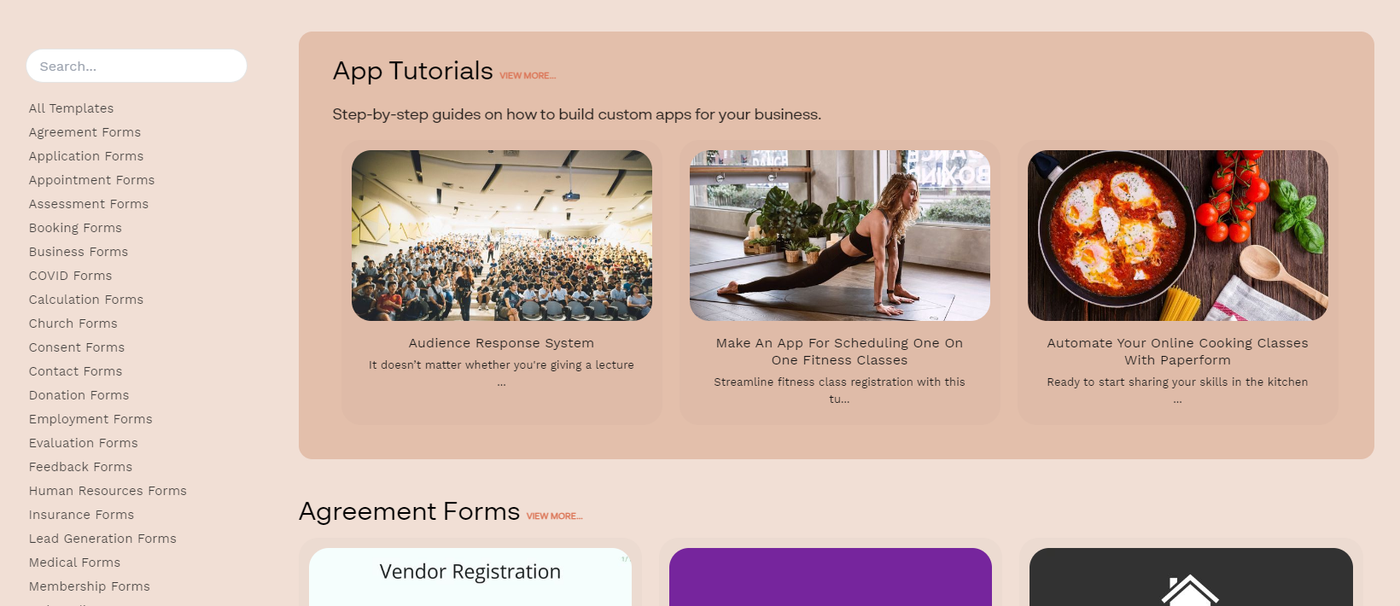 Template Gallery - Overview
-
Once you've found a template that you'd like to use, click the "Use this template" button listed on the same page.
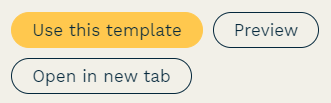 Template Gallery - Actions
-
Your browser window will then be directed to the form editor for your new copy. Feel free to make any changes on this page, and they'll be reflected in your copy.
-
To view the live version of your copy, click the "eye" icon in the top-right of the editor window.
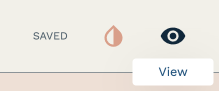 Form Editor - Upper Right Actions
From your dashboard
Template categories are no longer shown at the top of the dashboard. To start from a template in the app, click New form at the top right of your forms list, then scroll down to Or browse the template library to browse or search the templates. Learn more in How do I create a form?