Paperform, Papersign and Stepper now share one dashboard. Your forms, documents and workflows sit side by side in the same workspaces and folders, and the settings for all three are in one place.
This article walks through where everything lives.
The sidebar
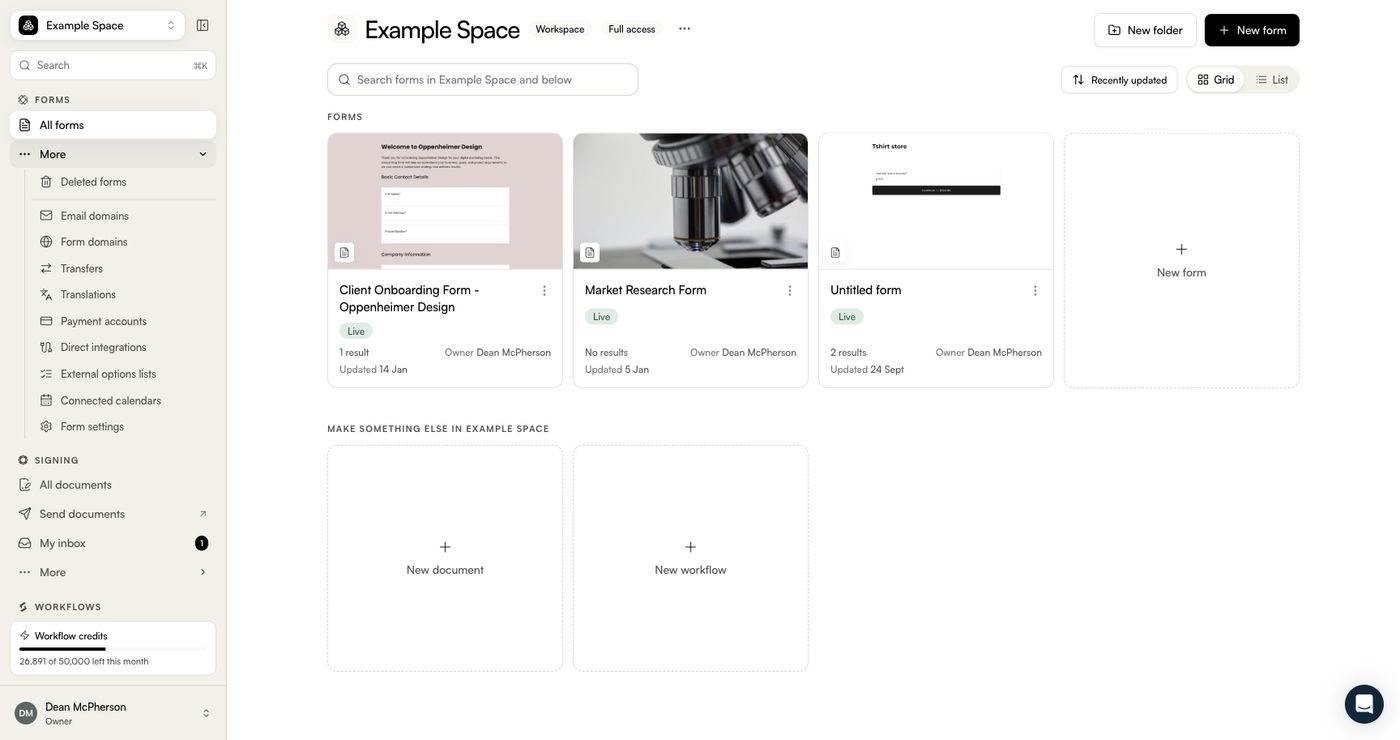
The sidebar has a group for each kind of work:
- Forms: All forms, plus a More menu with Deleted forms and your form settings (Email domains, Form domains, Transfers, Translations, Payment accounts, Direct integrations, External options lists, Connected calendars and Form settings).
- Signing: All documents, Send documents and My inbox, plus a More menu with Archived documents, Activity and Document webhooks.
- Workflows: All workflows and My connections, plus a More menu with My webhooks and My skill sets.
Switching between Forms, Documents and Workflows keeps you in the same folder. The dashboard also remembers the workspace, kind of work and folder you were last in, and opens there next time.
At the bottom of the sidebar you'll find your plan's usage (for example, workflow credits) and your account menu, which holds Account settings, Team settings and Team members.
Workspaces (formerly spaces)
Spaces are now called workspaces, and a workspace holds forms, documents and workflows together.
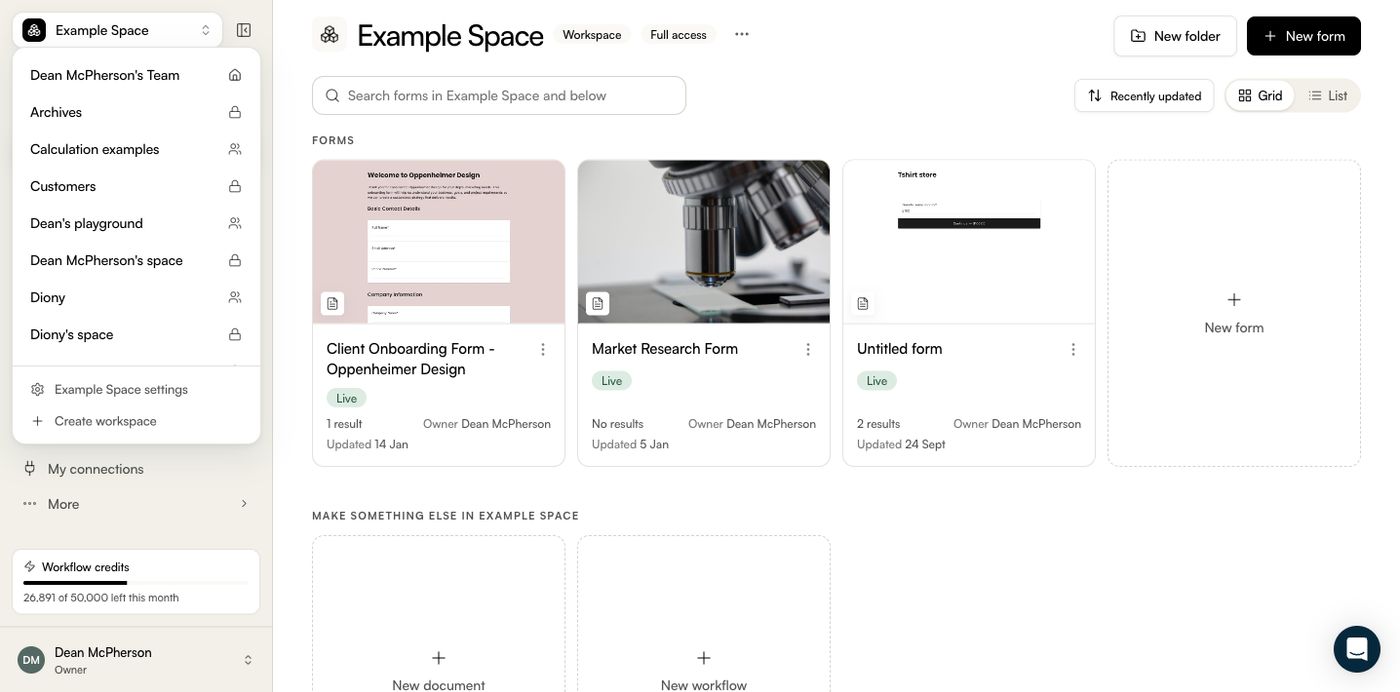
To change workspace, click the workspace switcher at the top of the sidebar and pick one. Click the pin next to a workspace to keep it at the top of the list. If you have a lot of workspaces, the rest fold behind Show more.
If you're on more than one team, the switcher also lists your teams under Team, and the current team's name shows above the workspace name. Click a team to switch to it. A team that hasn't moved to the new dashboard is marked Old dashboard and opens there.
The bottom of the switcher has two shortcuts:
- {Workspace} settings, to rename the workspace, manage who can see it, move its contents or delete it.
- Create workspace, to add a new one.
How many workspaces can I have?
Free and Pro plans have one workspace. Business includes 10 workspaces, and Enterprise has unlimited workspaces. When you're at your plan's limit, Create workspace is greyed out in the switcher.
Who can see a workspace?
On Free and Pro, everyone on your team can see everything in your workspace.
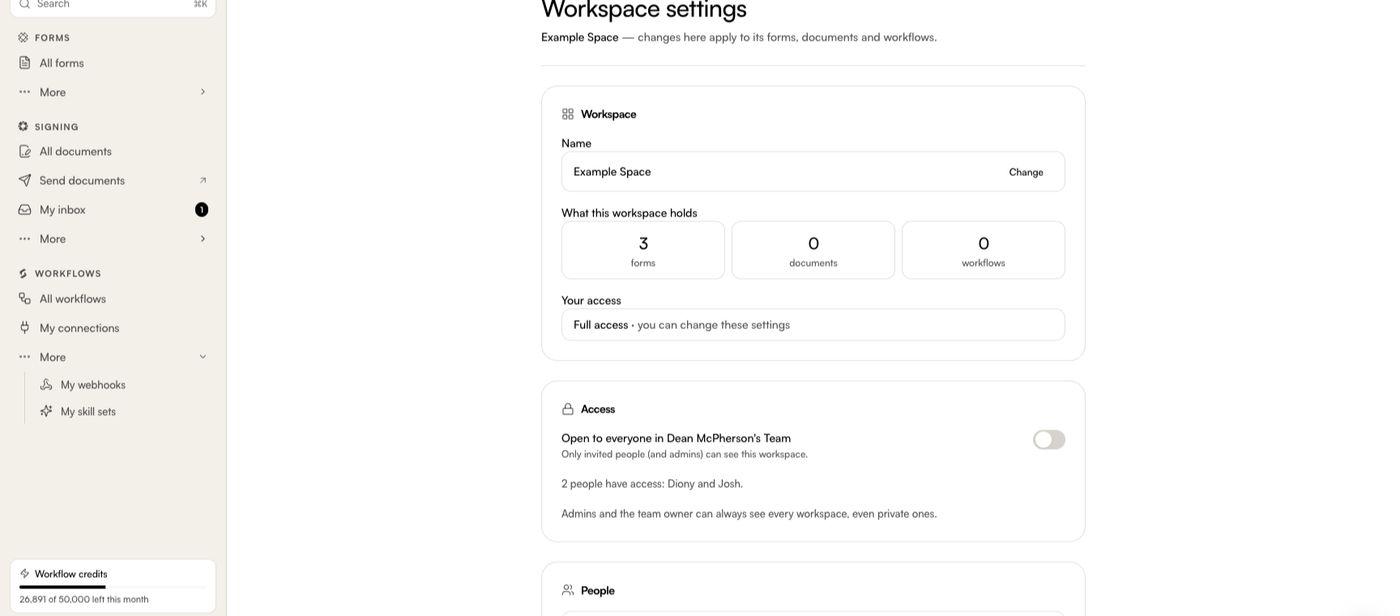
On Business and Enterprise, each workspace has its own access. Open the workspace switcher and click {Workspace} settings:
- Access: turn on Open to everyone in {team} to let the whole team see the workspace. When it's off, only the people you add (and admins) can see it.
- People: add teammates and choose Full access or Read only for each. Read only applies to documents and workflows. For forms, each person keeps their Paperform role.
Admins and the team owner can always see every workspace, including private ones.
What someone sees inside a workspace also depends on their seats. For example, a teammate with a Paperform seat but no Papersign seat sees the forms in a shared workspace, but not its documents.
Tip: use a separate workspace when different people need different access, and use folders to organise everything else.
Folders
Folders are the main way to organise work inside a workspace. A folder can hold forms, documents and workflows, as well as other folders.
- Create a folder: click New folder above the list, then type its name.
- Rename, move or delete a folder: click the ⋯ menu on the folder's card (or right-click it). When a folder is open, the same options are in the menu next to its title.
- Move work into a folder: click Move to… in an item's ⋯ menu, or tick several items and click Move in the selection bar.
To delete a folder, first move or delete the forms, documents and workflows inside it. Paperform then tells you what will be deleted with the folder, such as empty folders inside it and any document webhooks set on it.
Finding your work
- Grid or list view: switch with the Grid and List buttons above each list. In grid view, forms and documents show a picture of their first page, and workflows show the apps they use. Your choice is remembered for each kind of work.
- Sort: use the sort button (for example, Recently updated).
- Search a folder: the search box above the list finds work anywhere in the folder you're in and the folders below it. Results show which folder each item is in.
- Filter: use Filter to narrow by owner, show only document templates, or show workflows that are Draft, Live or Paused. Teams that use form tags can also filter forms by tag.
Search everything with ⌘K
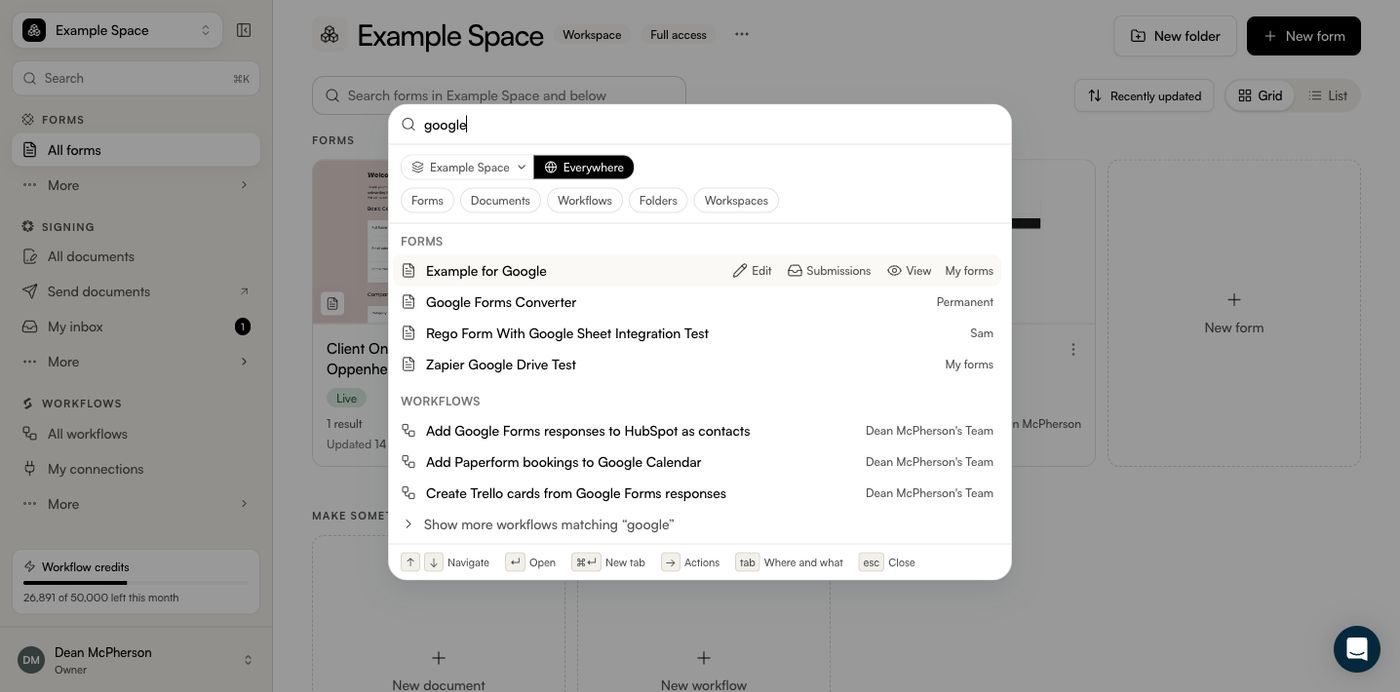
Press ⌘K (Ctrl+K on Windows), or click Search at the top of the sidebar. Search opens on your recently updated work and finds forms, documents and workflows together, grouped by kind. You can search the workspace you're in or Everywhere.
Press Enter to open the top result, or ⌘Enter (Ctrl+Enter) to open it in a new tab.
Working with forms, documents and workflows
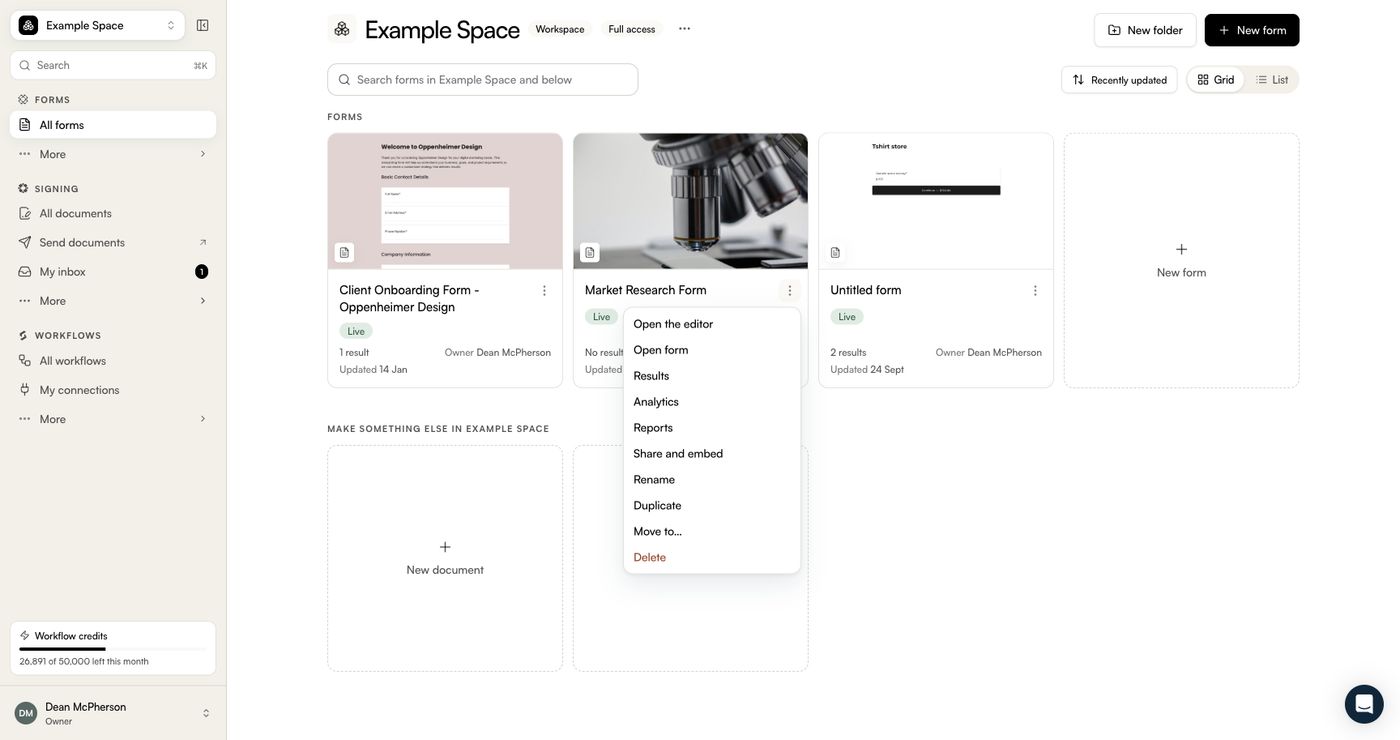
Every item has a ⋯ menu (or right-click it) with the actions for that kind of work. For a form, that's Open the editor, Open form, Results, Analytics, Reports, Share and embed, Rename, Duplicate, Move to… and Delete. Documents and workflows have their own actions, such as Send a copy or Make template for documents, and Go live, Pause or Run it now for workflows.
Bulk actions
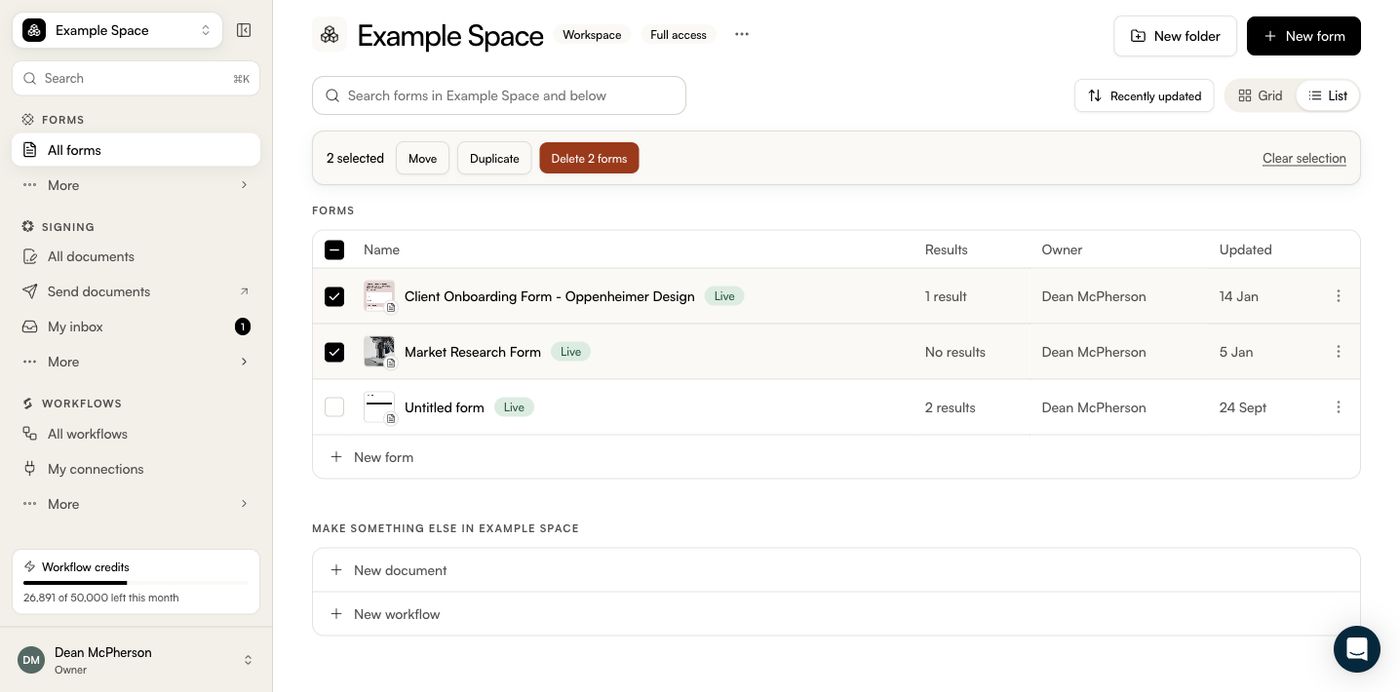
Tick the checkbox on items to Move, Duplicate or Delete them together:
- Shift-click to select a range, or press ⌘A (Ctrl+A) to select everything on the page.
- Select all in the selection bar selects everything in the folder, beyond the current page (up to 5,000 items).
- You can tick folders too, to move them along with the items.
Each bulk action shows its progress, and you can Undo it when it finishes.
The Move picker can also send items to another workspace. Before anything moves, it shows who will gain or lose access and anything that can't move.
Moving everything into another workspace
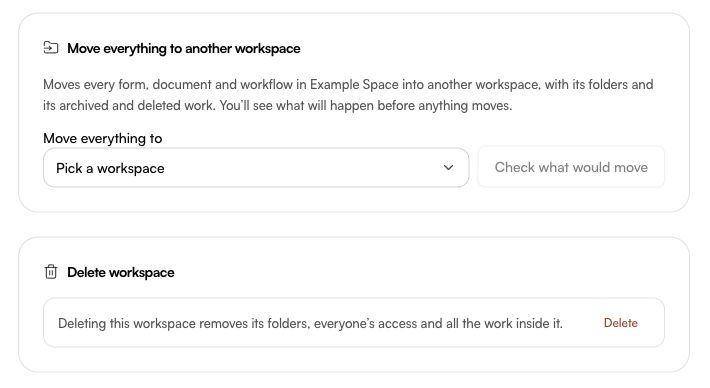
To empty one workspace into another, open the workspace switcher, click {Workspace} settings and find Move everything to another workspace.
- Pick the workspace to move everything to.
- Click Check what would move. Nothing moves yet: Paperform shows you what will move, who will gain or lose access, and anything that needs your attention first.
- Choose where things land: in a new folder named after the workspace you're emptying, or at the destination's top level.
- Click Move everything to {destination}.
Every form, document (including archived documents and templates), workflow, folder and deleted item moves, and your folder structure is kept.
Combining several workspaces
To combine several workspaces at once, go to your account menu, then Team settings > Workspaces > Combine workspaces. Tick the workspaces to empty, pick the one to keep, and click Check what would move. You can choose to delete each workspace once it's empty.
Workspaces move one at a time, and the move carries on if you leave the page. If one workspace can't finish, the others still go ahead, and you can carry on from where it stopped.
What doesn't move automatically
- Workflows that use a teammate's private connection. The teammate needs to share the connection first. The check tells you which workflows these are.
- Workflows that use a connection belonging to the workspace itself. Swap the connection in the workflow editor before moving.
- A deleted workspace's own connections and API tokens. These are deleted along with the workspace, and the check lists them first.
Important: there's no one-click undo for moving a workspace. Until you delete the emptied workspace, you can move folders back by hand.
Deleted forms and archived documents
- Forms > More > Deleted forms lists forms deleted in the last 25 days, and you can restore them from there. If a form's folder no longer exists, it's restored to the nearest folder that does.
- Signing > More > Archived documents lists archived documents, which you can restore.
Stepper and Papersign
Stepper now runs on paperform.co, so you sign in once for all three products. Old app.stepper.io links, bookmarks and email links still take you to the right page. A workflow's recent runs, run details, version history and issues are all pages in the dashboard.
Papersign's My inbox, Activity, Document webhooks and Send documents (including bulk send from a CSV file) are also in the dashboard.
Gotchas
- Old dashboard links and bookmarks forward to the matching page in the new dashboard.
- Back in the form editor or workflow editor returns you to the folder the item is in.
- If a product or feature isn't on your plan, its page explains why and offers a trial or upgrade. If you can't change the plan yourself, you can ask your team owner.