Combine workspaces moves everything in several workspaces into the one you keep. You'll see what happens to each before anything moves.
Combine workspaces is in Team settings, so you'll need to be a team owner or admin.
Pick the workspaces to combine
- Click your name at the bottom of the sidebar to open the account menu, then click Team settings.
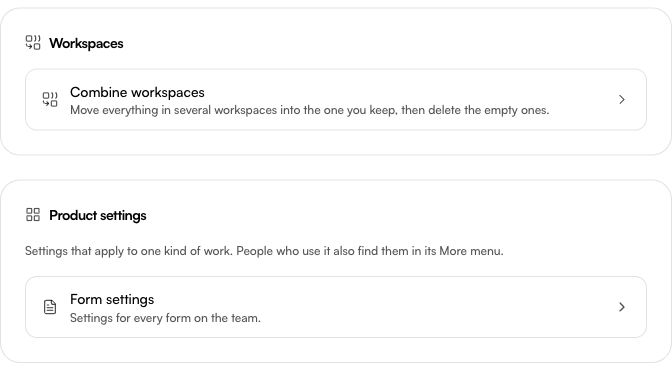
- Under Workspaces, click Combine workspaces.
- Under Move everything out of, tick the workspaces you want to empty.
- Under Into the workspace you keep, choose the workspace everything moves into.
- Click Check what would move. Nothing moves yet.
Check what would move
The check shows you, for each workspace:
- What moves: how many forms, documents and other items will move. Click See its report for the details.
- Who gains and loses access: for example, who gains access and who loses it once the work moves. Tick Give them the same access in {destination} to keep people's access as it was.
- Where they go: choose Each into a new folder in {destination}, named after it, or All at {destination}'s top level, mixed together.
- If you then delete them: what else goes if you delete the emptied workspaces. Tick Delete each workspace once everything has moved out of it to delete them as you go.
When you're happy, click Move N workspaces into {destination}. To change your choices, click Pick other workspaces.
Folders move with everything in them, so each workspace keeps its folder structure. Archived documents and deleted items move too, so the emptied workspace really is empty.
Workspaces move one at a time. The move carries on if you leave the page. If one workspace can't finish, the others still go ahead, and you can carry on from where it stopped.
What doesn't move automatically
- Workflows that use a teammate's private connection. The teammate needs to share the connection first. The check tells you which workflows these are.
- Workflows that use a connection belonging to the workspace itself. Swap the connection in the workflow editor before moving.
- A deleted workspace's own connections and API tokens. These are deleted along with the workspace, and the check lists them first.
Important: there's no one-click undo. Until you delete an emptied workspace, you can move folders back by hand.
Moving just one workspace
To empty a single workspace into another, open the workspace switcher at the top of the sidebar, click {Workspace} settings, and use Move everything to another workspace. Learn more in How do I find my way around the new dashboard?
Gotchas
- On Business and Enterprise, each workspace has its own access, so people may gain or lose access to work when it moves. The check shows you this before anything moves.
- Free and Pro plans have one workspace, so there's nothing to combine.
Learn more about managing users and teams.