You can customize the messaging and buttons of your form and its UI to say whatever you would like in any language.
You can create, edit, and manage all of your translations in Forms > More > Translations, or from the Theme & Appearance section while editing any form.
- From the dashboard: In the sidebar, go to Forms > More > Translations.
- From the form editor: Click the "Theme & Appearance" button at the top of the left sidebar, then select "Translations."
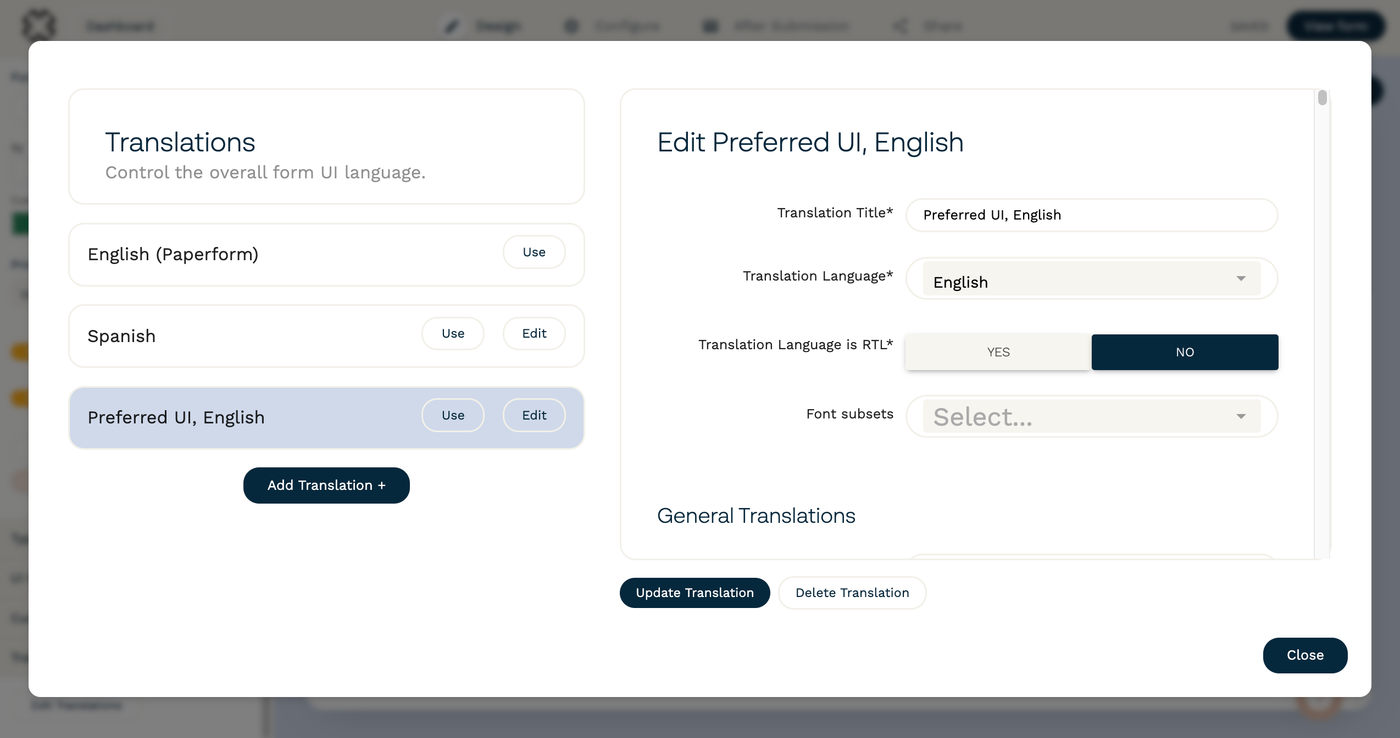
This menu can be used to translate your forms to another language, but you can also use a translation to change the wording of certain elements on your English-language form.
Creating a new translation
You can create a new translation from Forms > More > Translations or while editing for a specific form. The translation will be saved to your account either way, so you can apply the same setting to any form in the future.
-
In Forms > More > Translations, click Add translation at the top right. In the form editor, select "Add Translation."
-
Enter a Name. This is only for your own reference and does not appear on the form. (In the form editor, this is "Translation Title".)
-
Choose a Language. If your form is in English and you're just changing the wording of some element(s), you still need to choose "English". (In the form editor, this is "Translation Language".)
-
(Optional) Turn on Right to left for a language written right to left, such as Arabic or Hebrew. All messaging, questions, and answers on the form will then be set to RTL.
-
(Optional) Under Font character sets, tick any character sets your language needs beyond basic Latin.
-
Scroll down to Text. Each piece of text shows the default English wording, with a box to enter your translation or preferred wording. Use Filter text to find a piece of text, or turn on Customised only to see just the ones you've changed.
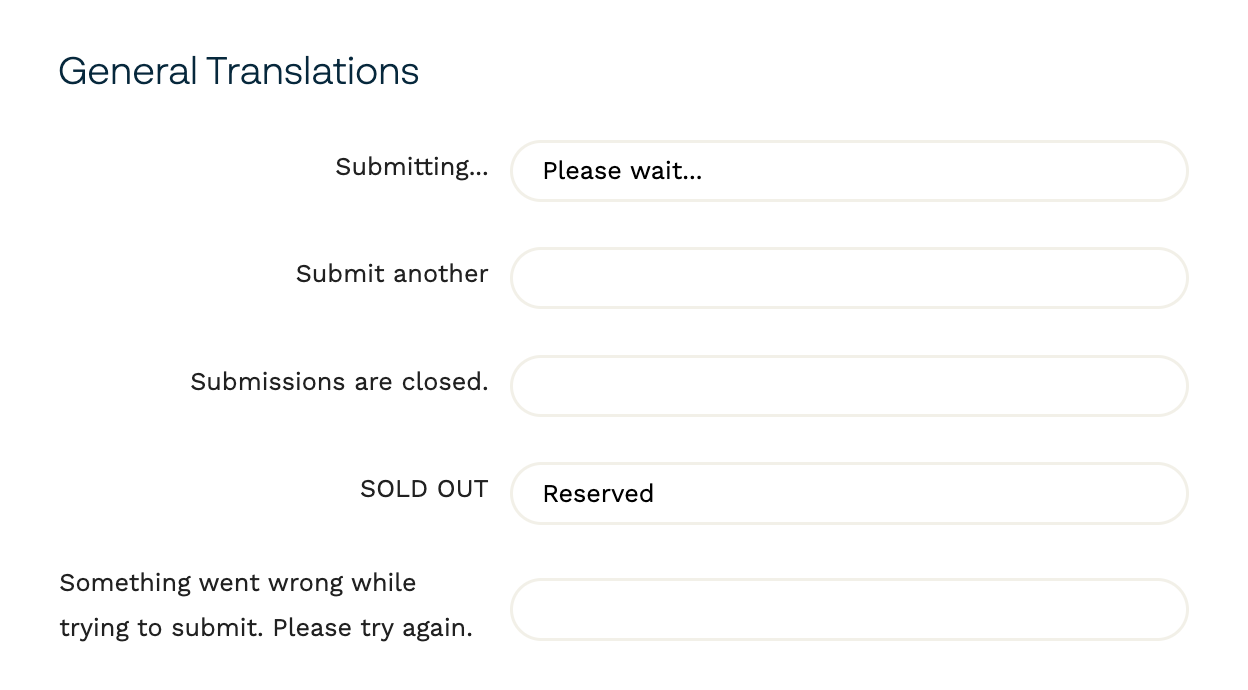
If your form is in English, you can leave a box blank to stick with the default wording. If it is in a different language, we recommend translating everything.
-
When finished, click Add translation at the bottom of the page. The translation will appear under Your translations. (In the form editor, select "Create Translation.")
In the form editor, if the button says "Please answer all required questions," then you need to scroll up and either enter a Translation Title or select a Translation Language. If you're just changing the wording of an English-language form, you still have to open the dropdown menu and select "English."
Editing and deleting translations
You can edit any translation using the "Edit" button in the form editor, or with Edit next to the translation in Forms > More > Translations. Each translation there shows its language and how many forms use it. When you've made your changes, click Save.
To delete a translation from Forms > More > Translations, click the ⋮ menu next to it, then click Delete. The same menu has Duplicate, to start a new translation from a copy. In the form editor, edit the translation and then select "Delete Translation" at the bottom.
Keep in mind that changes to a translation setting will affect all forms that are currently using it, even if you are in the editor for a specific form.
Selecting a translation for your form
From within the form editor (Theme & Appearance → Translations → Edit translations), click the "Use" button to apply a specific translation to your form.
Setting a default translation for new forms
From Forms > More > Translations, click Make default next to a translation to change the default translation setting for new forms in the future. The built-in "English (Paperform)" translation is the default until you choose another, and it can't be changed.
Gotchas
- Translations only include text which you can't already edit in a different part of the form editor. For example; the submit button text can be changed under Theme & Appearance → UI Elements → Submit Button, and so you won't find the word "Submit" in your translation settings.
- If you would like your whole form to be in a different language, you will need to type out all the content including questions and text in your form the desired language.