By default, forms don't load additional character subsets from Google Fonts required for languages other than English. You can manually enable these character subsets by using a Custom Translation on your forms.
Here's how:
-
In the sidebar, go to Forms > More > Translations.
-
Click Add translation at the top right, or click Edit next to your translation of choice. Note that if you are modifying an existing translation, skip to Step 5.
-
Add a name for the translation in the field labeled Name.
-
Choose the language that will be used in this translation under Language.
-
Under Font character sets, tick the character sets you wish to use.
-
Complete the translation as necessary, and then click Add translation at the bottom of the page. Note that when updating an existing translation, the button will read Save instead.
-
Navigate back to the form editor you'd like to use the translation with, and select Theme & Appearance (upper-left hand corner) → Translations → Edit Translations.
-
Click the "Use" button next to the translation we just updated.
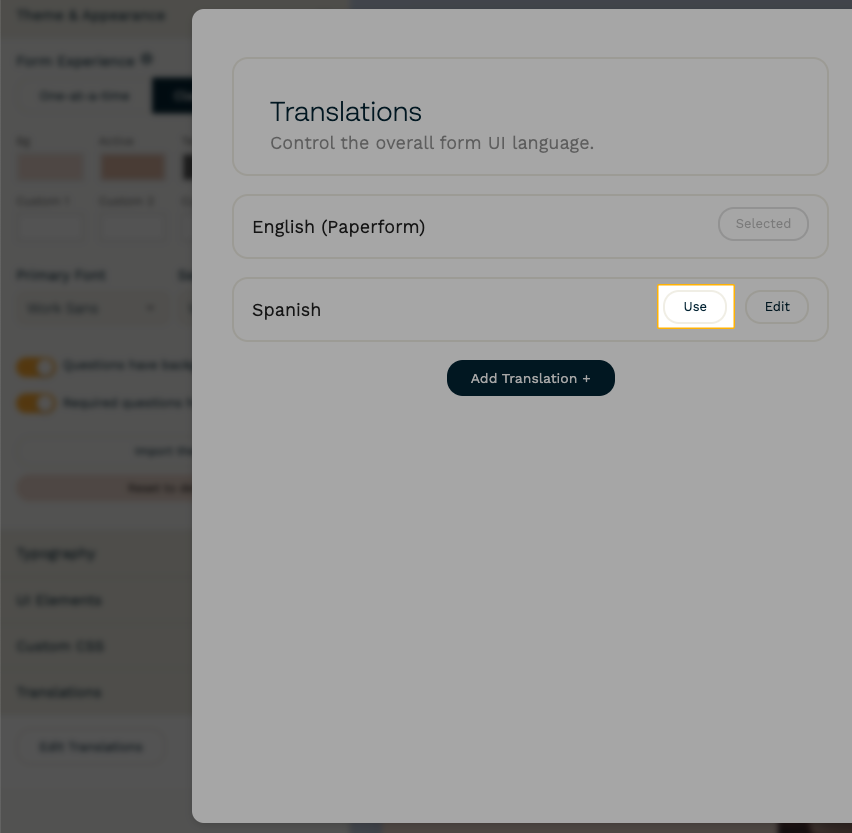 Translations - Selection Menu
If you are still having issues with the display of your font's characters, please contact us via live chat or email at support@paperform.co.