Introduction
For larger organizations, it may be useful to give users their own login credentials to gain access to your team, with specific permissions.
In this guide we’ll cover:
- Concept of teams
- Users and roles
- Managing users
- Instructions for both Legacy and Platform Teams
Check our Platform pricing page and Legacy pricing page to see if your current plan supports multiple users.
Teams for all Plans
What is a team?
This section applies no matter which plan you're on.
Teams allow you to invite other Paperform users to access your account and depending on your plan to give them access to your Paperform.
You can use roles and spaces to restrict which actions a member of your team can take.
Creating a team
You can be part of many teams but can only own one team.
If a user only belongs to other users’ teams, they can create a team from the avatar menu. Creating a team will automatically start a Paperform trial for that team:
- Select the avatar icon on the top right and select “Create new team”.
- Select “OK”.
Switching between teams
If you are a part of multiple teams, you can switch between them using the buttons in left sidebar of your dashboard.

Your dashboard only shows the content that belongs to the currently selected team.
Leaving a team
If you are a member of another user’s team, you can remove yourself from it.
- Switch to the team, then click the Avatar icon in the top right → Account Settings → Leave Team.
- Click Ok to confirm.
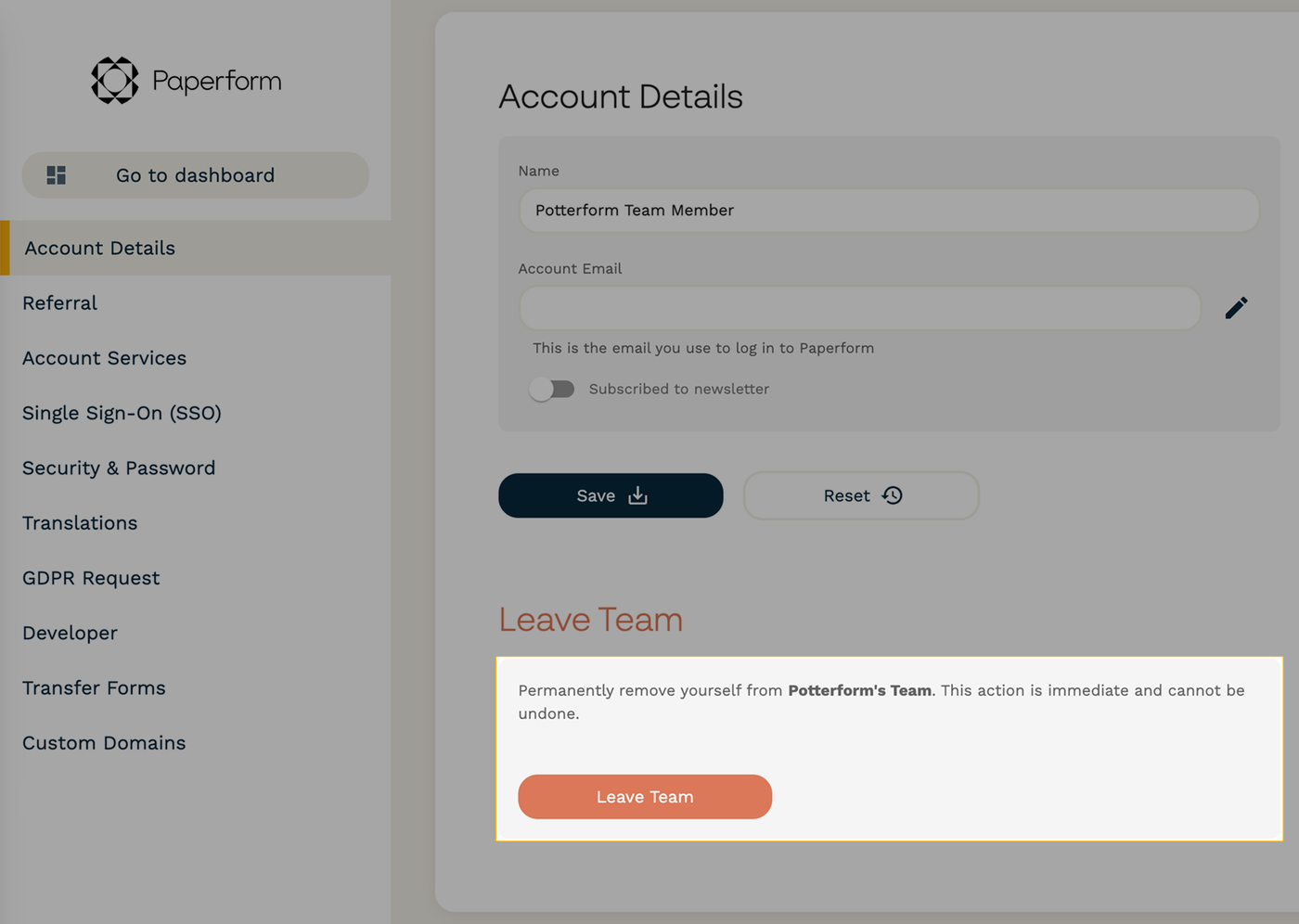
When you leave a team:
- You will immediately lose access to all forms, submissions, and integrations shared on the team.
- Any documents or assets you own in the team will be transferred to the team owner.
- To rejoin, you need to receive and accept a new invitation from the team owner.
Team owners can’t remove themselves from a team they own.
Send bulk invites
You can quickly add multiple users to your Papersign or Paperform team from the respective product's Dashboard.
To complete this action, you must have Team and billing admin permissions.
-
Open the avatar menu.
-
Select “Invite your Team”.

-
Enter the email address of user(s) you wish to invite. Separate emails with a comma.

-
Select their permission level and which Spaces they have access to.
-
When you’re done, click the “Invite” button.
The users will immediately be sent an email inviting them to join your team. They will be marked as “Pending” until they accept the invitation.
You can view, update, or remove permissions from the Manage Team Members page.
Users and Roles For Platform Plans
Free and Pro
When inviting a new team member to your Platform Free or Pro team, they will get full access to your Paperform, Papersign, and Stepper subscriptions. Every member can also invite and remove people, change billing, and connect payment accounts.
The team gets one space which is the default team space. Spaces cannot be made private or shared with specific people.
Seats are unlimited on every Platform plan.
Business
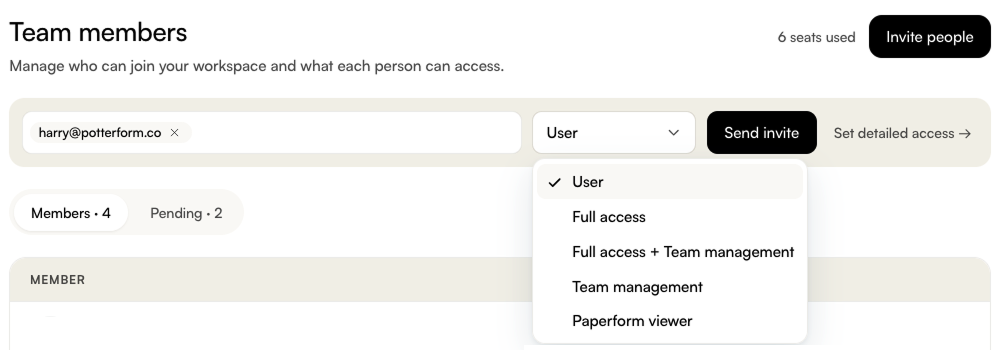
The Business Plan allows for more control and has different access levels for team members: User, Full Access, Full Access + Team Management, Team Management, and Paperform Viewer.
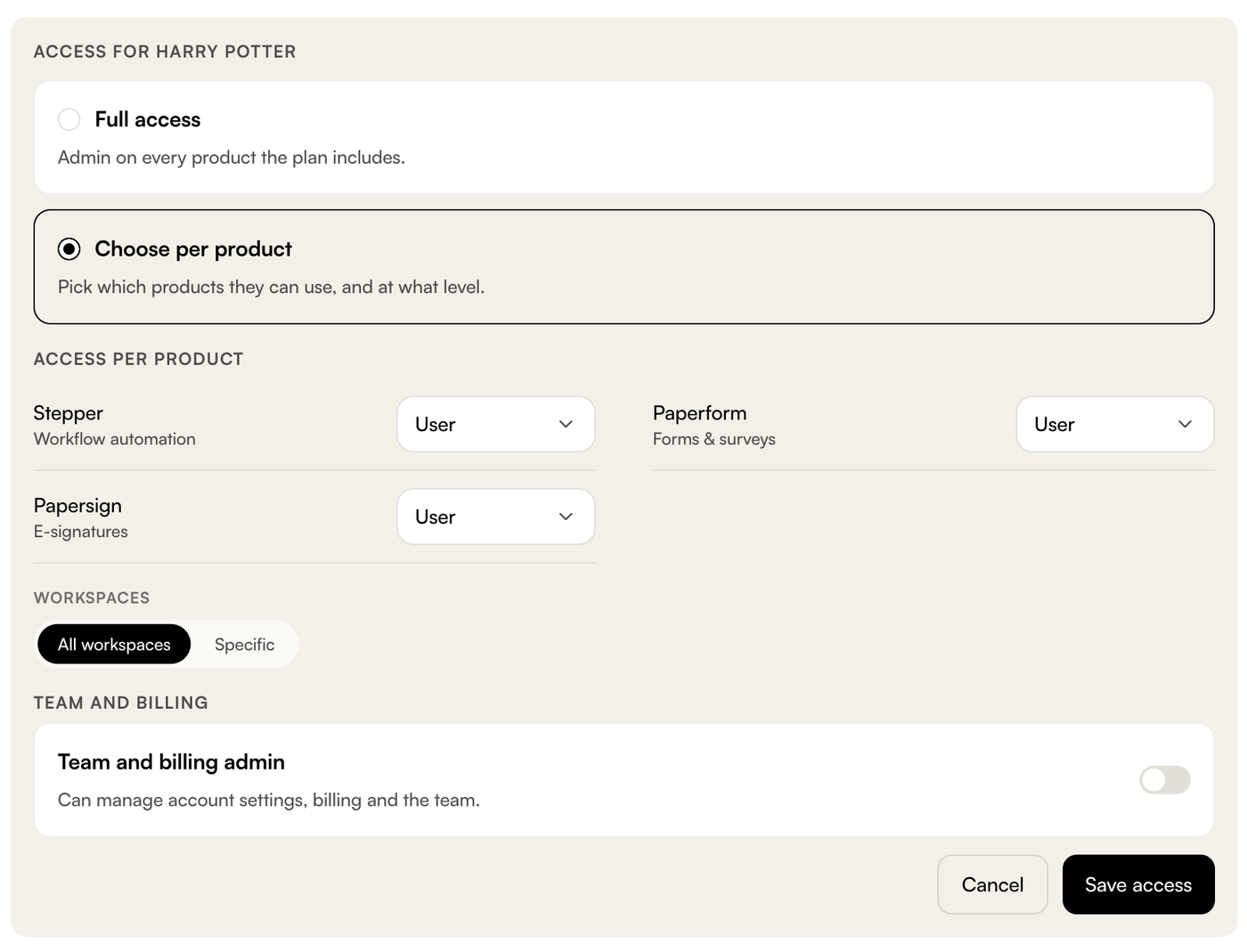
You can also set access for each product (Paperform, Papersign, Stepper, and Account settings) and turn on “Team and billing admin” separately.
User
- Access to team spaces, their own spaces, and spaces shared with them.
- Can create, edit, and delete forms in any space they can access.
- Can create their own spaces.
- Cannot access or manage billing.
- Cannot invite people or connect payment accounts.
Full Access
-
Ability to create forms, documents, and workflows.
-
Access to view, export, delete, and restore submissions, and resend submissions to integrations and webhooks.
-
Ability to create tags for forms.
-
Access to all spaces, including private and restricted spaces.
Full Access members can’t invite people, manage billing, or connect payment accounts without Team and billing admin permissions.
Full Access + Team Management
- Full control over all of the forms, documents, and workflows, and account settings.
- Invite and remove team members, and manage billing.
- Ability to add payment accounts.
- Ability to copy forms and spaces between teams.
- Ability to transfer forms and spaces between teams.
Team Management
- Ability to add payment accounts.
- Ability to create forms.
- Ability to move forms between spaces.
- Full control over all Papersign documents.
- Full control over all Stepper workflows.
- Team and Billing Admin if given permission.
Paperform Viewer
- Access to Paperform product only.
- Access to view and export submissions.
- Access to team spaces and any spaces shared with them.
- Ability to create tags for forms.
- Cannot create, update, or delete forms.
- Cannot create spaces.
When adding a Team Management member, be sure to toggle on Team and Billing Admin first if you’d like them to manage team members and billing.
Managing Users
Invite a user to your team
When sending an invite, you can configure the roles that person will have on your team. The invited user can then accept your invite and add their pre-existing Platform account to your team or register for a new one. It is important to make sure the user you're inviting to your team has a Platform (Not Legacy Paperform) subscription.
On Business, you need Team and billing admin permissions to invite people. On Free and Pro, any team member can invite.
- Click Team Members.
- Enter the new team member's email address and choose their level of access.
- Click Send Invite.
Updating a user in your team
- Click the horizontal three-dot menu to the right-hand side of the user you wish to edit.
- Click Edit Access.
- Make changes to each product for the user and click “Save access.”
Members can’t edit their own access.
Removing a user in your team
- Click the horizontal three-dot menu to the right-hand side of the user you wish to edit.
- Click “Remove.”
- The user will be removed immediately.
When you remove a member, their spaces transfer to the team owner. Empty private spaces are deleted, and team spaces are always kept.
Users and Roles For Legacy Plans
Paperform Admin
- Full control over all forms, including forms in other members’ private spaces.
- Can create, update, delete, and restore forms, and view their submissions.
- Ability to add payment accounts.
- Ability to copy forms and spaces between teams.
- Ability to transfer forms and spaces between teams.
- Can create, update, delete, and restore forms as well as view their respective submissions.
- Can create custom domains and branding.
- Cannot invite or manage team members, access billing, or connect payment gateways without an Accounts seat.
Paperform User
- Create, update, delete and restore forms and view their respective submissions.
- Forms created by Users are automatically added to the space they are assigned to.
- Can see team spaces, their own spaces, and spaces shared with them.
- Can create their own spaces.
- Can connect payment gateways only if they also have an Accounts seat.
Paperform Viewer
- Access to view and export submissions. Viewers can only manage form submissions that they have access to.
- Access to team spaces and spaces shared with them. If limited to a tag, they only see forms with that tag.
- Cannot create, update, or delete forms.
- Cannot connect payment gateways.
- Cannot add custom domains, request form transfers, or add branding.
- No access to team administration.
- No access to billing.
Accounts Admin
- Access to manage account billing.
- Can invite and manage team members.
- Can view and download receipts.
- Cannot access forms or submissions.
- Cannot add payment gateways.
- Cannot add custom domains, request form transfers, or add branding.
Accounts seats are free on every plan and do not count towards the seat limit.
Papersign Admin
- Ability to manage all Papersign documents.
Papersign User
- Ability to manage all Papersign documents they own.
Managing Users
Invite a user to your team
When sending an invite, you can configure the roles that person will have on your team. The invited user can then add themself to your team if they already exist or register and be added to your team.
To complete this action, you must have admin permissions.
-
Go to Account Settings → Manage Team Members.

-
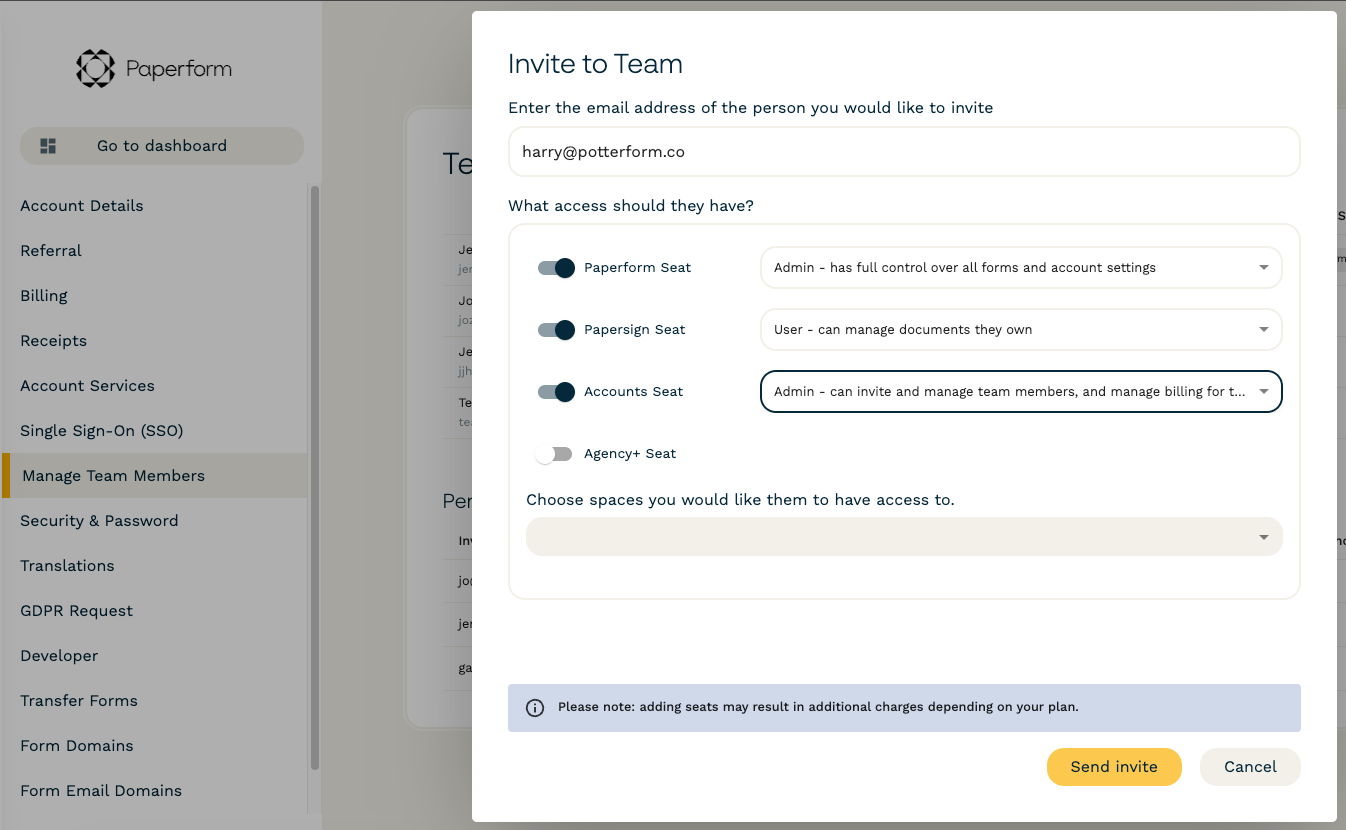
Click “Invite to Team” on the top right corner to open the invitation modal.
-
Enter the email address of the user you wish to invite.
-
Then, use the toggles to specify their role(s) and permission level. If the user is not an admin, you have the option to restrict which tags and Spaces the user has access to. Note: Team Spaces display for everyone on the team, even if you’ve only set permissions for the team member to view one space.
-
When you’re done, click the "Send Invite" button.
The user will immediately be sent an email inviting them to join your team. They will be marked as “Pending” until they accept the invitation.
If you exceed the number of seats on your plan while on trial, you will be automatically upgraded to a plan that fits your team. You can check which plan you're on in your Account Settings > Billing page.
Once added to your team, you can update permissions or remove them at any time from the Manage Team Members page.
Accepting the invitation
To accept the invitation, click on the invitation link in the email and follow the prompts.
If you already have a Paperform or Papersign account, you'll be prompted to log in with your credentials. Otherwise, you will be prompted to create a new account.
Once you complete the invitation process you will be logged in on your dashboard for that specific team.
Updating a user in your team
To complete this action, you must have admin permissions.
If you would like to edit an existing user's permissions, follow the steps below:
- Go to Account Settings → Manage Team Members.
- Click on “Permissions” next to the user you want to update.
- Make changes to the user then click “Save”.
Removing a User from your team
To complete this action, you must have admin permissions.
- Go to Account Settings → Manage Team Members.
- Click on "Remove" next to the user's name.
- When prompted with the message "Are you sure you want to remove this user?", click "Ok".
The user will immediately be removed from the list of users.