Two-Factor Authentication, commonly referred to as "2FA", provides your Paperform account with a greater level of security. When your account has this option enabled, we'll require multiple factors of authentication to allow access to your account.
Paperform's additional security factor (as well as your password) is a securely generated code that expires after a short period of time. This code is generated by Google Authenticator for Paperform, however, you're welcome to use supported alternative apps such as Authy.
Setting up Two-Factor Authentication for your account
You can proceed to set up two-factor authentication using the steps listed below:
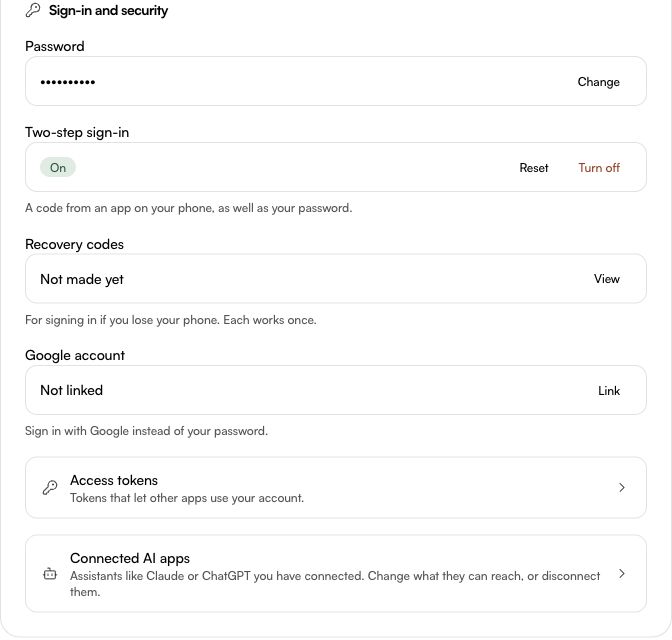
- Click your name at the bottom of the sidebar to open the account menu, then choose Account settings. You can also go straight to Account settings.
- Under Sign-in and security, find Two-step sign-in and click Turn on. Once it's on, you can Reset or Turn off two-step sign-in from the same place.
- Scan the QR code with your authenticator app, enter the 6-digit code it shows under Code, then click Turn on.
- You'll then see your 8 recovery codes. Each one works once. If you lose access to your authenticator device, you can use these backup codes instead of the usual generated code. Please store these codes in a secure location to prevent losing access to your account. Click Copy codes to copy them. You can see them again later with View next to Recovery codes, or click Make new codes… there to replace them.
Require two-step sign-in for everyone on your team
Check our pricing page to see which plans support team members.
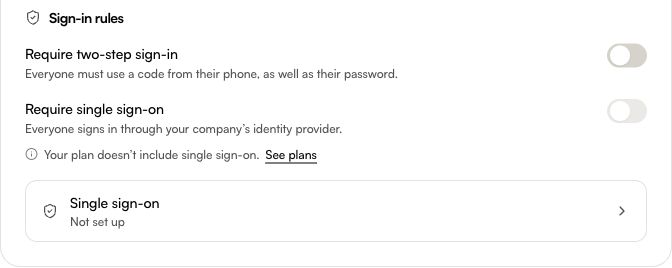
Team owners and admins can make two-step sign-in a requirement for everyone on the team. Here's how:
- Click your name at the bottom of the sidebar, then choose Team settings. You can also go straight to Team settings.
- Under Sign-in rules, turn on Require two-step sign-in.
I've lost access to my Two-Factor Authenticator Device
If you no longer have access to your authenticator device used to generate codes, first attempt to use one of your backup codes in place of a generated code.
If you don't have access to your backup codes or the authenticator device, please send our support team an email at support@paperform.co from the email address associated with your account. Further verification steps will be communicated via email to reset your account's Two-Factor Authentication.