 By Dean McPherson, Co-founder & CTO, Paperform · Updated
HubSpot Forms vs Microsoft Forms: Which Is Better in 2026?
HubSpot Forms and Microsoft Forms are both free, but they solve different problems. HubSpot Forms exist to capture leads and feed them into a CRM: every submission creates a contact, triggers workflows, and advances prospects through marketing funnels. Microsoft Forms exist to collect data within the Microsoft 365 ecosystem: surveys, quizzes, polls, and feedback that flows into Excel, SharePoint, and Teams.
Comparing them head-to-head is a bit like comparing a fishing net to a bucket: both hold things, but they are designed for different catches. This comparison helps you understand which tool fits your actual use case, where each one excels, and where both fall short compared to dedicated form builders.
Quick Verdict
Choose HubSpot Forms if:
- You need forms that feed directly into a CRM
- Lead generation and marketing automation are your priority
- You want progressive profiling and smart fields
- You're already using or planning to use HubSpot's ecosystem
Choose Microsoft Forms if:
- You need internal surveys, quizzes, or employee feedback
- Your organisation runs on Microsoft 365
- You want dead-simple form creation with zero learning curve
- You need Teams/SharePoint/Excel integration out of the box
Feature Comparison
These platforms share surprisingly little overlap. HubSpot Forms is a marketing tool; Microsoft Forms is a data collection tool. The feature table makes the divergence clear.
| Feature | HubSpot Forms | Microsoft Forms |
|---|---|---|
| Form Building | ||
| AI form builder . Describe the form you need in plain language and the tool drafts the questions for you. | No | Yes Microsoft 365 Business Standard with Copilot |
| Templates . The number of ready-made form templates in the tool’s template gallery. | Yes | Yes |
| Field types . How many kinds of question or input field the form builder offers, such as text, dropdown, date, file upload and signature. | Yes | 8 |
| Conditional logic . Show, hide or skip questions and pages based on how someone has answered earlier questions. | Yes professional | Yes |
| Calculations . Compute totals, scores, prices or dates from answers while the form is being filled in. | No | No |
| Multi-page forms . Split a long form across several pages that respondents move through in order. | Yes starter | Yes |
| One question at a time . A conversational layout that shows a single question per screen, popular for surveys on mobile. | Not recorded | No |
| Answer piping . Insert a respondent’s earlier answer, such as their name, into later questions or text on the form. | Not recorded | No |
| Pre-filling and hidden fields . Fill in answers ahead of time from a link or existing data, and pass along values the respondent never sees. | Yes | Yes |
| File uploads . Let respondents attach files such as documents and photos to their submission. | Yes | Yes Microsoft 365 Business Basic |
| E-signatures . Collect a signature, either with a signature field on the form or by sending a document out to be signed. | No | No |
| Appointment booking . Let respondents pick and book a time slot directly in the form, with availability managed by the tool. | No | Yes Microsoft 365 Business Basic |
| Quiz scoring . Give answers point values so the form can score quizzes and assessments automatically. | No | Yes |
| Save and resume . Respondents can leave a form part-way through and come back later to finish it. | No | No |
| Close forms by date or response limit . Stop accepting submissions automatically on a set date or once a set number of responses has arrived. | Not recorded | Yes |
| Payments | ||
| Payment gateways . The number of payment processors a form can take payments through. Where a vendor’s full count isn’t recorded, the cell lists the gateways we confirmed. | 2 processors, incl. Stripe | No |
| Subscriptions and recurring payments . Charge respondents on a repeating schedule, such as monthly or annually, from a form. | Yes | No |
| Product sales . Sell products from a form, with product listings, quantities and an order total. | Yes | No |
| Conditional pricing . Change the price or add fees automatically based on the answers given in the form. | Yes professional | No |
| Coupons and discounts . Offer discount codes that respondents can apply to a payment or subscription on the form. | Yes | No |
| Tax calculations . Add sales tax to payments on the form automatically. | Yes | No |
| Refunds . Refund a payment from inside the form tool rather than going to the payment processor. | Yes | No |
| Design & Customization | ||
| Custom themes . Set your own logo, colours and fonts on forms and save them as reusable themes. | Yes starter | No |
| Custom CSS . Add your own CSS (and in some tools HTML) for styling beyond the built-in theme options. | Yes professional | No |
| Remove vendor branding . Remove the form builder’s own logo or badge so forms carry only your branding. | Yes starter | No |
| Custom domain . Host forms on your own domain, such as forms.yourcompany.com, instead of the vendor’s. | Not recorded | No |
| Custom form URL . Choose a readable link for a form instead of a random string. | Not recorded | No |
| Emails from your own domain . Send notification and confirmation emails from your own email domain instead of the vendor’s. | Yes starter | No |
| Multi-language forms . Show a form’s questions, buttons and messages in languages other than English. | Yes | Yes |
| Analytics | ||
| Response reports . Built-in summaries and charts of the answers a form has collected. | Yes | Yes |
| Form analytics (views and drop-off) . Track how many people view, start and finish a form, and where they abandon it. | Yes | No |
| Partial submissions . See the answers people entered before leaving a form without submitting it. | No | No |
| Google Analytics and Meta Pixel . Connect a form to Google Analytics or the Meta (Facebook) Pixel to track visits and conversions. | Yes | No |
| Custom tracking scripts . Add your own analytics or conversion-tracking scripts to a form. | Not recorded | No |
| AI response insights . AI-written summaries and insights generated from the responses a form has collected. | No | Yes Microsoft 365 Business Standard with Copilot |
| Collaboration | ||
| Team members . Invite colleagues into the same account to build forms and work with responses together. | Yes | Yes Microsoft 365 Business Basic |
| Roles and permissions . Give team members different levels of access, such as admin, editor or viewer. | Yes | Yes Microsoft 365 Business Basic |
| Advanced permissions and admin controls . Fine-grained, organisation-wide controls over who can access what, usually on enterprise plans. | Yes enterprise | Yes Microsoft 365 Business Basic |
| Workspaces . Separate spaces or folders for organising forms by team, client or project. | Yes | Yes |
| Security | ||
| Two-factor authentication . Users can protect their login with a second step, such as a code from an authenticator app. | Yes | Yes |
| Require 2FA for the whole team . Admins can make two-factor authentication mandatory for everyone in the account. | Yes | Yes Microsoft 365 Business Basic |
| SSO (SAML) . Team members sign in through your company’s identity provider, such as Okta or Microsoft Entra ID, using SAML single sign-on. | Yes professional | Yes Microsoft 365 Business Basic |
| HIPAA compliance . Whether the vendor supports collecting US protected health information under HIPAA, typically by signing a business associate agreement on an eligible plan. | Yes enterprise | Yes |
| SOC 2 . Whether the vendor holds a SOC 2 audit report covering its security controls. | Yes | Yes Microsoft 365 Business Basic |
| GDPR . Whether the vendor states that it complies with the EU General Data Protection Regulation. | Yes | Yes |
| Data residency . Choose the region, such as the EU, where your form data is stored. | Yes starter | Yes Microsoft 365 Business Basic |
| Store files in your own S3 bucket . Send uploaded files and exports to your own Amazon S3 storage instead of the vendor’s. | Not recorded | No |
| Spam protection (CAPTCHA) . Block bot and spam submissions with reCAPTCHA or a similar challenge. | Yes | Not recorded |
| Integrations & API | ||
| Native integrations . Apps the tool connects to directly, without going through a third-party connector such as Zapier or Make. | Yes | Not recorded |
| Zapier . Connect forms to thousands of other apps through Zapier. | Yes | No |
| Make . Connect forms to other apps through Make (formerly Integromat). | Yes starter | No |
| Workflow automation . A built-in builder for multi-step automations that act on submissions, such as approvals, routing and syncing data to other systems. | Yes starter | Yes Microsoft 365 Business Basic |
| Webhooks . Send each new submission to a URL of your choice as soon as it arrives. | No | No |
| API access . A developer API for reading forms and submissions, or managing them, from your own code. | Yes | No |
| WordPress plugin . A plugin for adding forms to a WordPress site. | Yes | Not recorded |
— means we haven't recorded it for that tool.
Where HubSpot Forms Wins
Native CRM Integration
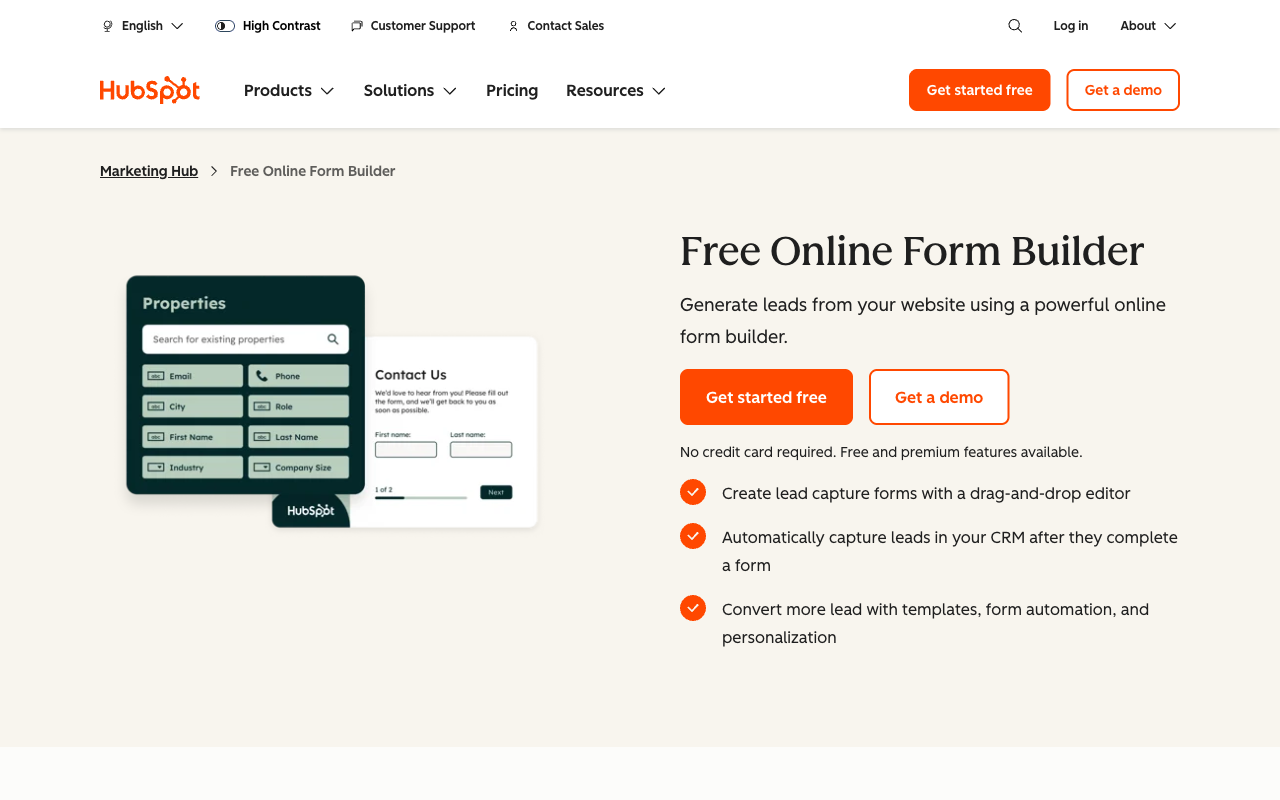
This is HubSpot's defining advantage. Every form submission automatically creates or updates a contact in HubSpot CRM. No Zapier, no middleware, no CSV exports. The data flows directly into contact records, deals, and company profiles. Form responses enrich existing contacts, update lifecycle stages, and trigger automated workflows. Microsoft Forms has no CRM. Data goes into Excel or SharePoint. Connecting Microsoft Forms to a CRM (HubSpot, Salesforce, Dynamics) requires Power Automate or Zapier as middleware. For sales and marketing teams, HubSpot's native CRM connection eliminates an entire category of integration complexity.
Marketing Automation Triggers
HubSpot Forms double as workflow triggers. A form submission can automatically send follow-up emails, assign leads to sales reps, update contact properties, enrol contacts in nurture sequences, create tasks, and notify team members. The entire marketing automation engine sits behind every form. Microsoft Forms can trigger Power Automate flows, but you're building automation from scratch rather than using purpose-built marketing workflows. For lead nurturing and sales pipeline acceleration, HubSpot's automation integration is leagues ahead.
Progressive Profiling
HubSpot Forms can show different questions to returning visitors based on what you already know about them. First visit: ask for name and email. Second visit: ask for company and role. Third visit: ask for budget and timeline. This progressive approach reduces form friction while building richer contact profiles over time. Microsoft Forms shows the same fields to every visitor every time. For B2B lead generation where conversion rates depend on minimising form length, progressive profiling is a meaningful advantage.
Embeddable Anywhere
HubSpot Forms can be embedded on any website via JavaScript snippets, pop-ups, slide-ins, and banners, not just HubSpot-hosted pages. This makes them versatile for businesses using WordPress, Webflow, or custom sites. Microsoft Forms are primarily designed for standalone links or embedding within the Microsoft ecosystem (SharePoint, Teams). Embedding Microsoft Forms on external websites is possible but clunkier, with limited styling control.
Where Microsoft Forms Wins
Microsoft 365 Ecosystem
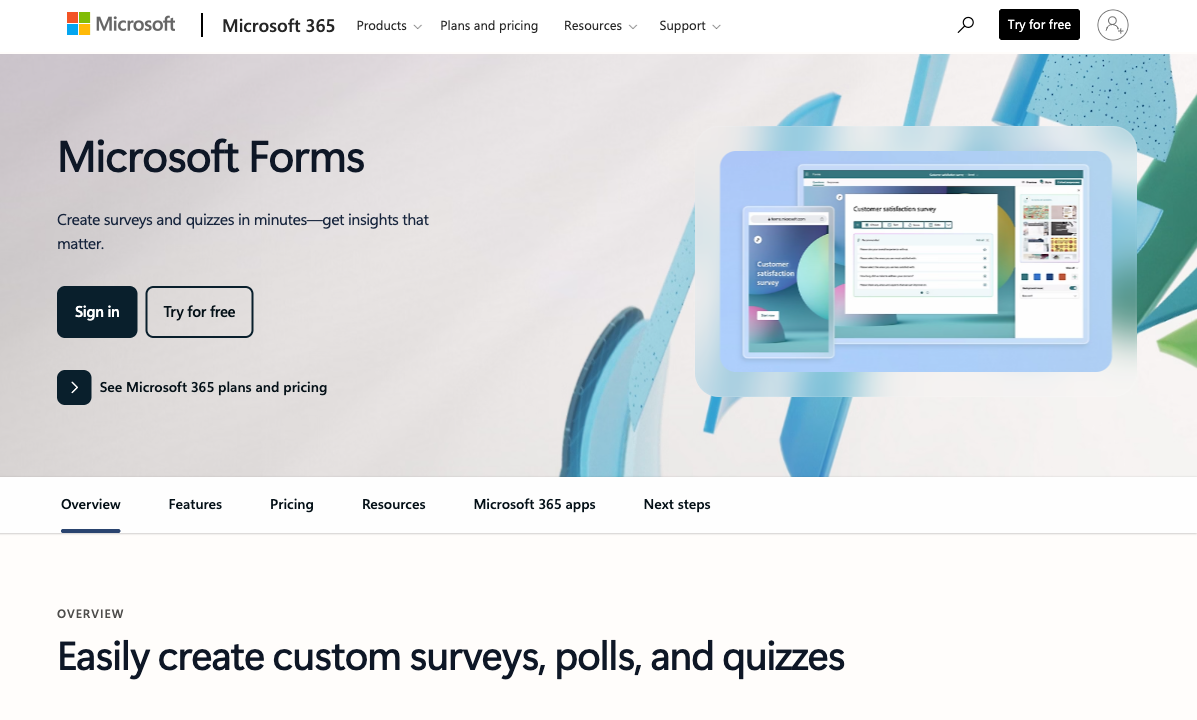
Microsoft Forms connects natively to Teams, SharePoint, Excel, OneDrive, Power Automate, and Power BI. Responses flow into Excel spreadsheets automatically. Forms embed directly in Teams channels and SharePoint pages. Power BI dashboards can visualise form data in real time. For organisations already running on Microsoft 365 (and that's hundreds of millions of users), the integration needs nothing extra: no third-party connectors, no API configuration, no additional costs. HubSpot integrates with Microsoft tools via middleware, but it never runs as smoothly as native 365 integration.
Quiz and Assessment Mode
Microsoft Forms has a dedicated quiz mode with auto-grading, point values, correct answer feedback, time limits, and question shuffling. Teachers and corporate trainers use it extensively for knowledge assessments, certification tests, and training evaluations. The quiz results integrate with Microsoft Teams Assignments for educational environments. HubSpot Forms have no quiz capability. They are lead capture tools. For any educational or training use case, Microsoft Forms is the clear choice.
Simplicity and Speed
Microsoft Forms is deliberately simple. Create a form, add questions, share a link. No marketing jargon, no CRM concepts, no lifecycle stages to configure. Anyone in an organisation can create a form in under five minutes. HubSpot Forms require understanding CRM concepts (contacts, properties, lifecycle stages) even for basic data collection. The learning curve is steeper because the tool assumes a marketing context. For quick internal surveys, event polls, or feedback collection, Microsoft Forms' simplicity is a genuine advantage.
No Branding Constraints on Free Tier
Microsoft Forms doesn't add "Powered by Microsoft" branding to your forms on any tier. HubSpot's free forms display HubSpot branding that you can only remove on paid plans (Marketing Hub Starter at $20/month or above). For organisations that want clean, unbranded forms without paying, Microsoft Forms delivers where HubSpot doesn't.
Where HubSpot Forms Falls Short
- Limited design customisation: Forms inherit basic styling but lack rich design tools. You can't create visually distinctive forms. They look functional but generic compared to dedicated form builders.
- CRM overhead for simple tasks: Even for a quick poll, HubSpot creates CRM contacts, tracks properties, and adds marketing complexity. It's overkill for simple data collection.
- Payments happen after the form: HubSpot payment links (Stripe on every plan) take the money after submission; only the legacy editor embeds a payment field in the form itself.
- Branding on free tier: HubSpot branding appears on all free forms. Removal requires a paid Marketing Hub subscription.
- Ecosystem lock-in: HubSpot Forms deliver maximum value within HubSpot's ecosystem. Using them standalone (without CRM, marketing automation, or sales tools) wastes their primary advantage.
Where Microsoft Forms Falls Short
- No CRM integration: Data goes into Excel/SharePoint. No contact records, no lead scoring, no lifecycle tracking. For sales and marketing, it's a dead end.
- Minimal design options: Choose a theme or background image. That's it. No custom fonts, no layout control, no branded experiences. Every Microsoft Form looks like a Microsoft Form.
- No payment collection: Zero payment processing capability. Not through forms, not through add-ons, not at all.
- No conditional logic depth: Basic branching exists (skip to section), but field-level show/hide, calculations, and complex multi-condition rules are absent.
- Limited external embedding: Embedding on non-Microsoft websites works but styling is constrained. The form always looks like a Microsoft Form in an iframe.
- No third-party integrations: Beyond Power Automate (which requires separate configuration), Microsoft Forms doesn't connect to marketing, sales, or productivity tools natively.
Pricing Comparison
Both platforms are free at their core; the costs come from the ecosystems around them. HubSpot's costs escalate through its Marketing Hub tiers; Microsoft's costs live in 365 subscriptions you may already be paying for.
| Tier | HubSpot Forms | Microsoft Forms | Key Difference |
|---|---|---|---|
| Free | Up to 10,000 forms, unlimited submissions, CRM tracking, HubSpot branding | Up to 400 forms, 200 responses/form, no branding, basic analytics | Both free; HubSpot adds CRM, Microsoft adds simplicity |
| Entry Paid | Marketing Hub Starter: $20/mo -- remove branding, more automation | Microsoft 365 Business Basic: $7/user/mo (annual) -- Teams, SharePoint, advanced features | HubSpot's cost is per-account; Microsoft's is per-user. Different models entirely. |
| Professional | Marketing Hub Professional: $890/mo -- full automation, A/B testing, smart content | Microsoft 365 Business Standard: $14/user/mo (annual) -- desktop apps, webinar hosting | HubSpot's marketing tools get expensive fast; Microsoft's per-user pricing stays predictable |
What will it cost you?
HubSpot Forms plans
- FreeFreeForms 10,000, Submissions Unlimited, Team 2
- Marketing Hub StarterCheck limits$20/moForms 10,000, Submissions Unlimited, Team Per seat
- Marketing Hub Professional$800/moForms 10,000, Submissions Unlimited, Team 3 Core Seats included (additional Core Seats from $45/mo billed annually, $50/mo billed monthly)
- Marketing Hub Enterprise$3,600/moForms 10,000, Submissions Unlimited, Team 5 Core Seats included (additional Core Seats from $75/mo)
| Plan | Price | Forms | Submissions | Team | Storage |
|---|---|---|---|---|---|
| Free | Free | 10,000 | Unlimited | 2 | — |
| Marketing Hub StarterCheck limits | $20/mo | 10,000 | Unlimited | Per seat | — |
| Marketing Hub Professional | $800/mo | 10,000 | Unlimited | 3 Core Seats included (additional Core Seats from $45/mo billed annually, $50/mo billed monthly) | — |
| Marketing Hub Enterprise | $3,600/mo | 10,000 | Unlimited | 5 Core Seats included (additional Core Seats from $75/mo) | — |
Microsoft Forms plans
- Free (Personal Microsoft Account)FreeForms 400, Submissions 200/form, Team 1, Storage N/A
- Microsoft 365 Business Basic$7/moForms 400, Submissions 5,000,000/form, Team Per user (1-300 employees), Storage 1 TB OneDrive per user
- Microsoft 365 Business Standard$14/moForms 400, Submissions 5,000,000/form, Team Per user (1-300 employees), Storage 1 TB OneDrive per user
- Microsoft 365 Business Premium$22/moForms 400, Submissions 5,000,000/form, Team Per user (1-300 employees), Storage 1 TB OneDrive per user
- Microsoft 365 Business Standard with Copilot$23.50/moForms 400, Submissions 5,000,000/form, Team Per user (1-300 employees), Storage 1 TB OneDrive per user
- Microsoft 365 Business Premium with Copilot$32/moForms 400, Submissions 5,000,000/form, Team Per user (1-300 employees), Storage 1 TB OneDrive per user
- Microsoft 365 Apps for business$10/moForms 400, Submissions 5,000,000/form, Team Per user (1-300 employees), Storage 1 TB OneDrive per user
| Plan | Price | Forms | Submissions | Team | Storage |
|---|---|---|---|---|---|
| Free (Personal Microsoft Account) | Free | 400 | 200/form | 1 | N/A |
| Microsoft 365 Business Basic | $7/mo | 400 | 5,000,000/form | Per user (1-300 employees) | 1 TB OneDrive per user |
| Microsoft 365 Business Standard | $14/mo | 400 | 5,000,000/form | Per user (1-300 employees) | 1 TB OneDrive per user |
| Microsoft 365 Business Premium | $22/mo | 400 | 5,000,000/form | Per user (1-300 employees) | 1 TB OneDrive per user |
| Microsoft 365 Business Standard with Copilot | $23.50/mo | 400 | 5,000,000/form | Per user (1-300 employees) | 1 TB OneDrive per user |
| Microsoft 365 Business Premium with Copilot | $32/mo | 400 | 5,000,000/form | Per user (1-300 employees) | 1 TB OneDrive per user |
| Microsoft 365 Apps for business | $10/mo | 400 | 5,000,000/form | Per user (1-300 employees) | 1 TB OneDrive per user |
| Product | Plan | Monthly Price | Annual Price (per month) | Free Plan | Free Trial | Limits |
|---|---|---|---|---|---|---|
| HubSpot Forms | Free | Free | Free | Yes | 14 days | forms: 10000, submissions: Unlimited, users: 2 |
| HubSpot Forms | Marketing Hub Starter | $20/mo | $20/mo billed annually | forms: 10000, submissions: Unlimited, users: Per seat | ||
| HubSpot Forms | Marketing Hub Professional | $890/mo | $800/mo billed annually | forms: 10000, submissions: Unlimited, users: 3 Core Seats included (additional Core Seats from $45/mo billed annually, $50/mo billed monthly) | ||
| HubSpot Forms | Marketing Hub Enterprise | $3600/mo | $3600/mo billed annually | forms: 10000, submissions: Unlimited, users: 5 Core Seats included (additional Core Seats from $75/mo) | ||
| Microsoft Forms | Free (Personal Microsoft Account) | Free | Free | Yes | 1 month | forms: 400, submissions: 200/form, storage: N/A, users: 1 |
| Microsoft Forms | Microsoft 365 Business Basic | $8.4/mo | $7/mo billed annually | forms: 400, submissions: 5,000,000/form, storage: 1 TB OneDrive per user, users: Per user (1-300 employees) | ||
| Microsoft Forms | Microsoft 365 Business Standard | $16.8/mo | $14/mo billed annually | forms: 400, submissions: 5,000,000/form, storage: 1 TB OneDrive per user, users: Per user (1-300 employees) | ||
| Microsoft Forms | Microsoft 365 Business Premium | $26.4/mo | $22/mo billed annually | forms: 400, submissions: 5,000,000/form, storage: 1 TB OneDrive per user, users: Per user (1-300 employees) | ||
| Microsoft Forms | Microsoft 365 Business Standard with Copilot | Not listed | $23.5/mo billed annually | forms: 400, submissions: 5,000,000/form, storage: 1 TB OneDrive per user, users: Per user (1-300 employees) | ||
| Microsoft Forms | Microsoft 365 Business Premium with Copilot | Not listed | $32/mo billed annually | forms: 400, submissions: 5,000,000/form, storage: 1 TB OneDrive per user, users: Per user (1-300 employees) | ||
| Microsoft Forms | Microsoft 365 Apps for business | $12/mo | $10/mo billed annually | forms: 400, submissions: 5,000,000/form, storage: 1 TB OneDrive per user, users: Per user (1-300 employees) |
What Users Say
HubSpot's forms are reviewed as part of HubSpot Marketing Hub, which averages 4.4/5 on G2. Users praise the CRM integration and automation but note the steep learning curve and escalating costs at higher tiers. Microsoft Forms reviews are typically part of broader Microsoft 365 feedback. Users appreciate the simplicity and ecosystem integration but wish for more customisation and advanced features.
The review patterns reflect each tool's identity. HubSpot users are marketers who love the CRM connection but feel locked into an expensive ecosystem. Microsoft Forms users are everyday knowledge workers who love that it "just works" within 365 but hit walls when they need anything beyond basic surveys.
Consider Paperform: Forms That Do Both -- and More
If you need lead capture like HubSpot Forms but also want beautiful, versatile forms that go beyond simple surveys, Paperform bridges the gap. Paperform delivers document-style forms that look like designed landing pages, 5 integrated payment gateways (Stripe, PayPal, Square, Braintree, Google Pay), and an Excel-style calculation engine that neither HubSpot Forms nor Microsoft Forms can match.
The pricing difference is structural rather than a matter of who is cheapest at the door. HubSpot Starter at $20/month and Microsoft 365 Business Basic at $7/user/month both start below Paperform's $49/month (billed annually). What Paperform doesn't do is meter the things that grow when your business grows: submissions, seats and automation runs are unlimited on every paid plan, so a good quarter never turns into an upgrade invoice. Per-user and per-contact pricing does the opposite.
One subscription also covers forms (Paperform), e-signatures (Papersign) and workflow automation (Stepper), instead of stitching a form builder, a signing tool and an automation platform together across three vendors and three bills. Paperform connects natively to HubSpot CRM, so you get the lead tracking benefits without being locked into HubSpot's form builder, and integrates with Microsoft 365 tools via Zapier and Make. See our Paperform vs HubSpot Forms and Paperform vs Microsoft Forms comparisons.
The Verdict
HubSpot Forms is the right choice when lead generation and CRM integration are the primary goals. If your forms exist to capture leads, nurture prospects, and feed sales pipelines, HubSpot's native CRM connection, marketing automation triggers, and progressive profiling are purpose-built for exactly that. The free tier is genuinely capable for small marketing teams getting started.
Microsoft Forms is the right choice for internal data collection within Microsoft 365 environments. Surveys, quizzes, employee feedback, event polls, and training assessments -- anything where simplicity and ecosystem integration matter more than marketing sophistication. If your organisation already pays for Microsoft 365, Forms is included at no extra cost and works directly with Teams, SharePoint, and Excel.
The honest truth is that neither platform is a great standalone form builder. HubSpot Forms are a CRM feature, not a form product. Microsoft Forms are a 365 utility, not a form platform. If you need professional design, payment processing, conditional logic, or advanced form capabilities, you'll outgrow both quickly. For more versatile options, see our HubSpot Forms alternatives or the full best form builders ranking.
Frequently Asked Questions
Are HubSpot Forms and Microsoft Forms both really free?
Yes, but with different strings attached. HubSpot Forms are free forever within the HubSpot CRM Free tier: up to 10,000 forms with unlimited form submissions and full CRM contact tracking. The catch is HubSpot branding on forms and limited customisation until you upgrade to Marketing Hub Starter ($20/month). Microsoft Forms is free with any Microsoft account (personal or Microsoft 365): up to 400 forms with 200 responses each on a personal account (5 million responses per form on Microsoft 365) and no branding restrictions beyond Microsoft's URL. HubSpot's free is designed to pull you into the CRM ecosystem; Microsoft's free is simply part of the 365 suite. Both are genuinely usable at zero cost for different purposes.
Which is better for lead generation: HubSpot Forms or Microsoft Forms?
HubSpot Forms wins decisively for lead generation. Every form submission automatically creates or updates a CRM contact record, triggers marketing automation workflows, assigns lead scores, and feeds into deal pipelines. You get progressive profiling (asking different questions on repeat visits), smart fields, and lifecycle stage tracking, all purpose-built for converting anonymous visitors into qualified leads. Microsoft Forms has no CRM, no lead scoring, no marketing automation, and no progressive profiling. It collects data into Excel/SharePoint. For lead gen, HubSpot was built for exactly this purpose; Microsoft Forms was not.
Can Microsoft Forms replace HubSpot Forms for internal surveys?
Absolutely -- and it's often the better choice for internal use. Microsoft Forms integrates natively with Teams, SharePoint, and Outlook, making it trivial to distribute surveys within an organisation. Built-in quiz/assessment mode, branching logic, and automatic response analysis in Excel make it ideal for employee feedback, training assessments, and team polls. HubSpot Forms are designed for external lead capture, not internal data collection. They lack quiz features, don't integrate with Microsoft 365, and add unnecessary CRM overhead for simple internal surveys. For anything internal, Microsoft Forms is the smarter pick.
Do either HubSpot Forms or Microsoft Forms support payment collection?
Only HubSpot can take payments, and not inside the form itself. HubSpot attaches a payment link to a form, processed by Stripe on every plan (HubSpot's own processor needs Starter), but checkout happens on that link after the form is submitted; only the legacy editor puts a payment field in the form. Microsoft Forms has zero payment capability. If collecting payments through forms is a requirement, you'll need a dedicated form builder like Paperform (5 integrated gateways including Stripe, PayPal, Square) or Jotform (30+ gateways). Neither HubSpot Forms nor Microsoft Forms is designed for transactional use cases.
Sources & References
- HubSpot Forms Review: Features, Pricing & Alternatives — G2, 2026
- Microsoft Forms vs Google Forms: Which Is Better? — Zapier, 2025
Updates
We re-audit the form builders we compare on a regular cadence and log every change here — a public record of what changed and when.
- Updated June 4, 2026 — Corrected free-tier limits: HubSpot Forms now lists unlimited submissions (previously capped at 1,000/month), and Microsoft Forms free tier is now shown as up to 400 forms with 200 responses each on personal accounts (5 million per form on Microsoft 365), replacing the prior unlimited responses claim.
Unlimited plans are subject to each vendor's fair use policy.
Ready to try Paperform?
Create beautiful forms, payment pages, and workflows — no code required.