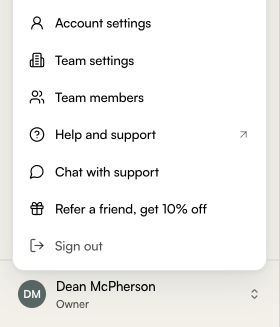
Your settings are split into two pages, both in the account menu. Click your name at the bottom of the sidebar, then choose Account settings or Team settings.
- Account settings are just for you.
- Team settings apply to everyone on your team. Only owners and admins can change them.
Account settings
- Profile: your name, your sign-in email, and whether you get Paperform news by email.
- Sign-in and security: your password, two-step sign-in, recovery codes, and signing in with Google. This is also where you'll find Access tokens: tokens that let other apps use your account. They replace the old Developer page, where you used to find your API key.
- Connected AI apps: assistants like Claude or ChatGPT that you've connected to your account.
- Leaving: Your data, to ask for a copy of your data or for it to be deleted, and Leave team.
Team settings
- Details: your team name, business name (shown on invoices) and website.
- Time and date: the time zone and date format used by your forms, documents and workflows.
- Sign-in rules: require two-step sign-in for everyone, or require single sign-on. Set up Single sign-on here too.
- AI access: the most that connected AI apps can do for anyone on your team.
- Members: invite people, see seats for each product, and set each member's access.
- Plan and billing: your billing email, your plan and payment details, your receipts, and your Paperform usage.
- Workspaces: Combine workspaces.
- Product settings: Form settings.
Where did it go?
| Looking for | Now in |
|---|---|
| Developer settings or API key | Account settings > Sign-in and security > Access tokens |
| Time zone or date order | Team settings > Time and date |
| Manage team members | Team settings > Members (or Team members in the account menu) |
| Single sign-on | Team settings > Sign-in rules |
| Billing and receipts | Team settings > Plan and billing |
To learn more about the dashboard, see How do I find my way around the new dashboard?