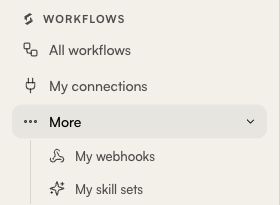
Stepper's pages are now part of the dashboard you share with Paperform and Papersign. You'll find them under Workflows in the sidebar.
- All workflows lists the workflows in the workspace and folder you're in.
- My connections lists your connected apps.
- More > My webhooks and More > My skill sets hold your webhooks and skill sets.
My connections
Workflows > My connections shows every app you've connected to use in your workflows. From here you can:
- Check a connection's status, or reconnect it if it's having problems.
- See which workflows and components use each connection.
- Set up a new connection, so it's ready for future workflows.
My webhooks
Workflows > More > My webhooks lets you create a webhook URL that receives a payload as the first step of a workflow. It's a more technical alternative to connecting an app directly.
My skill sets
Workflows > More > My skill sets is where you create and manage skill sets. Learn more in the Stepper Skill Sets guide.
A workflow's page
Click a live or paused workflow to open its page. (A draft opens in the editor instead.) The page lists the workflow's recent runs, and has these options at the top:
- Manual Run: run the workflow on purpose. If it has two or more triggers, pick one from the menu.
- Issues: any problems the workflow has found. This button only shows when there are some. Click Fix issues to open the editor at them.
- Version History: every version of the workflow, newest first. Click View to look at an old version, or Copy over draft to make it your draft. Click Edit on the draft to open it.
- Edit Workflow: open the editor. If you can't edit the workflow, this says View Workflow.
- Delete: delete the workflow and its run history. This can't be undone.
- The live/paused switch: turn the workflow on or off.
A red badge on a workflow in your list means it has issues. Click the badge, or click Problems in the workflow's ⋯ menu, to see them.
Run details
Click a run to see a breakdown of each step. While a run is still going, you can Pause or Cancel it from the buttons at the top of this page. A paused run has Resume instead. Cancelling ends the run for good.
You can also reach these pages from a workflow's ⋯ menu in your list. It has Open the editor, View runs, Version history, Problems, Go live or Pause, Run it now, Rename, Duplicate, Move to… and Delete. Learn more about pausing workflows and runs.
Gotchas
- Old app.stepper.io links to these pages take you to the matching page in the dashboard.
- To learn more about workspaces, folders and search, see How do I find my way around the new dashboard?