What are Stepper Teams?
Stepper Teams, available on New Paperform plans, lets several people build and manage workflows, and keeps them organised and available to the right people.
How do I add Stepper team members?
Once you're on a New Paperform plan, you manage your team in Team settings > Members.
- Click your name at the bottom of the dashboard sidebar, then click Team members.
- Under Invite people, enter your teammate's email address.
- Choose their role from the dropdown. Learn what each role means in our Managing Users and Teams guide. To choose their workspaces and products too, click Set detailed access.
- Click Send invite.
Your teammate gets an email with a link to join your team. Paperform, Papersign and Stepper share one sign-in, so they use the same account for all three.
Working together
For the best results, work on a workflow one person at a time. If you and a teammate edit the same workflow at once, your changes won't merge; the most recent save replaces what was there before. Refresh the workflow before editing it to make sure you're working from the latest version.
Workflows, forms and documents sit together in workspaces (formerly spaces). By default, a workflow can only see and automate the forms and documents in its own workspace. To automate a form or document from another workspace, a team admin needs to move it into the same workspace.
Connections and webhooks
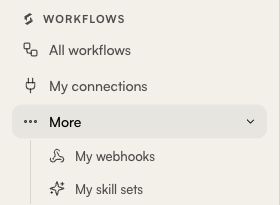
Your connections are under Workflows > My connections in the sidebar, and your webhooks are under Workflows > More > My webhooks.
Each connection and webhook shows who can use it under its name:
- Shared with the whole team: usable in every workspace, including ones made later.
- Shared with one or more workspaces: usable by workflows in those workspaces, and by team members who have access to them.
- Not shared · only your workflows can use it: only usable by you.
Connections and webhooks you add start as not shared. Ones you add while building a workflow are shared with that workflow's workspace. To change who can use a connection or webhook:
- Click the three-dot menu next to it.
- Select Sharing.
- To share with specific workspaces, tick each workspace you'd like to include. To share with everyone, tick Whole team.
- Click Save sharing.
If you stop sharing with a workspace that has live workflows using it, Paperform warns you first. Those workflows stop running and go back to draft. Click Stop sharing anyway to go ahead.
AI Assistant chat
Your AI Assistant chats are private. Teammates working on the same workflow won't see them.
Skill Sets
Stepper Skill Sets are also separate for each person. Find yours under Workflows > More > My skill sets.
Leaving the team
If someone is removed from your team (or leaves it), their workflows stay put, but their Stepper credentials are revoked along with their account. No one inherits what they had connected, so any connections, webhook triggers or skill sets tied to their account stop working straight away.
The account owner gets an email listing exactly which connections, webhooks and skill sets were affected. To get these workflows running again, set up the same connections, webhook triggers or skill sets under your own account, then map the affected steps to them.
If you need any help while working with your team, our support team is happy to help.