Yes! You can log in to Paperform using your Google Account instead of a traditional email & password combination. This article will guide you on how to link (and unlink) your Google account.
Using your Google account to log in for the first time
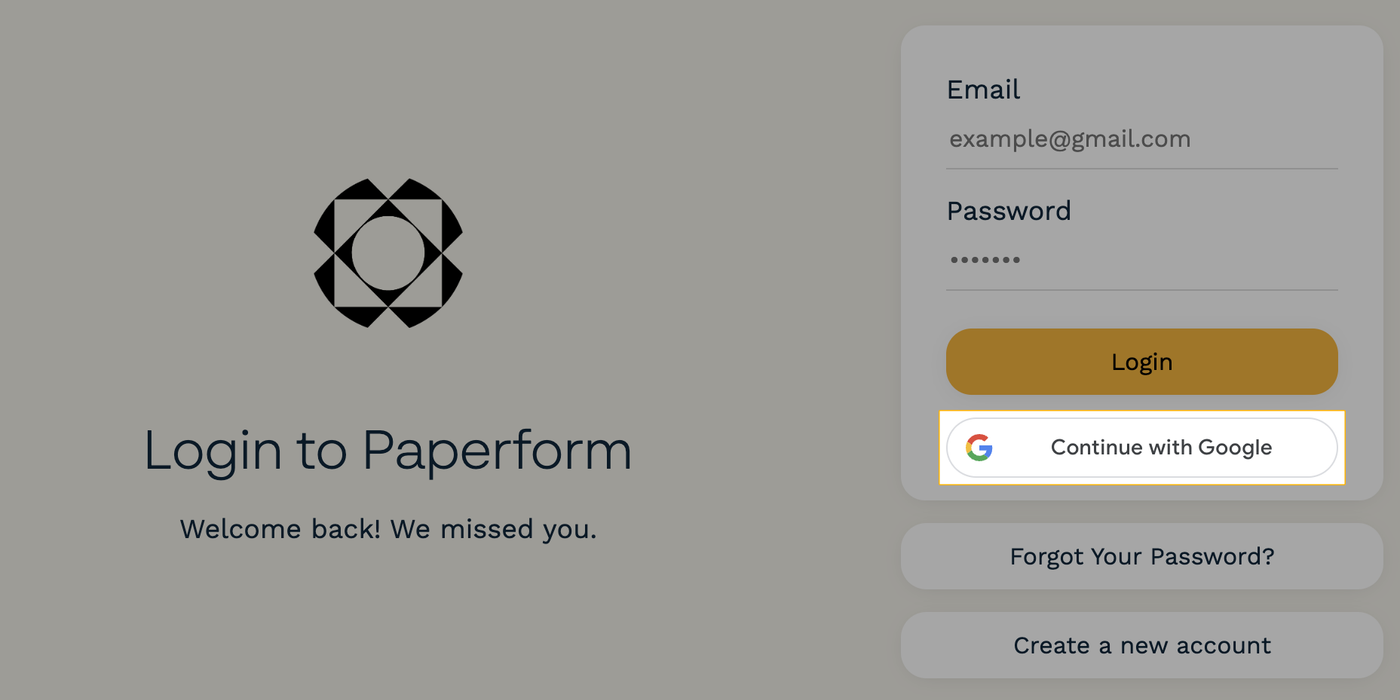
To do this, navigate to the Login page and click "Continue with Google." You'll be prompted via pop-up to authorize and connect Paperform to your Google account, after which your account will be ready to use!
I already have a Paperform account. Can I use this feature?
Absolutely! To link an existing Paperform account with Google, you can use one of two available methods listed below:
Method 1: From your account settings
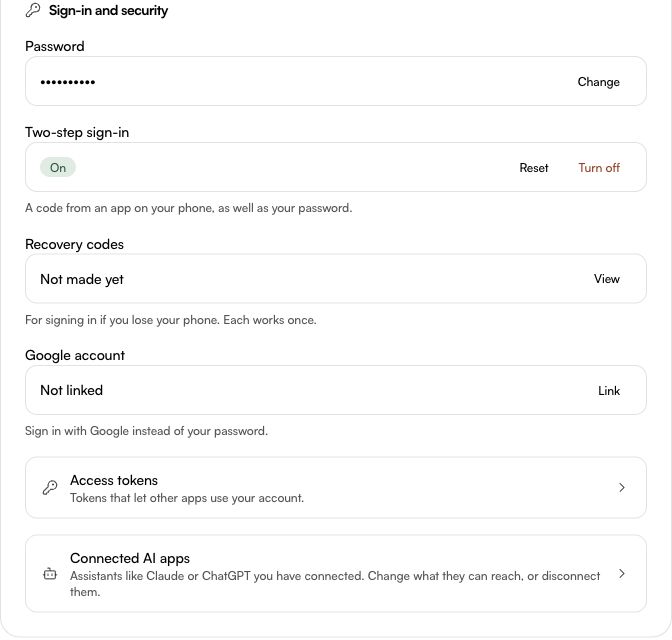
- Click your name at the bottom of the sidebar to open the account menu, then choose Account settings. You can also go straight to Account settings.
- Under Sign-in and security, find Google account and click Link.
- You'll be prompted via a pop-up to select and authorize your Google account for use with Paperform. Once this is complete, your account will be linked.
Method 2: From the Login Page
Tip: Ensure the email address of your Google account matches the email of your existing Paperform account.
-
If you're already logged in, sign out of Paperform. Click your name at the bottom of the sidebar, then choose Sign out.
-
Navigate to the Login page and click "Continue with Google."
-
You'll be prompted via a pop-up to select and authorize your Google account for use with Paperform.
-
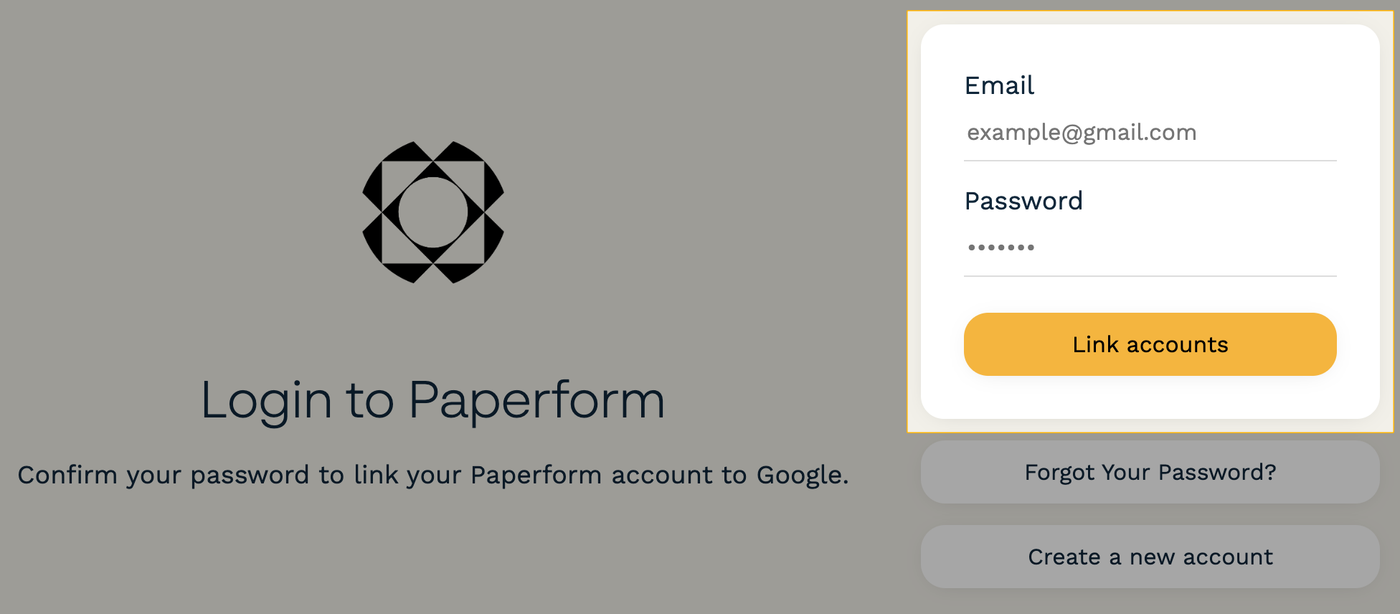
Once the pop-up closes, you'll be redirected to a page similar to the Login page to link your account. Enter your Paperform account password on this page, and click "Link accounts."
I want to unlink my Google account from Paperform.
No problem! Follow the steps below to unlink your Google account from Paperform:
- Click your name at the bottom of the sidebar, then choose Account settings.
- Under Sign-in and security, find Google account and click Unlink.
- In Unlink your Google account?, click Unlink. You'll then sign in with your email address and password.
If you originally signed up with your Google account, Unlink is greyed out until you set a password. Under Sign-in and security, click Set password next to Password first.
Gotchas
- If you have Two-Factor Authentication (2FA) enabled on your Paperform account, you'll still need to enter a one-time password when logging in with Google.
- If you unlinked your Google account and logged out of Paperform without entering a new password, you can update your password by following these instructions.