See your usage
Your usage shows at the bottom of the sidebar in your dashboard, just above your account menu. There can be up to two readouts:
- Paperform: the Paperform limit that's closest to full. This is one of Submissions, Payment submissions, Appointment bookings or File storage. For example, "Submissions: 820 / 1,000 this month".
- Workflow credits: for example, "26,891 of 50,000 left this month".
Each readout only shows if you have a role in that product.
Click a readout to raise the limit. If you manage billing, click Raise the limit (or Buy more credits). If you don't, click Ask the owner to raise it (or Ask the owner for more credits). We email the team owner your request, and the button then reads Asked the owner.
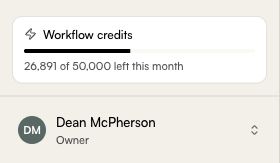
For everything else, open your account menu (click your name at the bottom of the sidebar), then go to Team settings > Plan and billing. The billing page shows your plan, payment details and invoices:
- Paperform Usage lists your monthly submissions, monthly appointment submissions, monthly payment submissions, and total submissions and file storage. Click View details → for a breakdown by form.
- Paperform // Forms Billing, Papersign // eSignature Billing and Stepper Billing at the top of the page show each product's plan, with Change Plan and Cancel Subscription.
- Billing Portal holds your payment details.
Usage is recalculated regularly, but at times may be delayed by up to 15 minutes.
Learn more about submission and file storage limits and automation credits.
Usage warnings
When you've used half or more of a limit, a warning shows in the sidebar, above the readouts. It names the product and the limit, how much is used, and what happens at the limit. For example, "Paperform submissions at 80%" or "You've used all your Paperform submissions".
The warning has Raise the limit if you manage billing, or Ask the owner to raise it if you don't. You can dismiss it for the rest of your sign-in. A new warning for the same limit shows again.
When a feature isn't on your plan
If a product or feature isn't included in your plan, you can still find it in the dashboard. Its page or button explains why it isn't available, and offers a trial or an upgrade where one is possible.
For example:
- Send documents (bulk sending) shows the plan it needs if your plan doesn't include it.
- Create workspace in the workspace switcher is greyed out when you've reached your plan's workspace limit.
If you can't change the plan yourself
Only team owners and admins can change your team's plan. If you're not one of them, you'll see Ask the owner (or Ask the owner to raise it for a limit) instead of an upgrade button. Click it and we'll email the team owner your request. You can ask once a week for each thing.
If a partner manages your plan, the dashboard says so, for example "Your partner manages your plan. Ask them for a higher limit."
To check who the owner is, open your account menu and click Team members.
Gotchas
- Usage is per team, not per person. Everyone on your team shares the same limits.
To learn more about the dashboard, see How do I find my way around the new dashboard?