To duplicate a form:
- Go to All forms under Forms in the sidebar.
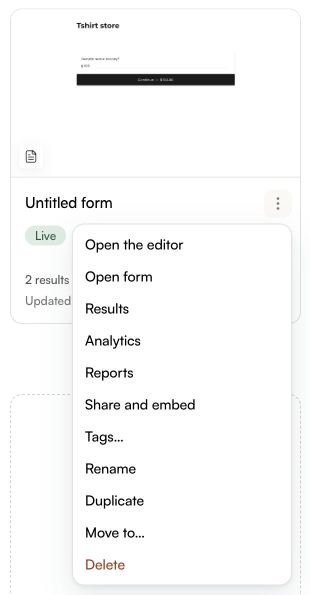
- Click the ⋯ menu on the form (or right-click it).
- Click Duplicate.
The copy appears in the same workspace and folder as the original. The editor doesn't open, so open the copy from the list when you're ready. You can click Undo in the message that shows when it's done.
Duplicate several forms at once
- Tick the checkbox on each form you want to copy.
- Click Duplicate in the selection bar.
Only forms can be duplicated in bulk. If you've ticked a folder, untick it first.
You can Undo a bulk duplicate when it finishes.
Gotchas
- Duplicating copies the form within your team. To copy a form to another team you belong to, see How do I copy forms across my teams? (not available during the free trial).
- A copy of a form is the last published version of the original form. If you haven't published the original form yet, the copy will be blank.
To learn more about the dashboard, see How do I find my way around the new dashboard?