This feature is only available on specific pricing plans.
You can transfer ownership of a form on your account to a different Paperform user. This is not the same as copying a form to another team. When a form is transferred, past submission data is deleted, and the original owner will lose the ability to edit the form.
Outgoing transfers are not available during the free trial. Transfers can only be initiated by the owner or an admin of a paid account. The recipient can be any Paperform account owner (paid or trial, all plans).
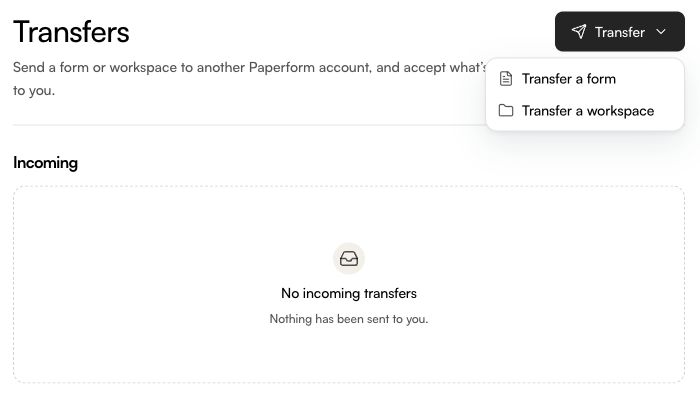
To transfer a form or workspace, go to Forms > More > Transfers in the dashboard sidebar. The page lists your Incoming and Outgoing transfers. Transfers completed more than 14 days ago aren't listed.
Transfer one form
- On the Transfers page, click Transfer in the top-right corner.
- Click Transfer a form.
- Fill in the details:
- Recipient's email: the email address of the owner of the account receiving the form. This must be the account owner, not an admin or other team member.
- Form: choose the form you want to send.
- Also transfer: tick any of Payment source, Translation, Integrations, Webhooks and Calendars to send them with the form. Keep in mind that anything you tick is removed from your account completely when it's transferred, which can cause problems if you use it for other forms.
- Click Continue.
- Check the warnings. The form's submissions are deleted when it's transferred, and this can't be undone.
- Type TRANSFER in the box, then click Transfer.
The form then shows in your Outgoing transfers. The page updates to let you know when the recipient has accepted the transfer, and when it's complete. You can click Cancel on a transfer until it's finished, then Cancel transfer to confirm.
Transfer a workspace
To send all the forms in one workspace (formerly a space) at once, click Transfer > Transfer a workspace on the Transfers page, then choose it under Workspace. Only workspaces with forms are listed. Every form in it is transferred, and their submissions are deleted.
Receiving forms
The recipient gets an email when the transfer request is sent. The email links to their own Transfers page (Forms > More > Transfers), where they can click Confirm or Cancel on the request under Incoming. Only the team owner can confirm a transfer.
The sender gets an email when the recipient confirms or cancels. Once the recipient confirms, the Paperform team moves the form or workspace to their team within seven days.
Gotchas
- If you are using full custom domains, these will not be transferred along with your form. Custom domains are tied to Paperform accounts, not to individual forms. However, a transferred form will retain its Paperform URL (
________.paperform.co), including any custom subdomain that you set under Configure → Details.