Your Papersign documents live in the same dashboard as your forms and workflows. Click All documents under Signing in the sidebar to see the documents in the workspace and folder you're in.
Documents sit in workspaces and folders alongside forms and workflows. Learn how workspaces and folders work in How do I find my way around the new dashboard?
Search and filter documents
- Search: type in the box above your documents to find documents in the folder you're in and every folder below it. Each result shows which folder it's in.
- Filter: narrow the list by status (Draft, In progress, Completed, Canceled, Expired or Rejected), or show Templates only. When two or more people own documents in the workspace, you can also filter by owner.
- Sort: use the sort button (for example, Recently updated).
- Grid or List: grid view shows a picture of each document's first page.
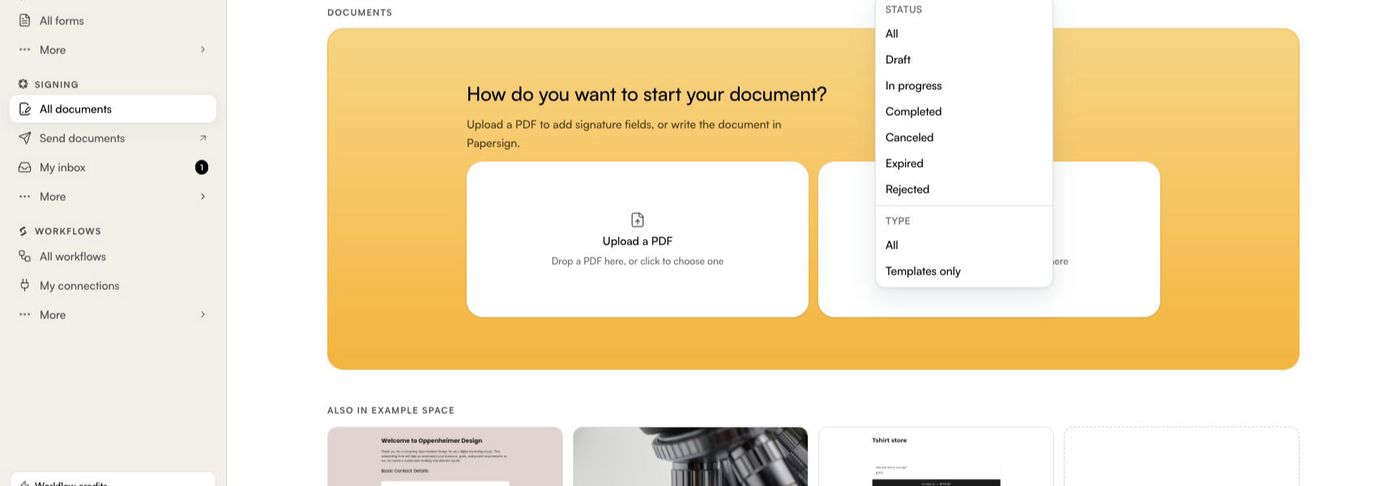
Learn more about what each document status means.
To search all your documents at once, press ⌘K (Ctrl+K on Windows) or click Search at the top of the sidebar, then choose Everywhere and Documents.
Document actions
Click the ⋯ menu on a document (or right-click it). What you can do depends on the document's status:
- Every document: Send a copy, Duplicate, Move to…, and Save a copy as a template (except on templates).
- Drafts: Rename and Make template. A document can only be renamed before it's sent.
- Templates: Stop being a template.
- In progress: Cancel signing and Edit and resend.
- Completed: Archive and Download.
- Delete is there for every document except completed ones.
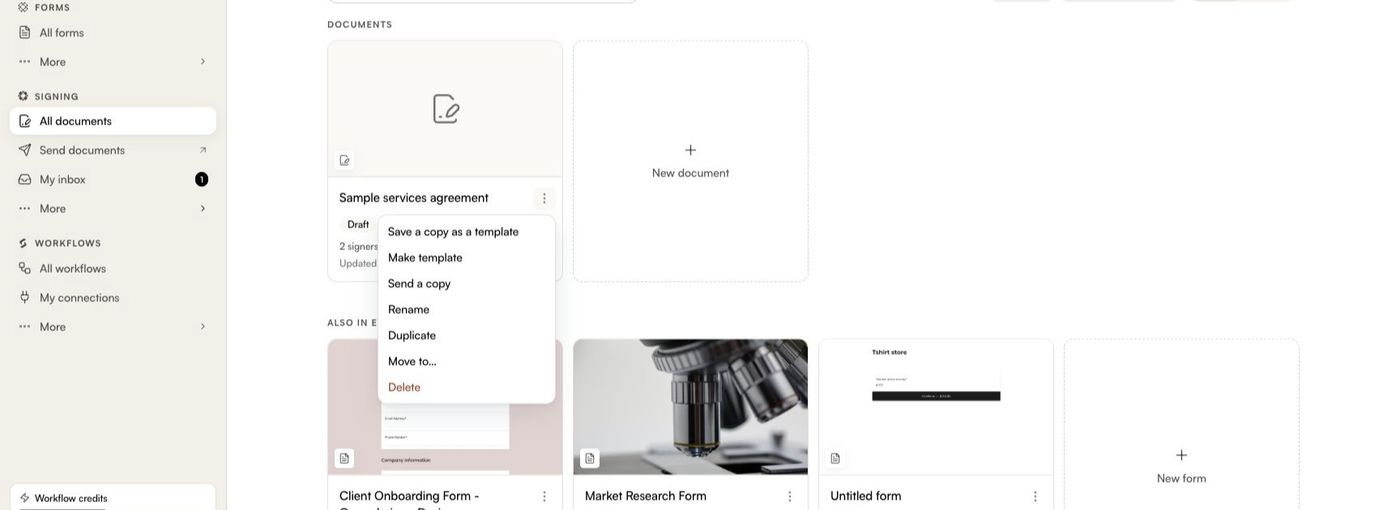
A few things to know:
- Cancel signing asks you first. Everyone on the document gets an email to say it was cancelled, and nobody can sign it after that.
- Edit and resend opens the document and asks you to confirm. It cancels the current signing and makes a new draft, which you'll need to send to everyone again, including anyone who already signed.
- Send a copy opens Send documents in a new tab, ready for you to add signers.
- Completed documents can't be deleted. Archive them instead. Learn more about archiving completed documents.
- Most actions show an Undo button in the message that appears afterwards.
To act on several documents at once, tick them and use Move, Duplicate or Delete in the selection bar.
Checking a sent document
Click a sent document to open it. The page has three tabs:
- Details: each participant's progress, the document's settings and reminders.
- Actions: a time-stamped record of everything that's happened to the document.
- Preview: the latest version of the document. It updates each time a signer finishes their turn.
Activity, archived documents and webhooks
Under Signing > More in the sidebar:
- Archived documents lists archived documents, with the folder each one was in. Click Restore to put a document back in its folder.
- Activity shows recent events on your documents, such as status changes and signer actions.
- Document webhooks lets you send document events to another app. Learn more about webhooks in Papersign.
Where are the documents I've received?
Signature requests sent to you are in My inbox, under Signing in the sidebar. The number next to it shows how many are waiting for you.
- In progress documents are waiting for your signature.
- Completed documents have been signed by everyone, and you can download them.
Learn more in the signers' guide.