This article is for the eSignature product, Papersign. For Paperform, see deleting forms or deleting submissions.
You can delete any document that isn't completed. This includes drafts, templates, and sent documents that haven't been signed by everyone yet.
Delete a document
- Go to All documents under Signing in the sidebar.
- Click the ⋯ menu on the document (or right-click it).
- Click Delete.
Paperform asks you to confirm first. A deleted document can't be restored, so check you've picked the right one.
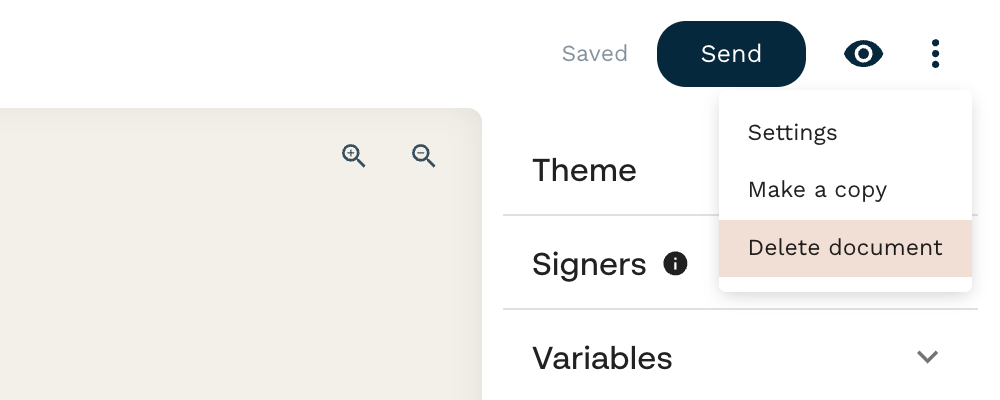
While editing a draft document, you can also click Delete document in the menu in the top-right corner of the editor.
You can also open a sent document that hasn't been signed by everyone, click the ⋮ menu at the top of its page and choose Delete.
Delete several documents at once
- Tick the checkbox on each document you want to delete.
- Click Delete in the selection bar, then confirm.
A bulk delete can't be undone either.
Gotchas
- Completed documents can't be deleted. Archive them instead. This removes them from your documents list while still letting everyone on the document view and download it. Archived documents can be restored at any time.
- Deleting a document that's In progress cancels the signature request.
Learn more about managing documents in the Papersign dashboard.