This article is for the eSignature product, Papersign. For Paperform, see deleting forms or deleting submissions.
After everyone has signed a document, its status changes to Completed. Completed documents can't be deleted, but you can archive them to clear them out of your documents list.
Archive a completed document
- Go to All documents under Signing in the sidebar.
- Click the ⋯ menu on the completed document (or right-click it).
- Click Archive.
You can also open the completed document, click the ⋮ menu at the top of its page and choose Archive.
Only completed documents can be archived.
Find and restore archived documents
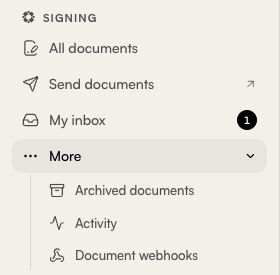
Archived documents aren't shown in your documents list, but they haven't been deleted. To see them, go to Signing > More > Archived documents in the sidebar. The list shows the folder each document was in.
To restore a document, click Restore. It goes back to its folder.
Gotchas
- Archiving a document only changes your own dashboard. Other signers can still view and download the completed document as usual.
- Drafts and sent documents that haven't been signed by everyone can't be archived, but they can be deleted.
Learn more about managing documents in the Papersign dashboard.